

Understanding your internet speed test results is the first step to fixing a slow connection.
Key Takeaways
- Speed tests measure your download speed, upload speed, ping, and jitter, giving you a quick snapshot of your internet performance and helping you identify any underlying network issues.
- For most average households, download speeds of 100-250 Mbps and upload speeds of 20+ Mbps are ideal for streaming, video calls, and general browsing, while low ping ensures smooth gaming and conferencing.
- If your speeds are slower than expected, try testing with an Ethernet cable, optimizing your router placement, or evaluating whether your internet provider is throttling your network.
If you are tired of dealing with endless buffering, dropped video calls, or frustrating lag, you are not alone. Dealing with sluggish Wi-Fi is incredibly annoying, but understanding your internet speed test results is the first step to fixing a slow connection and regaining control over your home network. By learning exactly what your download speed, upload speed, and ping actually mean, you can pinpoint the real cause of your connectivity issues instead of just guessing. Running a simple diagnostic check provides concrete data, letting you know if your provider is falling short on their promises or if your equipment simply needs a quick fix. To help you eliminate Wi-Fi dead zones once and for all, we have put together a comprehensive guide on how to read your metrics and take immediate action.
What Is an Internet Speed Test?
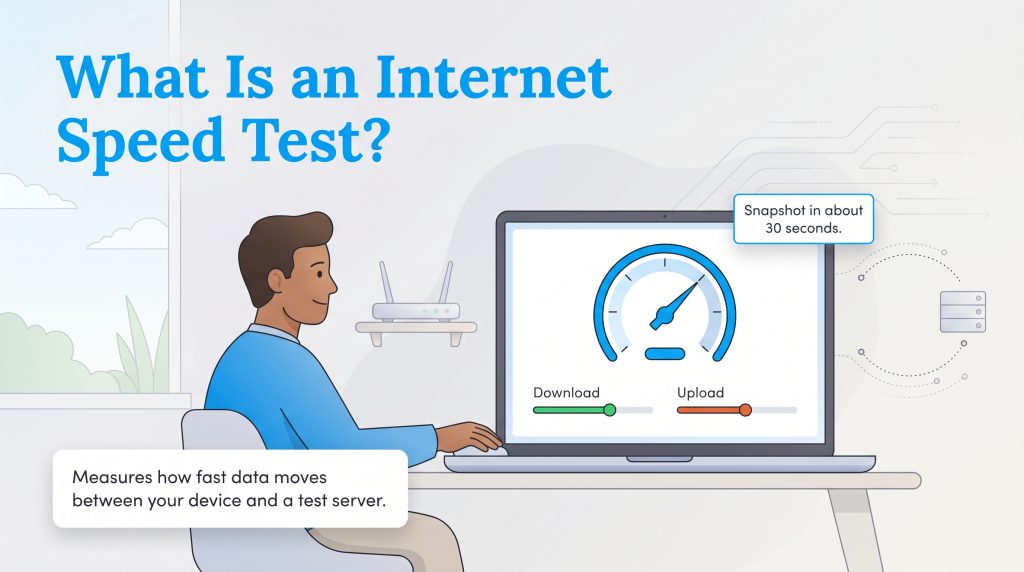
An internet speed test measures how fast your home network connection can send and receive data between your personal device and a remote test server. It essentially checks how quickly your local internet “talks” to the broader web. To accurately test internet connection speed, the algorithm automatically locates and connects to the nearest, least congested server to minimize geographical interference, ensuring a highly accurate reading of your network’s baseline capabilities.
When you initiate a speed test, the tool sends packets of dummy data back and forth for several seconds. It then calculates your final speeds based on exactly how much data transferred and how long the entire process took. To get started, you can visit popular tools like Speedtest.net or use one of these other highly reliable testing tools:
- Ookla Speedtest: The industry standard, offering detailed diagnostics and a massive global network of test servers.
- Fast.com: Powered by Netflix, this streamlined tool is excellent for verifying if your connection can handle heavy video streaming.
- Google Speed Test: Built directly into Google search results, providing a quick, no-frills reading of your basic metrics.
Compare Internet Providers In Your Area
How to Prepare for an Accurate Speed Test
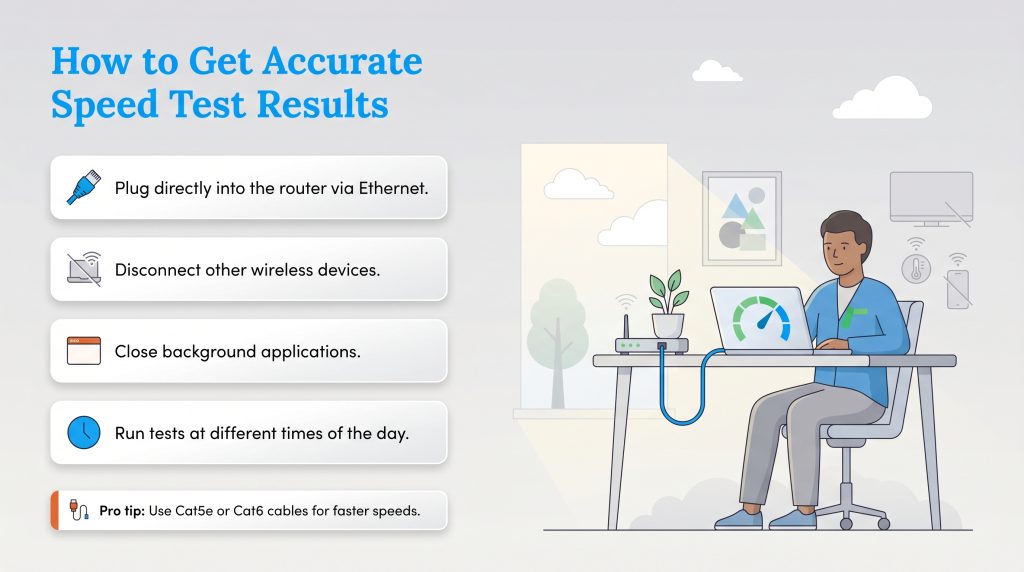
Before we dive into deciphering your numbers, you need to ensure the testing environment itself is set up for success. Figuring out how to get the most accurate results possible involves actively minimizing outside variables that artificially drag down your network performance. Follow this five-step checklist before hitting that “Go” button.
- Plug directly into the router via Ethernet: Wireless connections naturally lose speed over distance due to wall interference. Use a hardwired Ethernet cable connected directly to your modem or primary router to test the pure bandwidth entering your home.
- Disconnect other wireless devices: Your smart TVs, smart thermostats, and smartphones all quietly sip bandwidth in the background. Temporarily disconnect them or turn on airplane mode so your test device gets the full pipeline.
- Close background applications: Pause active game updates, close out of heavy video applications, and stop cloud backups before starting the test.
- Run tests at different times of the day: Neighborhood network traffic fluctuates based on human behavior. Run a test in the morning, afternoon, and evening to get a true average of your network’s capability.
- Reboot your modem and router: Hardware needs a breather, too. Unplug both your modem and router from the wall for 60 seconds to clear the cache and establish a fresh connection with your provider before running your baseline test.
Core Metrics of a Speed Test
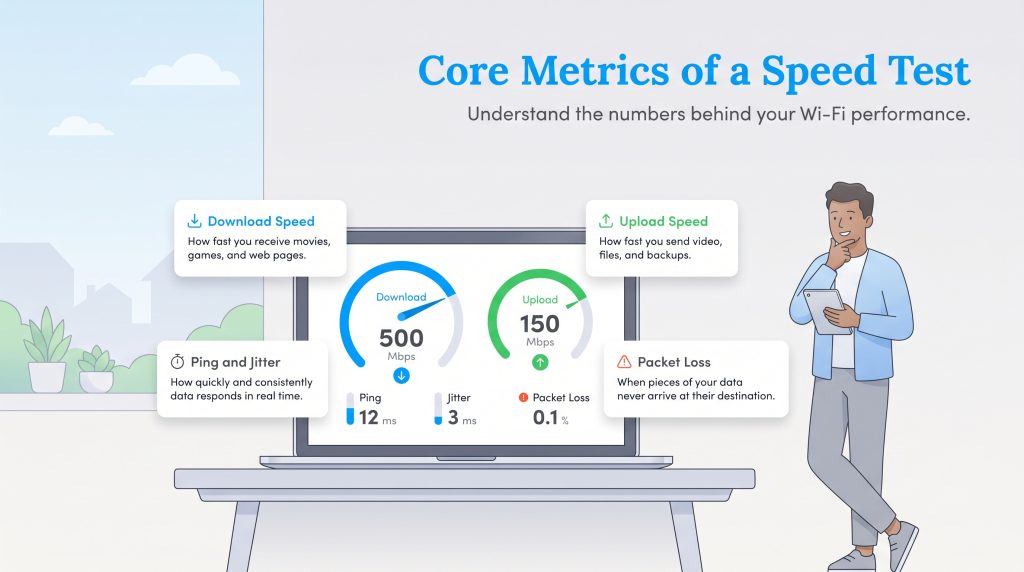
Learning how to interpret internet speed test data means understanding the core pillars of modern connectivity. Once you know what each individual metric handles under the hood, troubleshooting your daily Wi-Fi frustrations becomes significantly easier.
Download Speed Explained
If you have ever wondered what does mbps mean in speed test readouts, it stands for megabits per second (Mbps) — the standard technical unit used to measure bandwidth. Your download speed dictates how quickly you can pull data from the internet directly to your local device. This is the heavy lifter for the majority of household internet use. You rely heavily on robust download bandwidth for 4K streaming, smoothly loading web pages, and quickly downloading files to your computer or gaming console.
Upload Speed Explained
While download speed focuses on pulling data in, the primary difference between download and upload speed is that upload measures how fast you can send data out to the wider web. This metric is absolutely essential if you want to support video conferencing, execute smooth cloud backups, and maintain a competitive edge in online gaming. If your upload speed is lagging, coworkers may see a blurry, pixelated version of you on a Zoom call, or your email attachments will take ages to finally send.
Ping and Latency Explained
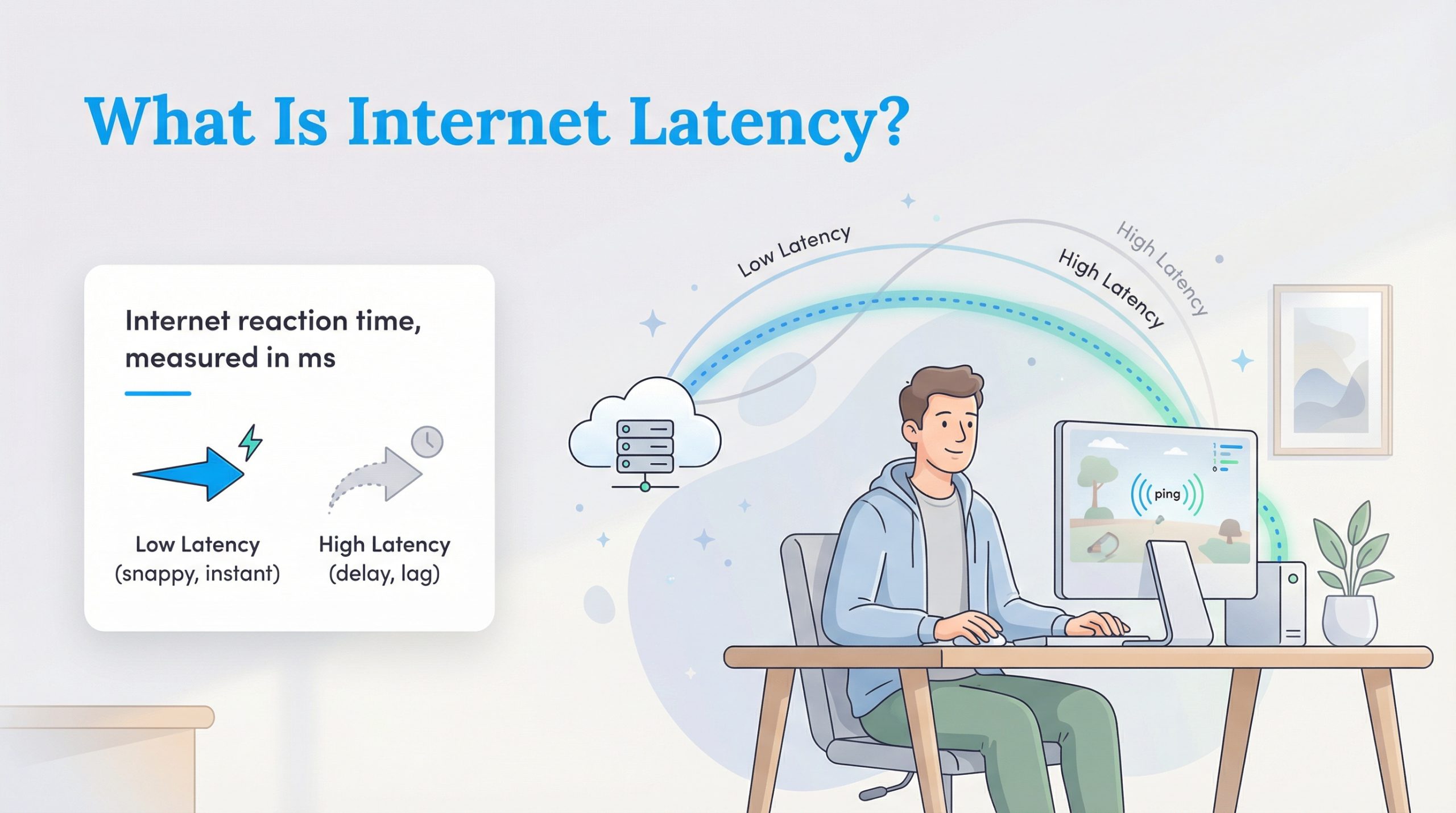
Often referred to as internet speed test latency, ping measures the exact time — displayed in milliseconds (ms) — it takes for a tiny packet of data to travel from your device to a remote server and bounce back. A lower ping always means a faster, much more responsive connection. For real-time applications and competitive gaming, the optimal threshold is strictly under 50 ms. High ping results in noticeable lag, causing your voice to overlap awkwardly on a conference call or your character to react sluggishly during a fast-paced match.
What Does Jitter Mean in a Speed Test?
You might notice a lesser-known number on your screen, leaving you wondering what does jitter mean in a speed test? While ping measures the length of the delay, jitter measures the variation in that delay over a set period. If your ping constantly jumps erratically between 20 ms and 90 ms, you have high jitter.
Packet Loss in Internet Speed
Packet loss in internet speed is one of the most destructive metrics for real-time applications. When data travels across the web, it is broken down into tiny units called packets. Packet loss occurs when one or more of these units fail to reach their intended destination. The ideal packet loss rate is strictly 0%.
What Is a Good Internet Speed Test Result?
Achieving good internet speed test results ultimately depends on your household size and how intensely you use the web. If you want to know what is a good download and upload speed for a typical multi-device home, check your numbers against these ideal baseline metrics:
- Download Speed: 100+ Mbps ensures multiple people can stream movies, browse the web, and work simultaneously without interruption.
- Upload Speed: 10+ Mbps provides enough stability for clear video calls, remote work, and rapid cloud syncing.
- Ping (Latency): Under 50 ms guarantees that real-time inputs register smoothly, entirely eliminating frustrating lag.
Recommended Internet Speeds by Activity
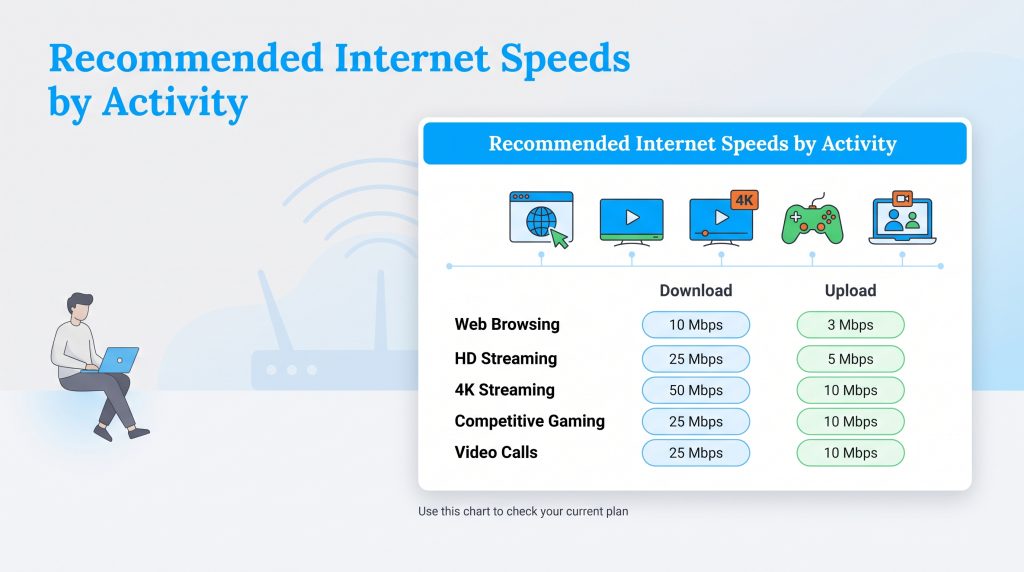
To help you accurately benchmark your current connection, here is a scannable breakdown of the speeds you generally need based on common daily activities. Whether you need the optimal wifi speed for streaming in high definition or just enough bandwidth for navigating social media, use this chart as a reliable guide.
| Activity | Minimum Download Speed | Minimum Upload Speed |
|---|---|---|
| Web Browsing | 10 Mbps | 3 Mbps |
| HD Streaming | 25 Mbps | 5 Mbps |
| 4K Streaming | 50 Mbps | 10 Mbps |
| Competitive Gaming | 25 Mbps | 10 Mbps |
| Video Calls | 25 Mbps | 10 Mbps |
Why Speed Test Results Fluctuate
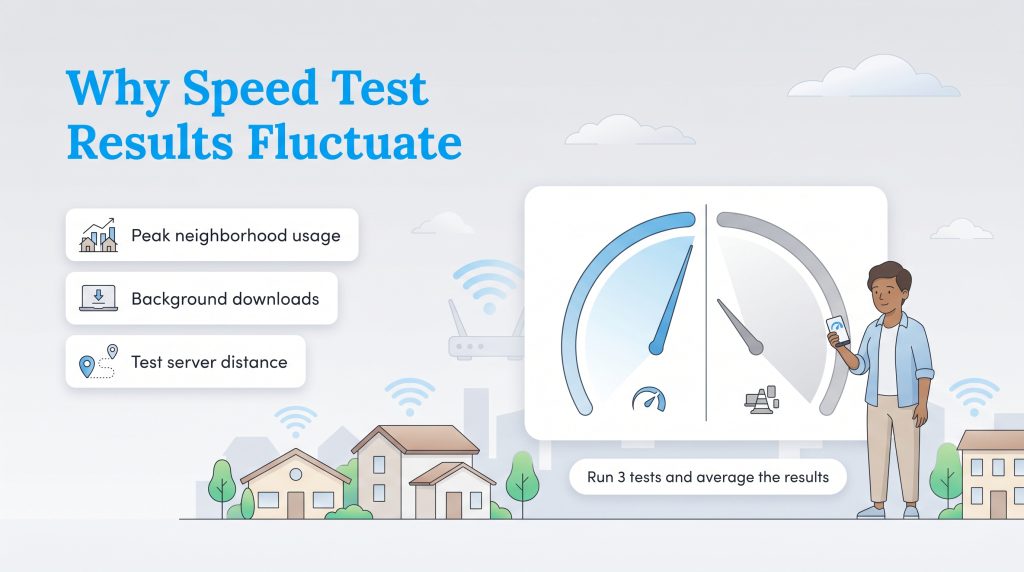
It is incredibly common to run a test at 10:00 a.m. and see glowing numbers, only to run the exact same test at 7:00 p.m. and watch the speedometer barely move. If you are confused about why speed test results fluctuate so wildly, you are not alone. Several invisible variables alter your results in real-time, including:
- Peak Neighborhood Usage Hours: Cable and 5G internet plans often share neighborhood nodes. When everyone on your block comes home from work and starts streaming Netflix simultaneously, the local network congestion causes everyone’s speeds to dip.
- Invisible Background Downloads: Even if you aren’t actively using a device, your smart TV might be downloading a massive firmware patch, or your phone might be syncing hundreds of photos to the cloud.
- Server Distance Variations: Sometimes the testing tool connects to a server in a neighboring state rather than your immediate city, slightly altering the travel time of your data packets.
Because these minor variations happen constantly, you should never rely on a single reading to judge your connection. Instead, we highly recommend taking an average of three separate tests spaced out over the course of a day to find your true, reliable speed.
Ethernet Vs Wi-Fi Speed Tests: Which Is Better?
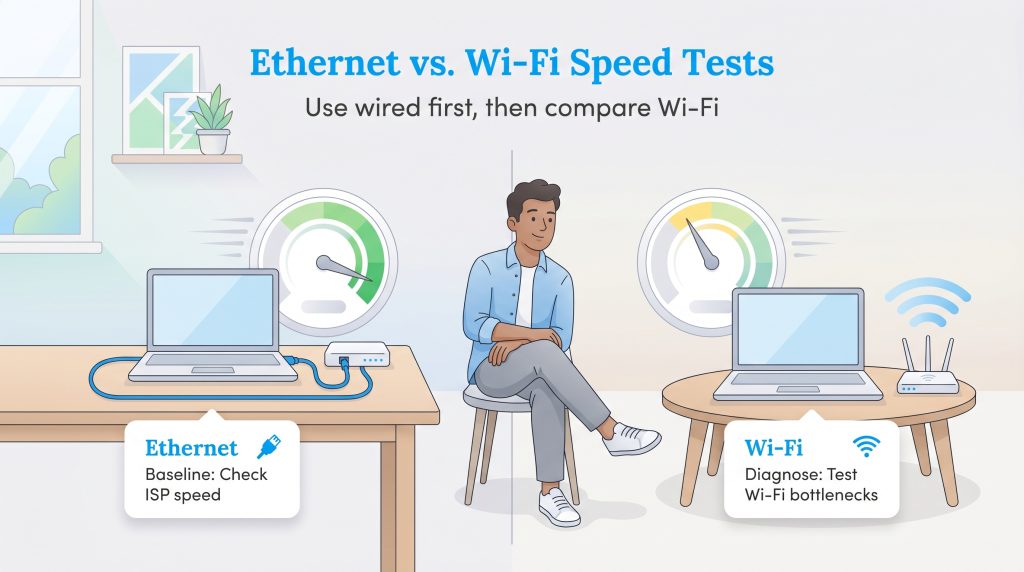
When comparing an ethernet vs Wi-Fi speed test, you are fundamentally testing two different parts of your home network. Neither is inherently “better” to test, but they serve different diagnostic purposes. Wi-Fi inherently introduces signal degradation, interference from physical walls, and overlapping signals from your neighbors’ routers. When you test on Wi-Fi, you are testing the efficiency of your router’s wireless delivery system.
On the other hand, a hardwired Ethernet connection removes wireless interference entirely. To properly diagnose a slow network, you should always run an Ethernet test first. If the Ethernet test shows you are receiving the full bandwidth you pay your provider for, you know the ISP is doing their job. You can then unplug the cable and run a Wi-Fi test from your couch. If the Wi-Fi test is dramatically slower, you have successfully identified that your router, distance, or home layout is the actual bottleneck causing the problem.
Expected Speeds and How to Do an ISP Throttling Test
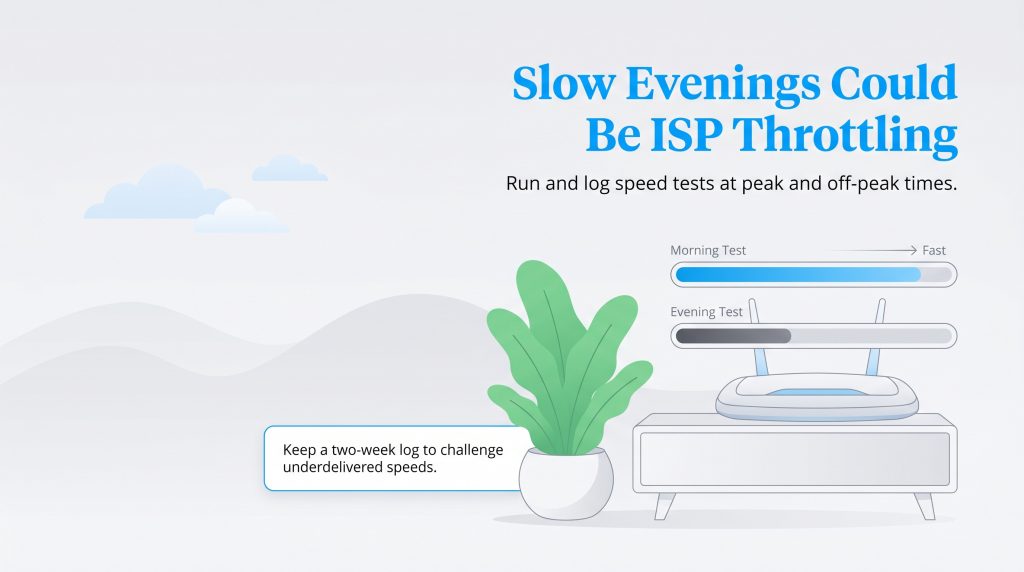
One of the most frustrating experiences for a homeowner is paying for a premium internet tier and feeling like you are crawling on an outdated dial-up connection. The harsh reality is that actual network speeds are frequently 50-200 Mbps lower than your advertised plan maximums, especially if you rely entirely on a wireless connection instead of a hardwired line. Providers advertise “up to” speeds, not guaranteed minimums.
However, if your hardwired speeds consistently fail to reach the promised threshold, you may be experiencing intentional network throttling. Internet Service Providers (ISPs) sometimes purposefully slow down your connection during times of heavy network traffic to balance the load for everyone. They might also throttle your speed if you have exceeded a hidden monthly data cap buried in your contract.
If you suspect foul play, performing an ISP throttling test is a straightforward process. Because a Virtual Private Network (VPN) encrypts your data and hides your specific traffic type from your provider, it prevents them from selectively throttling high-bandwidth activities like video streaming. Follow these steps to check for throttling:
- Run a standard speed test without a VPN during peak evening hours and record the download and upload numbers.
- Turn on a reputable VPN service and connect to a server close to your physical location.
- Run the exact same speed test again.
- Compare the results. If your speeds are drastically faster while the VPN is active, your ISP is likely intercepting and intentionally throttling your regular network traffic.
How Your Connection Type Affects Network Performance
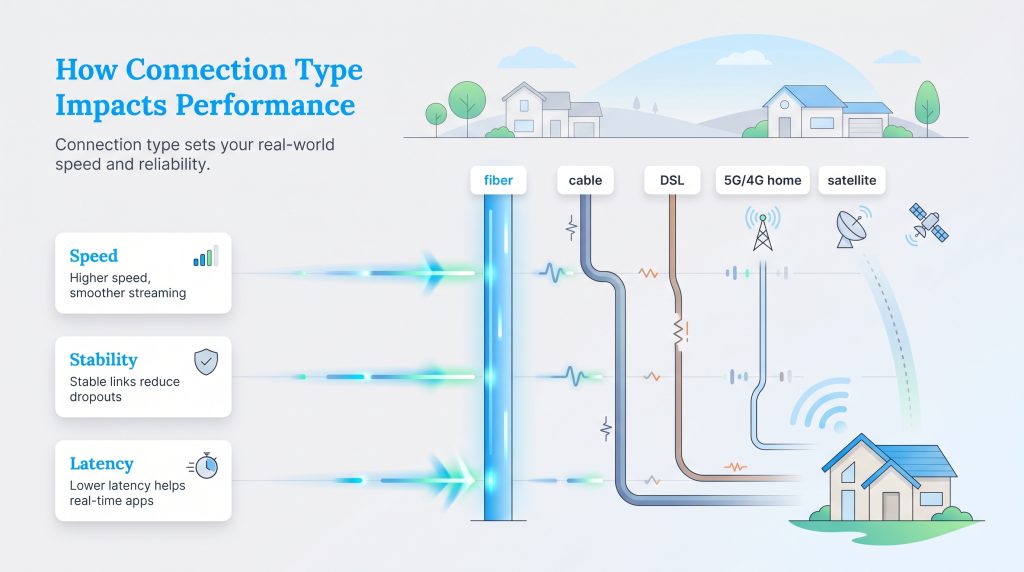
Not all internet connections are created equal, and the physical technology bringing data into your neighborhood heavily dictates your overall performance ceiling. Different network infrastructures deliver data in radically different ways, which naturally affects your maximum speeds, day-to-day stability, and baseline latency.
- Fiber Internet: Fiber connections use light pulses sent through incredibly thin glass cables, allowing for extremely fast and reliable transfers immune to weather interference. Fiber provides symmetrical speeds — meaning your upload speeds are identically as fast as your download speeds. It is the modern gold standard for streaming in 4K, competitive gaming, and supporting heavy smart home ecosystems.
- Cable Internet: Cable internet uses the same physical coaxial cables as traditional television service. It is widely available across the country and typically offers asymmetrical speeds, meaning it delivers excellent download speeds but significantly lower upload speeds. It is great for general browsing and streaming, but upload-heavy activities may lag.
- DSL (Digital Subscriber Line): DSL connects through old-school copper phone lines. It is markedly slower than fiber or cable, offering low download and upload speeds with moderate latency, making it best suited for basic internet use like checking emails or reading articles.
- 5G and 4G LTE Home Internet: 5G home internet relies entirely on wireless signals beamed from nearby cellular towers. Performance depends heavily on your home’s proximity to the tower and is highly susceptible to local neighborhood network congestion during peak hours.
- Satellite Internet: Satellite connections beam data to and from orbiting satellites in space. While it is a suitable, necessary option for rural areas where no wired alternatives exist, the long physical travel distance results in high latency and frequent packet loss, making real-time video calls frustrating.
Why Is My Internet Speed So Slow?
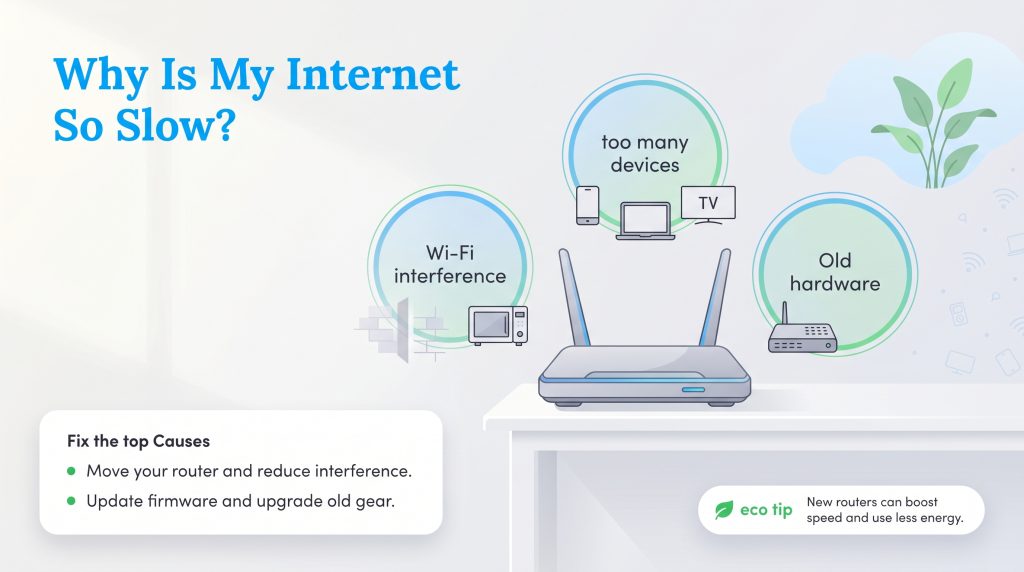
If you find yourself constantly asking, “why is my internet speed so slow,” the primary problem might be lingering right inside your home. It can be incredibly frustrating to pay for premium access only to suffer through dial-up speeds. Before you call customer service to complain, check for these four common culprits:
- Network Congestion: During peak neighborhood usage hours, everyone on your block is fighting for the same bandwidth, which naturally drags down your connection.
- Outdated Router Hardware: Older modems and routers simply cannot process modern gigabit signals. If your equipment is over five years old, it is physically limiting your internet speeds.
- Physical Wi-Fi Obstructions: Thick brick walls, microwaves, baby monitors, and large metal appliances can destroy your wireless signal. Always aim for central, elevated router placement.
- ISP Throttling: Your provider may intentionally slow down your connection during high-traffic periods or if you exceed a hidden monthly data cap.
How to Improve Internet Speed Test Results
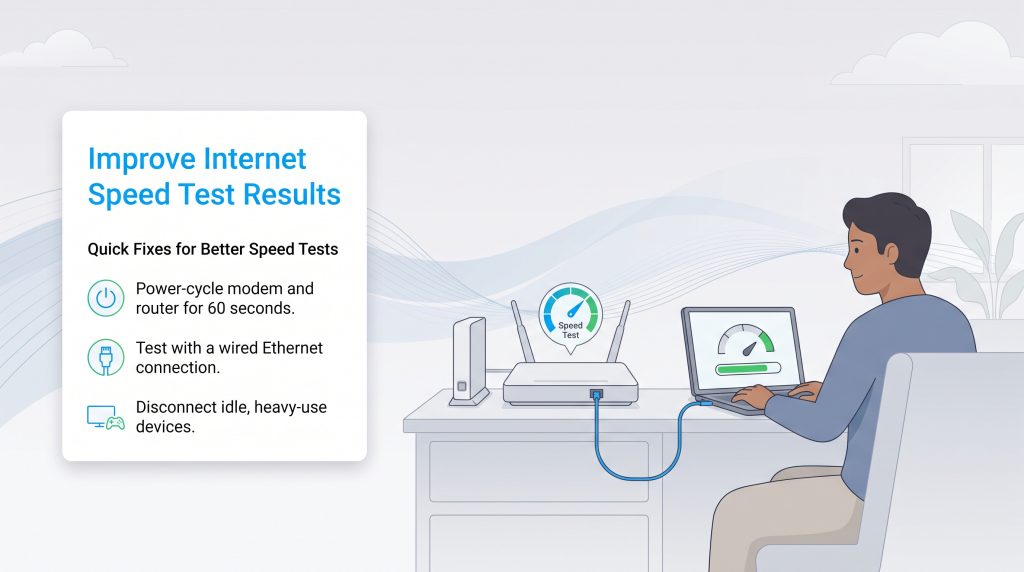
Once you understand your metrics and have successfully pinpointed the bottlenecks, it is time to take decisive action. If you are wondering how to improve internet speed test results quickly, follow these immediate, step-by-step fixes to instantly boost your connection:
- Power-cycle your modem and router: Unplug both devices from the wall for a full 60 seconds. This simple act clears the internal cache, resolves IP conflicts, and establishes a fresh connection to your internet provider.
- Test with a wired Ethernet connection: Plug a computer directly into your router using a Cat5e or Cat6 Ethernet cable. This entirely bypasses all wireless interference and gives you the truest reading of your available bandwidth.
- Disconnect idle bandwidth-heavy devices: Smart TVs, tablets, and gaming consoles quietly sip bandwidth in the background. Disconnect them temporarily to free up the pipeline for the devices you are actually using.
Next Steps When to Upgrade Your ISP
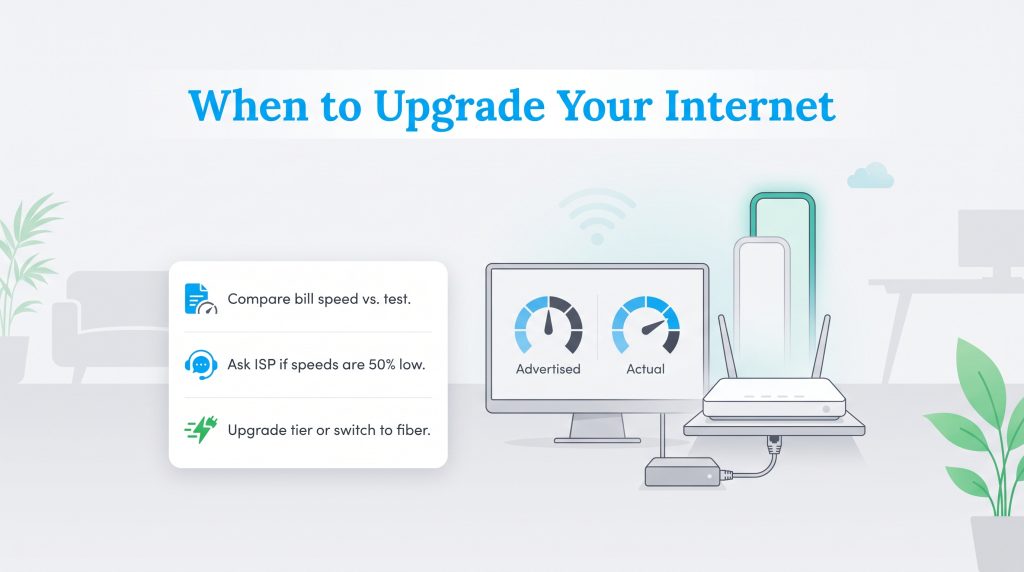
If you have implemented all the troubleshooting steps above and your internet is still struggling, it might be time to accept that your current plan is simply inadequate. Learning when to upgrade your internet service provider (ISP) comes down to comparing what you actively pay for against the actual speeds delivered to your home.
First, review your monthly bill to confirm your advertised plan limits. Next, compare those figures with the hardwired Ethernet test you just performed. If your provider is consistently delivering speeds 50% lower than advertised, you need to demand a remote diagnostic line check or negotiate a bill credit. However, if you are receiving the exact speeds you pay for but your household still experiences constant buffering, your lifestyle demands more bandwidth. In that scenario, upgrading to a higher-tier package or switching to a faster fiber-optic provider is the most effective eco-conscious alternative to maintain a seamless, energy-efficient smart home ecosystem.
Frequently Asked Questions About Internet Speed Tests
What is a good internet speed for gaming?
For a consistently smooth online gaming experience, a good internet speed is typically 25 to 50 Mbps for downloading and 10 to 25 Mbps for uploading. However, raw bandwidth matters less than connection stability. The most critical metric for competitive gaming is your ping. You want your ping to consistently stay under 50 ms to prevent lag and ensure your real-time inputs register instantly on the server.
What is the difference between Mbps and MBps?
While they look almost identical, Mbps (lowercase “b”) stands for megabits per second and measures your internet connection’s speed. MBps (uppercase “B”) stands for megabytes per second and measures file sizes on your device. Since eight megabits equal one megabyte, a 100 Mbps internet connection actually downloads a 100 MB file in about eight seconds, rather than one second.
Does running an internet speed test use my data?
Yes, running an internet speed test actively uses your data. The testing tool downloads and uploads temporary packets of data to accurately measure your bandwidth. If you are on a restricted mobile plan or have a strict monthly data cap with your internet provider, running multiple tests can quickly consume several hundred megabytes of your allowance.
Why do my speed test results fluctuate throughout the day?
Your speed test results will naturally fluctuate based on local network congestion. During peak evening hours when everyone in your neighborhood is streaming shows and playing games online, the shared infrastructure becomes crowded, causing speeds to dip. Invisible background updates on your devices and varying server distances can also cause these numbers to bounce around.
Why is my download speed faster than my upload speed?
This imbalance is by design for most traditional residential internet plans, including Cable, DSL, and Satellite. These networks utilize asymmetrical speeds because the physical infrastructure is built to prioritize downloading data, which is what the average consumer does the most (streaming movies, loading web pages, downloading games). The major exception is Fiber-optic internet, which utilizes advanced glass cables to deliver completely symmetrical speeds, giving you matching download and upload power.
How do I know if my ISP is throttling my internet?
The most effective way to detect internet throttling is to run a speed test during normal hours, and then run the identical test again using a Virtual Private Network (VPN). Because a VPN encrypts your traffic and hides your activity from your ISP, they cannot selectively slow down your connection based on high-bandwidth usage. If your speeds suddenly drastically improve while the VPN is turned on, it is a strong indicator that your provider is intentionally throttling your bandwidth.
What is the difference between latency and ping?
While people often use the terms interchangeably in casual conversation, they hold slightly different technical meanings. Latency is the general concept of the total time it takes for data to travel from your personal device to a server and back. Ping is the specific diagnostic tool or signal sent out to officially measure that latency. In a speed test result, ping is the numerical value (measured in milliseconds) representing your connection’s latency.
Does a speed test show my Wi-Fi speed or my actual internet speed?
It depends entirely on how your device is connected during the test. If you run a test on your smartphone or a laptop connected wirelessly, you are measuring your Wi-Fi speed — which includes potential signal degradation from your router and wall interference. To measure your actual internet speed (the raw bandwidth delivered directly by your internet provider to your home), you must plug a computer directly into your modem using a hardwired Ethernet cable.
How often should I run an internet speed test?
It’s a smart habit to run a speed test when you actively experience connectivity issues like buffering videos or dropping audio on video calls. You should also purposefully run a diagnostic test right after changing your internet plan or switching providers to verify you are actually receiving the promised speeds. Finally, checking your speeds before important bandwidth-heavy activities, like presenting in a remote work meeting, helps prevent untimely dropouts.
About the Author

David has been an integral part of some of the biggest utility sites on the internet, including InMyArea.com, HighSpeedInternet.com, BroadbandNow.com, and U.S. News. He brings over 15 years of experience writing about, compiling and analyzing utility data.

LaLeesha has a Masters degree in English and enjoys writing whenever she has the chance. She is passionate about gardening, reducing her carbon footprint, and protecting the environment. She also recently served as President of the Board for City Sprouts (a community garden).