

Low Latency Is the Secret to Smooth Gaming, Clear Video Calls, and a Responsive Smart Home
Key Takeaways
- Ping measures the reaction time of your internet connection, representing how fast data travels from your device to a server and back.
- A ping under 50 ms is generally considered good for most online activities, while competitive gaming often requires speeds under 20 ms.
- Using a wired Ethernet connection is the most effective way to instantly lower your ping and stabilize your internet performance.
There are few things more frustrating than the dreaded lag spike — that agonizing moment when your video game character freezes in place or your voice drops out during a virtual presentation. We often blame our overall internet speed for these hiccups, rushing to upgrade to expensive plans with massive download numbers. However, pure bandwidth is rarely the real issue. The true culprit behind a sluggish network is usually your ping, which dictates how responsive your connection actually is. While bandwidth determines how much data you can move at one time, a low ping ensures your everyday clicks, keystrokes, and commands feel absolutely instantaneous. In this guide, we will break down exactly what ping is and walk you through practical steps to unlock the snappy, seamless connection your modern household requires.
What Does Ping Stand For?
In the world of computer networking, PING officially stands for “Packet InterNet Groper.” The term itself was inspired by the active sonar technology used by submarines during World War II to navigate the ocean. In naval operations, a ping is an acoustic sound pulse sent into the water to measure the distance to an object based on the returning echo. In 1983, a computer scientist named Mike Muuss applied this exact same sonar concept to digital networks, writing a simple utility program to bounce data off other computers and measure the return time.
How Does a Ping Test Work?
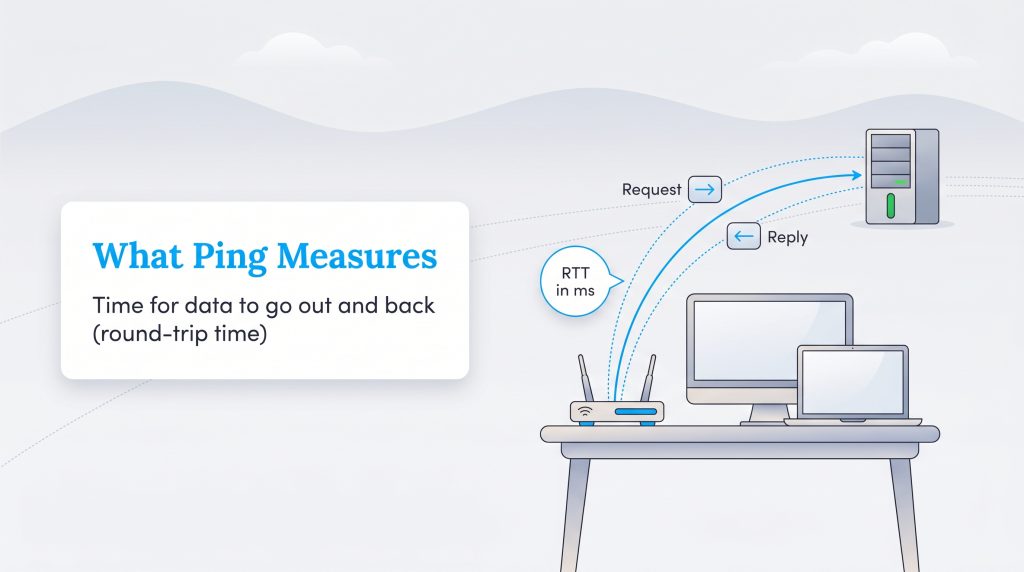
To truly understand how ping works, we have to look under the hood at a foundational network protocol called the Internet Control Message Protocol (ICMP). When you execute a ping test, your device fires off a tiny, specific data packet known as an ICMP Echo Request. Think of this Echo Request as a digital roll call. Your computer sends this packet out into the wild, where it hops from your home router, through your internet service provider’s physical infrastructure, and across various network nodes until it reaches its final destination. The exact moment that target server receives your request, it instantly fires back an ICMP Echo Reply.
The exact amount of time it takes for this entire exchange to happen is known as your round-trip time (RTT). If you are wondering what RTT is in networking, it is simply the total duration — measured in milliseconds (ms) — that it takes for a single data packet to travel to its destination and return to the source. Because RTT measures the entire journey, it provides a highly accurate picture of your network’s physical distance and routing efficiency.
Ping vs Latency vs Jitter vs Packet Loss
When you run an internet speed test, you might see terms other than just download speed and ping. Understanding these related metrics can help you diagnose exactly why your connection feels unstable, even if your provider claims you have ultra-fast service.
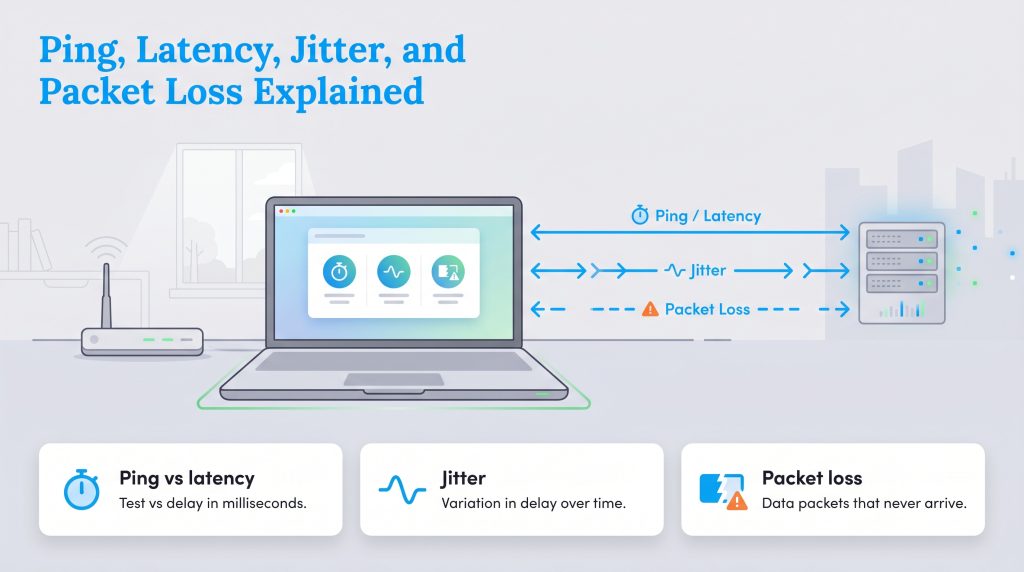
First, it is vital to clarify the difference between ping vs latency. While the tech community and everyday users often use these terms interchangeably, there is a semantic difference. Ping is the actual signal sent out by your computer. Latency is the measured result — the physical amount of time it takes for that signal to travel from your device to the server and back again. Ping is the action; latency is the delay.
Jitter measures the consistency of your latency. If your speed test shows high ping jitter, it means your connection’s delay is wildly bouncing around instead of staying steady. If your latency constantly jumps from 20 ms to 150 ms and back, your connection will feel incredibly stuttery.
Packet Loss is even more disruptive than high latency. Data travels across the internet in small digital units called packets. Packet loss occurs when some of these units get lost in transit and never reach their destination. For more details on broadband performance metrics, the FCC provides excellent consumer guides on what to expect from different internet services.
What Is a Good Ping Speed for Home Internet?
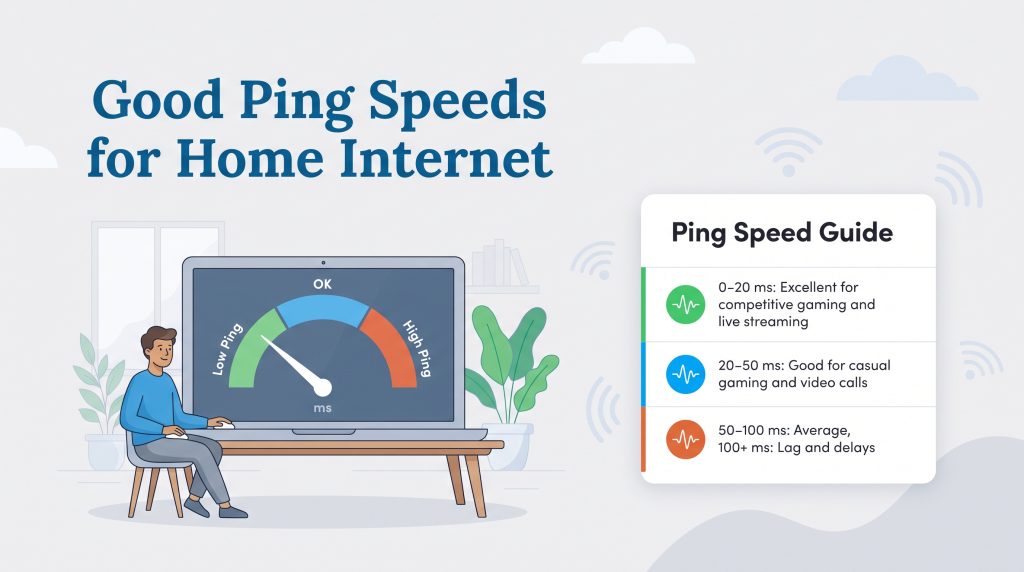
Because ping measures delay, a lower number is always better. However, identifying a “good” ping speed depends entirely on the activity you are performing. If you are just reading the morning news, a slight delay is unnoticeable. But if you are shooting a fast-moving target in a competitive video game, even a fraction of a second can ruin the experience.
| Ping Range (ms) | Status | Best For |
|---|---|---|
| 0–20 ms | Excellent | Competitive gaming, live streaming |
| 20–50 ms | Good | Casual gaming, video calls (Zoom/Teams) |
| 50–100 ms | Average | Web browsing, HD streaming |
| 100+ ms | Poor | Noticeable lag, rubber-banding, audio delays |
Low ping typically falls anywhere below 50 ms. At this optimal level, data is transferring fast enough that your online experience feels practically instantaneous. Once your speeds consistently cross the 100 ms threshold, you will experience noticeable delays, stuttering gameplay, and overlapping dialogue on voice calls.
How to Check Your Ping on Windows and Mac
For a continuous and detailed look at your round-trip time, you can dive into the built-in command line tools on your computer. This method is incredibly helpful if you are experiencing intermittent connection drops and want to actively monitor your latency in real time.
- Open your terminal app: On a Windows computer, click your Start menu, type “cmd” into the search bar, and open the Command Prompt. On an Apple Mac, press Command + Space to open Spotlight search, type “Terminal,” and hit Return.
- Ping an external server: To test your connection to the wider internet, type
ping google.comand press Enter. - Ping your local router: To verify if your home Wi-Fi is the issue before blaming your internet provider, replace the website address with your router’s IP address by typing
ping 192.168.1.1and hitting Enter. - Review the results: Your screen will display a cascading series of replies. Each line represents a single data packet, showing the time in milliseconds it took for the Echo Reply to return.
- Stop the test: To stop a continuous test, press Control + C on your keyboard.
How to Read Ping Results
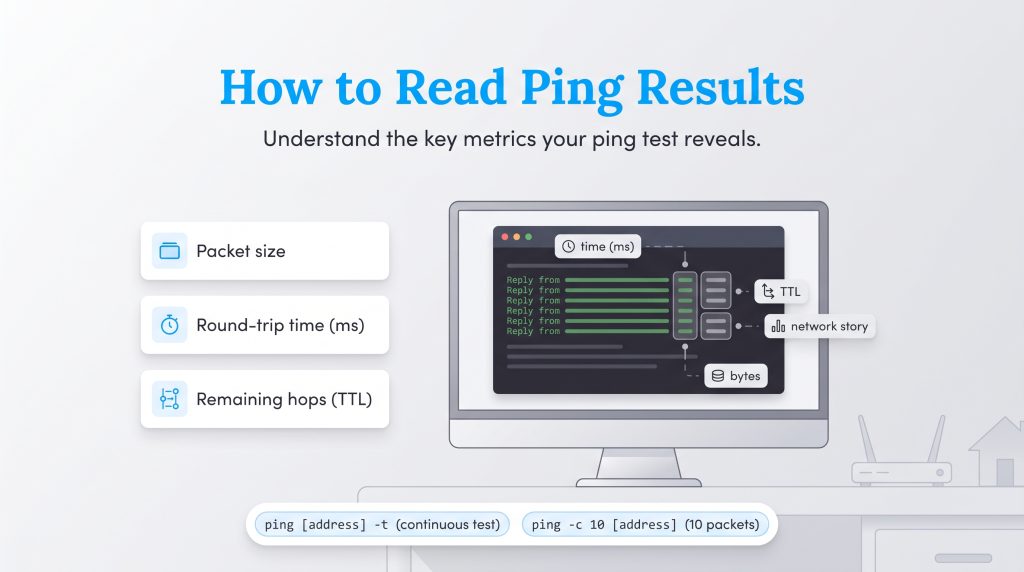
Running the ping command is only helpful if you actually understand the data returning on your screen. When you perform a test via your terminal or command prompt, the utility spits back several specific metrics that tell a complex story about your network connection.
Ping Commands Cheatsheet
If you want to customize your diagnostic tests, there are several powerful command line modifiers you can append to your standard queries. By typing these specific modifiers after your target address, you can change how the network tool behaves to suit your troubleshooting needs.
| Command Modifier | What It Does |
|---|---|
| ping [address] -t | (Windows) Pings the specified host continuously until manually stopped. |
| ping [address] | (Mac) Pings the specified host continuously by default until stopped with Control + C. |
| ping [address] -n 10 | (Windows) Sends exactly 10 echo requests before stopping automatically. |
| ping -c 10 [address] | (Mac) Sends exactly 10 echo requests before stopping automatically. |
| ping [address] -l 1500 | (Windows) Adjusts the payload size to 1500 bytes. Useful for testing if large packets are dropping. |
Why Ping Matters for Gaming, Work, and Smart Homes
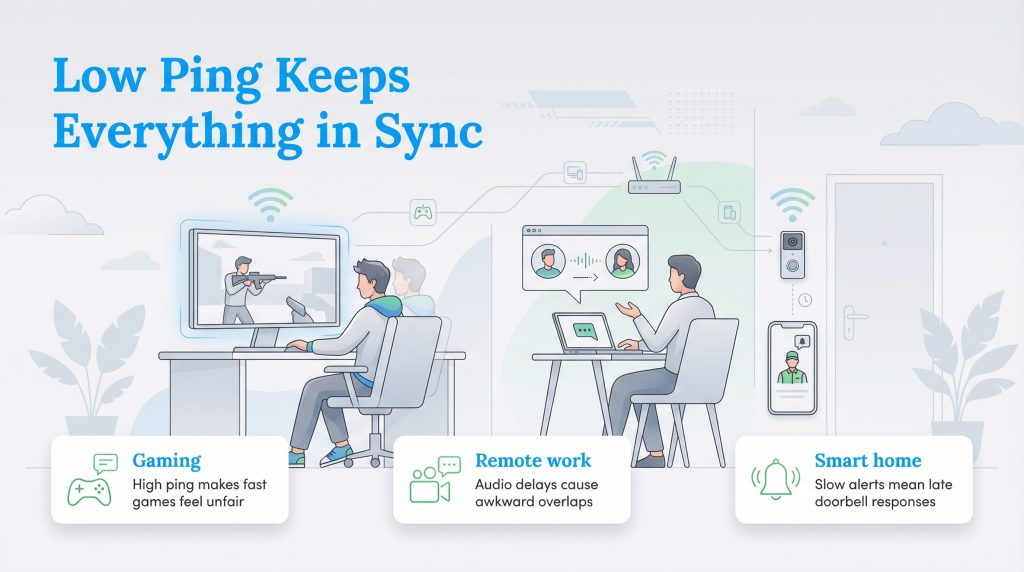
While teenagers and competitive e-sports players are usually the ones obsessing over millisecond numbers, latency affects almost every interactive device in your home. Here is a breakdown of how high delays impact different areas of your daily digital life.
Common Causes of High Ping
If you have run a diagnostic check and are unhappy with the results, you might be wondering exactly what causes high ping in the first place. Several structural and environmental factors can severely bottleneck your network’s responsiveness.
- Overloaded Local Networks: If multiple family members are streaming 4K video, downloading massive software updates, and gaming simultaneously, your router gets overwhelmed trying to sequence the data queue.
- Physical Distance to the Server: Data is fast, but it is bound by the laws of physics. Connecting to a server on the other side of the world forces your packets to travel thousands of miles, naturally increasing your delay.
- Outdated Routing Hardware: Using a first-generation Wi-Fi router limits how efficiently your home network translates and forwards packets to your internet service provider.
- ISP Bandwidth Throttling: During peak usage hours, some providers actively throttle specific types of traffic to balance the neighborhood’s grid, which can spike your latency.
How to Lower Your Ping and Reduce Lag
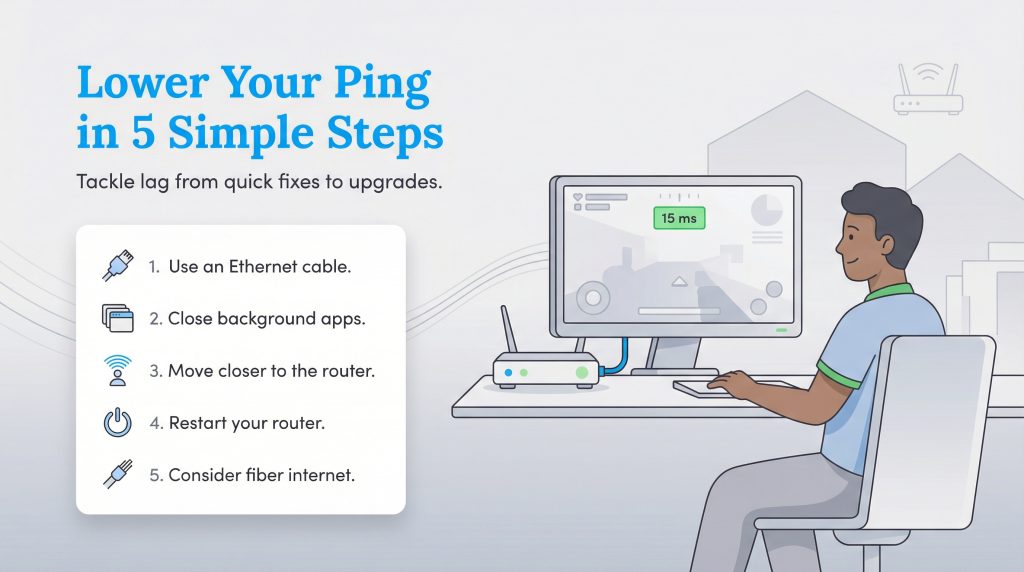
If your results show agonizingly high latency, do not panic just yet. You can fix connection delays without immediately changing your internet provider. Follow these five actionable steps to lower your ping effectively, starting from the easiest solutions.
1. Connect an Ethernet Cable
This is the single most effective way to lower ping for gaming and video calls. Wi-Fi signals are broadcast through open air and are subject to invisible interference from thick walls and microwaves. A physical Ethernet cable bypasses this chaos, providing a direct, interference-free highway for your data packets.
2. Close Background Apps
A cloud backup service silently syncing files or a massive game update downloading in a minimized window will severely clog your connection. By pausing heavy background updates, you clear the runway for your crucial real-time packets to fly through without delay.
3. Move Closer to the Router
If you absolutely must use Wi-Fi, physical distance is your worst enemy. Every wall or heavy piece of furniture adds precious milliseconds to your response time. Moving your laptop into the same room as the router and connecting to the 5GHz band rather than the crowded 2.4GHz band makes a surprising difference.
4. Restart Your Router
Home routers have internal processor caches and complex routing tables that get bogged down over weeks of uptime. A simple power cycle clears out these digital cobwebs and forces the device to re-establish optimal routes, often clearing up temporary lag spikes instantly.
5. Consider Fiber Internet
If you have tried every troubleshooting tip and your delays are still unacceptable, your physical connection type might be the bottleneck. Fiber optic internet uses pulses of pure light transmitted through ultra-thin glass strands, which naturally offers much lower latency than traditional cable or DSL.
Best Ping Test Tools for Homeowners
Not everyone wants to open a command prompt terminal to monitor their network health. Fortunately, there are several highly accessible, consumer-friendly apps and websites that can quickly diagnose your connection without the enterprise-level jargon.
- Ookla Speedtest: The industry standard for quickly checking your external ping and overall bandwidth. It automatically selects the optimal nearby server to give you an accurate baseline latency score.
- Cloudflare Speed Test: An excellent, comprehensive web tool that goes beyond basic numbers by providing detailed graphs on your ping, jitter, and packet loss, helping you spot unstable connections instantly.
- Fast.com: Powered by Netflix, this minimalist tool tests your connection directly against Netflix’s streaming servers. Click “Show more info” to easily view your loaded and unloaded latency metrics.
- Fing App: A fantastic mobile app for your smartphone that scans your local network. It helps you ping individual devices (like a struggling smart TV or a wireless printer) to see if the delay is happening inside your home rather than at your ISP.
Optimizing Your Home Network for Peak Performance
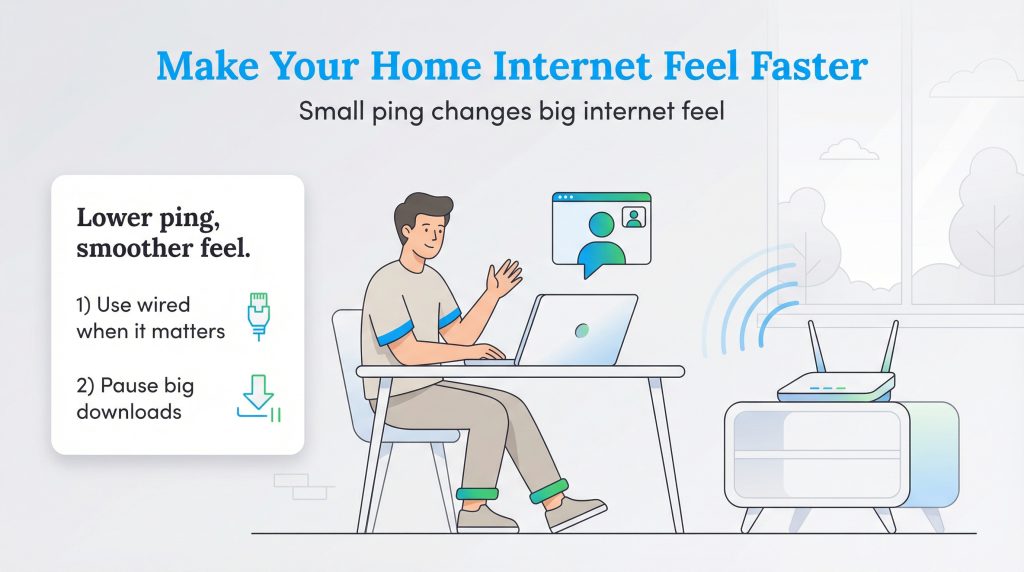
While massive download speeds get all the attention in marketing commercials, ping actually determines the real-world feel and snap of your daily internet experience. It is the crucial difference between a seamless video call and a frustrating, choppy conversation. By prioritizing low latency, you can completely transform a sluggish home network into a highly responsive, modern ecosystem.
Before you pick up the phone to complain to your internet service provider, take three immediate actions: restart your router, check for heavy background downloads hogging your bandwidth, and test a hardwired Ethernet connection. Run a quick speed test or use the tools we listed above to establish your personal baseline. If you consistently experience painful delays despite optimizing your local setup, your current provider’s infrastructure may simply be outdated. When that happens, it might finally be time to shop around and upgrade to an eco-conscious, low-latency fiber connection that can deliver the lag-free experience your busy household deserves.
Frequently Asked Questions About Ping
How do I check my ping?
Why is my ping so high but my internet is fast?
Does a better router improve ping?
Is 0 ms ping possible?
Does a VPN increase ping?
What is the difference between low ping and high ping?
Can high ping cause packet loss?
How do I ping an IP address?
What is ping spoofing?
Is a 10ms ping good for gaming?
Does using Wi-Fi instead of an Ethernet cable increase ping?
Why does my ping suddenly jump up and down?
About the Author

LaLeesha has a Masters degree in English and enjoys writing whenever she has the chance. She is passionate about gardening, reducing her carbon footprint, and protecting the environment. She also recently served as President of the Board for City Sprouts (a community garden).

David has been an integral part of some of the biggest utility sites on the internet, including InMyArea.com, HighSpeedInternet.com, BroadbandNow.com, and U.S. News. He brings over 15 years of experience writing about, compiling and analyzing utility data.