

High Jitter Creates Frustrating Lag Spikes, But Simple Hardware Upgrades And Network Adjustments Can Smooth Out Your Connection
Key Takeaways
- Jitter is the variation in latency (ping) that causes stuttering in gaming and robotic audio in video calls.
- Ideally, your jitter speed should be below 30 milliseconds (ms) for a stable experience, especially for real-time activities.
- You can lower jitter by switching to a wired Ethernet connection, upgrading your router, or prioritizing traffic with QoS settings.
We have all experienced it: you are about to make a crucial point on a remote video call or take the winning shot in a competitive match, and suddenly, everything freezes. You didn’t lose your internet connection entirely, but the stuttering, robotic audio, and frustrating “rubber-banding” made the experience completely impossible. While most people focus exclusively on securing high download speeds from their provider, the true hero of a smooth online experience is stability, measured by a metric known as jitter. This comprehensive guide explains exactly what internet jitter is, how to interpret what is jitter on a speed test, and the practical, step-by-step adjustments you can make to fix network lag for good.
What Is Jitter in Networking?

In simple terms, jitter is the inconsistency in the time it takes for data to travel from your device to a server and back. Technically known as packet delay variation (PDV), it measures the overall stability of your daily internet connection. When you do anything online, data travels across the web in small units, and if they arrive at irregular intervals — some fast, some slow — you experience jitter.
What Is a Data Packet?
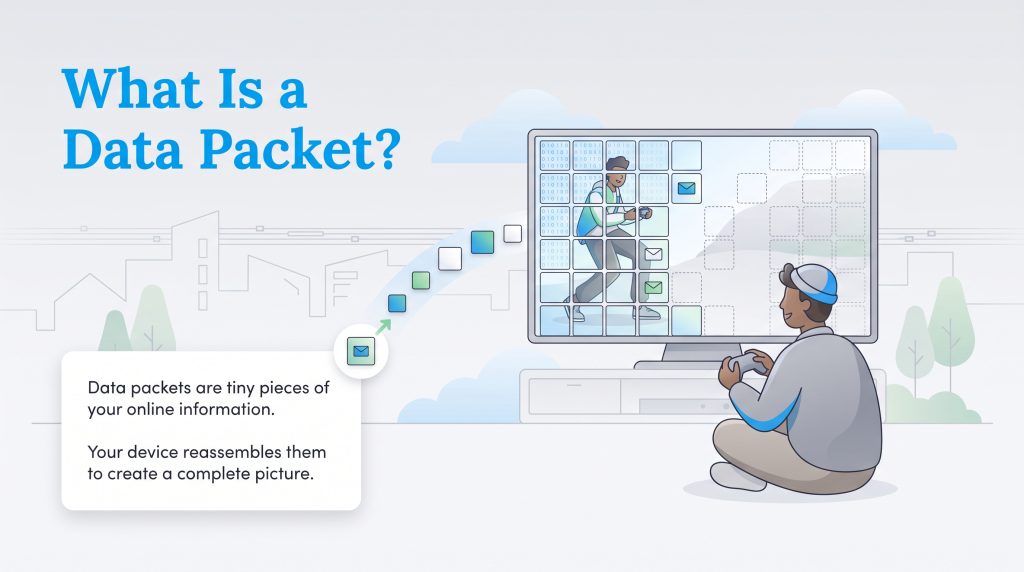
Whenever you send an email, stream a high-definition video, or speak on a VoIP call, your router breaks that data down into thousands of tiny, manageable fragments known as data packets. These packets travel across various global networks before reaching their final destination.
Think of data packets like the individual pieces of a massive jigsaw puzzle. When the pieces arrive at the receiving device, your computer or gaming console must rapidly reassemble them in the exact right order. If some puzzle pieces get heavily delayed in transit, your device has to pause to finish the picture. High download speeds are great for streaming movies because services like Netflix can load puzzle pieces ahead of time, but low jitter is strictly required for live tasks where buffering is not an option.
Types of Internet Jitter
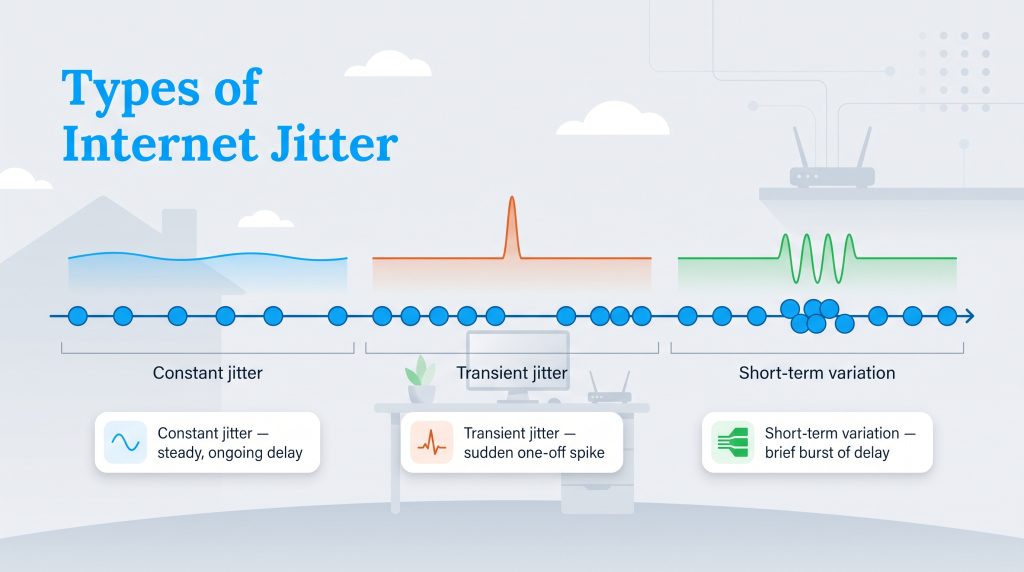
When diagnosing a glitchy connection, it helps to know how this instability occurs. Constant jitter means your data packets are always delayed by roughly the same irregular margin, usually pointing to a permanent physical bottleneck or outdated hardware. Transient jitter happens completely out of nowhere — a sudden, one-second freeze during a video call before returning to normal — often caused by a momentary processor overload on your home router.
Latency vs. Ping vs. Jitter: What’s the Difference?

These three terms are frequently used interchangeably by casual users, but understanding the difference between ping and jitter is absolutely key to diagnosing your connection health. You can easily purchase a fast internet plan with high bandwidth, yet still suffer from high delay variations that make your daily remote work tasks feel incredibly unstable.
| Metric | Definition | How it Feels |
|---|---|---|
| Latency | The total time it takes for a data packet to travel from point A to point B. | A general delay or “sluggishness” between your action and the result. |
| Ping | The tool used to measure latency, usually expressed in milliseconds (ms). | The number you see on your screen; high numbers mean slower reactions. |
| Jitter | The fluctuation or consistency of your ping over time. | Stuttering, glitchy audio, freezing, and characters teleporting in games. |
Think of it this way: if your ping sits steadily at 20 ms all day long, your latency is excellent. If your ping jumps wildly from 20 ms up to 150 ms and then immediately snaps back down to 30 ms, you have high jitter. This erratic, spiky fluctuation is often far more annoying than a connection that is consistently slow but stable because it is entirely unpredictable.
What Is an Acceptable Jitter Speed?

Determining an acceptable jitter speed depends entirely on your daily online activities. If you are just browsing social media or reading news articles, you won’t notice a high fluctuation rate at all. However, industry standards set by major networking companies strongly recommend keeping your variation below 30ms to prevent major performance degradation during live tasks. Here is a breakdown of acceptable performance thresholds:
- Competitive Gaming (0–15 ms): Ideal stability. Inputs register instantly with zero noticeable rubber-banding or teleporting.
- VoIP and Video Calls (Under 30 ms): Clear audio and video. Exceeding this threshold causes robotic voices and visual pixelation.
- General Streaming (30–50 ms): Perfectly acceptable for standard web browsing, though you might notice very minor audio drops during live calls.
- Heavy Lag Zones (50 ms+): Highly disruptive. Voice calls frequently drop, games become unplayable, and the connection feels broken.
Acceptable Jitter for Online Gaming
For gamers, connection stability dictates the outcome of a competitive match. What is a good jitter for gaming? You should aim for under 15 ms. In fast-paced multiplayer environments, high network fluctuation causes a frustrating phenomenon known as “rubber-banding.” This occurs when your character appears to move forward on your screen, only to snap violently back to a previous position a second later because the main game server received your movement data late.
Acceptable Jitter for VoIP Calls
Voice over Internet Protocol (VoIP) platforms like Zoom and Microsoft Teams are incredibly sensitive to jitter in VoIP calls. When your voice and video feed are broken down into thousands of tiny data packets, any inconsistency disrupts the real-time reassembly process. This directly results in overlapping voices, heavily distorted robotic audio, frozen webcams, and dropped client calls. To maintain professional clarity, your jitter must stay under the 30 ms mark.
What Causes High Network Jitter?
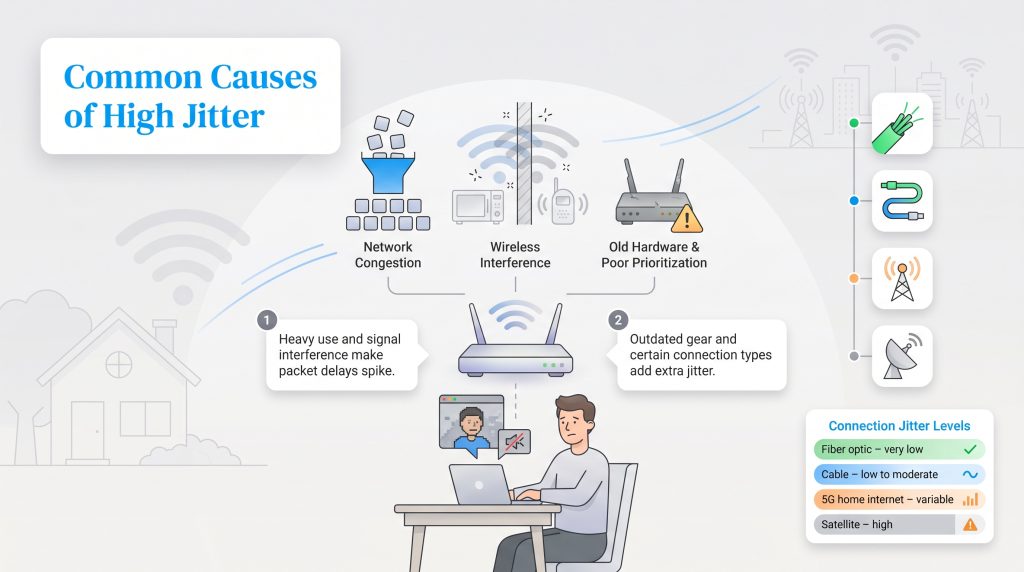
Understanding precisely what causes high jitter is the first step toward fixing it. Several distinct physical and digital bottlenecks can delay your data packets in transit. Here are the most common culprits:
- Network Congestion: Just like a highway during rush hour, your home network gets jammed when too much data is requested at once. If someone streams a 4K movie while you host a video conference, packets are forced to wait in line.
- Wireless Interference: Wi-Fi signals travel through thick drywall and are frequently disrupted by microwaves, baby monitors, or a neighbor’s overlapping signal, forcing your router to constantly resend lost packets.
- Outdated Hardware: Older cable modems utilizing the outdated DOCSIS 3.0 standard struggle to manage heavy household traffic efficiently compared to modern DOCSIS 3.1 or 4.0 models.
- Lack of Packet Prioritization: If your router treats a massive background software update with the exact same urgency as a live business call, your audio packets will naturally get caught in the digital bottleneck.
- Connection Type Limitations: Fiber optic internet offers the lowest, most stable jitter (0–10 ms). Standard cable operates smoothly for general use (10–40 ms). However, 5G home internet and satellite connections frequently suffer from much higher variation (50 ms+) because signals traveling through the open air are highly vulnerable to weather and physical obstructions.
How to Test and Measure Internet Jitter
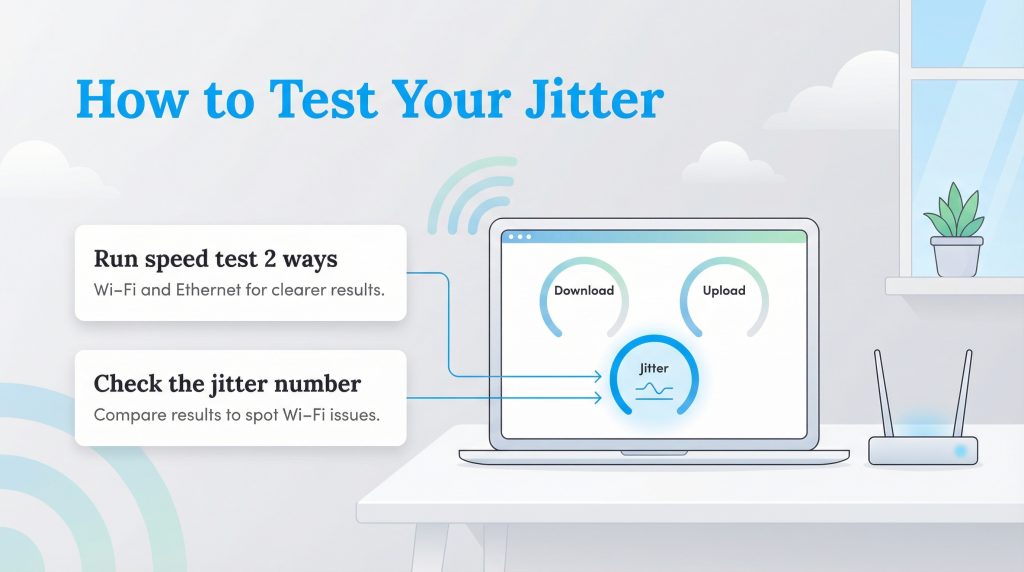
You can easily determine your stability score by checking a free online diagnostic to see what your jitter on a speed test looks like. We recommend using a highly accurate testing service like Speedtest.net. When you run the test, wait for it to finish, then look closely for the specific “Jitter” metric in the results dashboard (sometimes located under a “More Info” or “Detailed Results” tab).
This millisecond (ms) output measures the exact variance in your ping over the duration of the test. If your result is 5 ms, your connection timing only fluctuates by a tiny fraction of a second, meaning you have an incredibly stable network. To thoroughly test your connection, run the diagnostic twice: once on Wi-Fi and once while plugged into your router with an Ethernet cable.
For advanced users, you can manually test internet jitter using your computer’s command-line interface to watch packet delay variation in real time:
- Open Your Command Line: On Windows, press the Windows key, type “cmd,” and hit Enter. On a Mac, open Spotlight Search (Command + Space), type “Terminal,” and press Enter.
- Run the Ping Command: Type the following command and press Enter (Mac users can omit the
-tsince it loops by default):
ping -t 8.8.8.8- Analyze the Results: A new line will appear every second showing the “time=” in milliseconds. If it stays consistently around 20 ms, your network is stable. If it abruptly jumps from 20 ms to over 100 ms and back, you have identified high network jitter. Press Ctrl + C to stop the test.
How to Fix Jitter and Reduce Lag
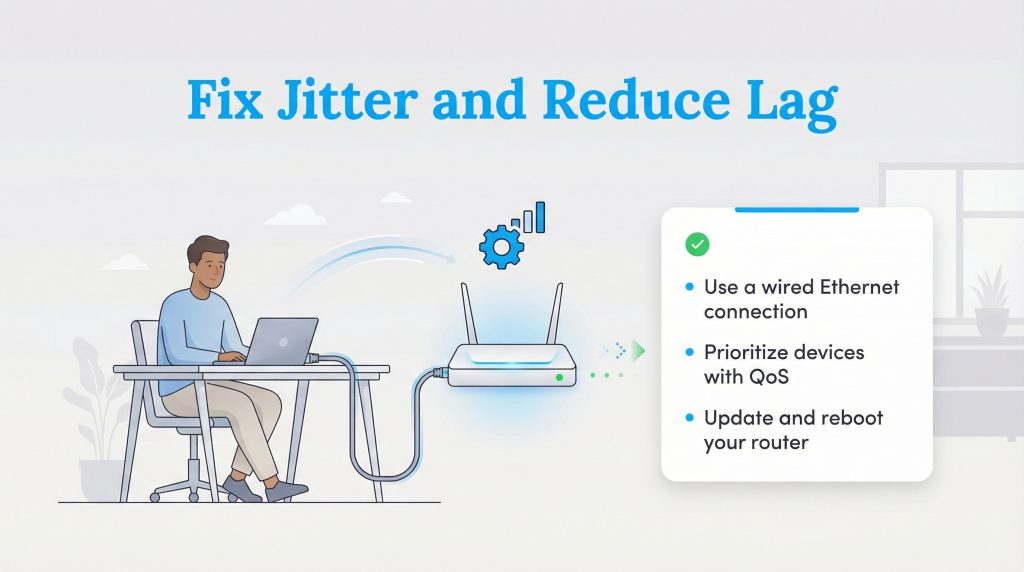
If your test results reveal high fluctuation, you can take immediate action to stabilize your home connection. Here are six clear steps you can take to learn how to fix network jitter once and for all.
1. Install a Jitter Buffer
A jitter buffer is a network tool that temporarily stores incoming voice packets in a holding area to completely reorganize them before playback. By briefly delaying the audio—usually for just 30 to 200 milliseconds—the buffer perfectly sequences any out-of-order packets, eliminating choppy, robotic voices. Most modern VoIP platforms automatically apply dynamic jitter buffers by default, but dedicated hardware VoIP desk phones frequently require manual configuration in the administrative settings.
2. Switch to a Wired Ethernet Connection
Switching to a wired connection remains the single most effective way to eliminate instability. Wi-Fi signals are highly prone to environmental interference, but a physical cable provides a secure, direct pipeline for your data. Plugging your work laptop or console directly into the router using a modern CAT6 Ethernet cable resolves wireless lag spikes instantly without requiring complex technical knowledge.
3. Configure Quality of Service (QoS) Settings

Modern routers feature Quality of Service (QoS), an invaluable tool that tells your router which devices deserve the highest bandwidth priority. Here is how to configure it:
- Open your web browser and type your router’s default IP address (usually 192.168.1.1 or 10.0.0.1) into the URL bar.
- Log in using the admin credentials found on the sticker located on the back or bottom of your physical router.
- Navigate to the “Advanced” or “Network Settings” menu and locate the Quality of Service (QoS) tab.
- Enable QoS and assign the absolute highest priority to your primary work laptop, VoIP phone, or gaming console, then save your changes.
4. Update and Reboot Your Equipment

Routers and modems act like tiny computers that get bogged down by temporary memory errors over weeks of continuous uptime. Unplug your equipment from the wall for 30 seconds before restarting it to clear these errors. Once rebooted, log into your router’s companion app to ensure you have the latest firmware updates installed to optimize routing algorithms.
5. Reduce Competing Traffic on Your Network

Heavy bandwidth usage running invisibly in the background is a silent lag killer. Be proactive by scheduling large file downloads, automated cloud backups, or heavy video game updates for the middle of the night. If you are about to set up your home internet for an important remote presentation, ask your family members to temporarily pause their 4K streaming.
6. Upgrade Your Hardware or Internet Plan
If your router is older than five years, it lacks the processor capability to handle dozens of smart home devices simultaneously. Upgrading to a Wi-Fi 6 or Wi-Fi 7 router will dramatically improve stability. Furthermore, if you currently utilize satellite or fixed wireless, switching to a dedicated fiber provider like Google Fiber is the ultimate gold standard for achieving impeccably low latency and jitter.
Securing a Lag-Free Home Connection
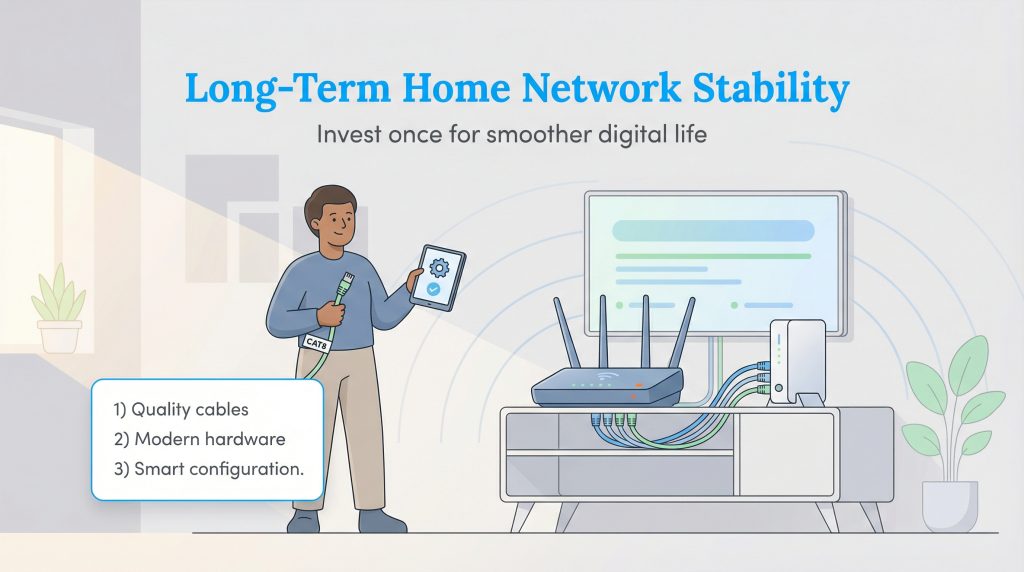
While you cannot directly control the massive flow of internet traffic outside your home, you hold complete authority over the physical infrastructure inside it. As hybrid work schedules, complex smart home integrations, and high-definition streaming become permanent fixtures in our lives, optimizing your network is no longer an optional luxury. Outfitting your home with properly shielded cables, eco-conscious modern hardware, and precise QoS rules actively prevents the frustration of dropped calls and frozen screens.
Investing in a highly stable, energy-efficient network setup today guarantees your digital life runs seamlessly for years to come. It helps you entirely avoid the endless waste and compounding frustration of continuously replacing inefficient networking equipment. By building a sustainable tech foundation, you create an environment where your internet effortlessly supports your goals. For more actionable guidance on balancing reliable network performance with your monthly budget, check out our comprehensive guide on how to save on your internet bill.
Frequently Asked Questions About Jitter
What is acceptable jitter for the internet?
Does higher internet speed fix jitter?
What is the difference between packet loss and jitter?
How do I fix jitter for the internet while on a call?
Does a fast download speed mean low jitter?
Can an Ethernet cable completely eliminate jitter?
Does buying a new router reduce jitter?
Is high network jitter my ISP’s fault?
Can a VPN fix jitter?
How do I lower jitter on PS5 or Xbox?
About the Author

LaLeesha has a Masters degree in English and enjoys writing whenever she has the chance. She is passionate about gardening, reducing her carbon footprint, and protecting the environment. She also recently served as President of the Board for City Sprouts (a community garden).

David has been an integral part of some of the biggest utility sites on the internet, including InMyArea.com, HighSpeedInternet.com, BroadbandNow.com, and U.S. News. He brings over 15 years of experience writing about, compiling and analyzing utility data.