

Understanding Why Data Packets Go Missing Is the First Step Toward Smoother Streaming, Gaming, and Video Calls
Key Takeaways
- Packet loss happens when data traveling across a network fails to reach its destination, causing lag, buffering, or frozen video calls.
- Common causes range from network congestion and outdated hardware to faulty cables or issues with your Internet Service Provider (ISP).
- You can often fix packet loss yourself by switching to a wired Ethernet connection, updating software drivers, or prioritizing traffic via Quality of Service (QoS) settings.
If you frequently experience disruptive lag, frozen video calls, or endless buffering during movie night, you might find yourself wondering what is packet loss and how you can stop it from ruining your digital experience. Packet loss simply refers to small units of digital data failing to arrive at their final destination, leaving noticeable, disruptive gaps in your internet connection. There are few things more frustrating than being in the middle of a crucial work presentation only to have your screen freeze or your audio cut out without warning. While many people immediately blame their overall internet speed, the real culprit is often this underlying stability issue. Fortunately, diagnosing and fixing laggy internet is straightforward, and you can usually resolve it with a few simple adjustments to your home network setup to fix slow internet and get back to seamless browsing.
What Are Data Packets?
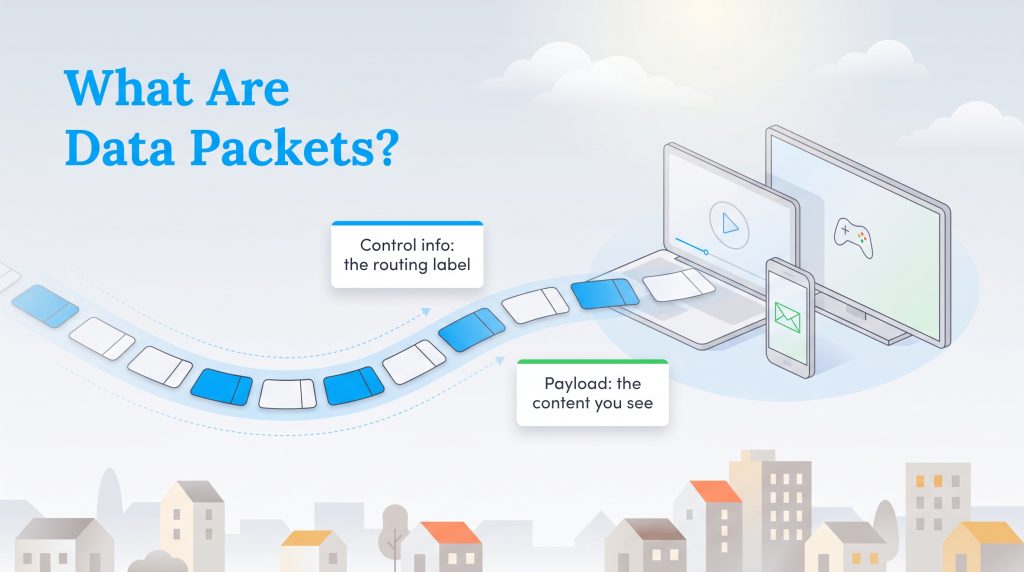
Before diving into why your connection drops, it helps to establish a foundational understanding of how the internet actually transmits information. Everything you do online — whether sending an email, streaming a movie, or jumping into a multiplayer game — is broken down into tiny digital units called data packets. A single packet consists of two distinct components: the header and the payload. The header acts like a highly detailed shipping label, containing vital routing information like the source IP address, destination IP address, and the precise sequence number. The payload holds the actual content being delivered, such as a snippet of audio, a pixel of video, or a line of text.
To ensure maximum efficiency, your network sends thousands of these small packets per second across multiple fiber cables, neighborhood nodes, and distant servers. Once they successfully arrive at your laptop, smartphone, or smart TV, your device quickly reads the headers and reassembles the payloads in the correct order to form the cohesive video, image, or sound you see on your screen.
What Is Packet Loss?
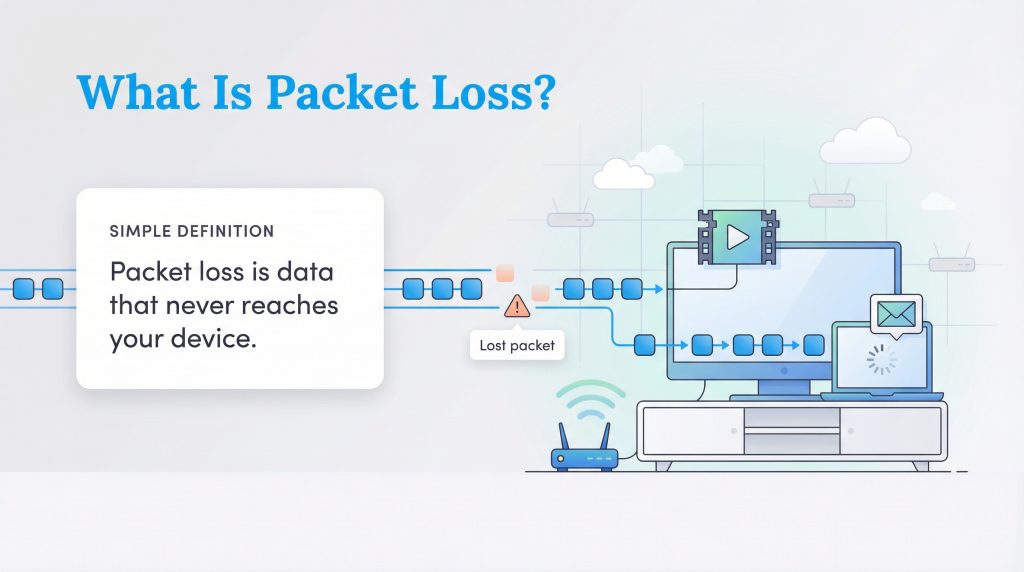
In simple terms, packet loss occurs when those tiny units of data fail to successfully reach their destination. Think of this process like mailing a 100-page book to a friend, but instead of sending the whole book at once, you mail it in 100 separate envelopes. If the postal service loses three of those envelopes in transit, your friend can never read the entire story. In the digital world, when data packets get “lost in the mail” across your network due to interference or congestion, your computer is forced to pause and wait for the missing data to be resent, or it simply skips the missing information altogether, leaving a jarring hole in your experience.
How Much Packet Loss Is Acceptable?
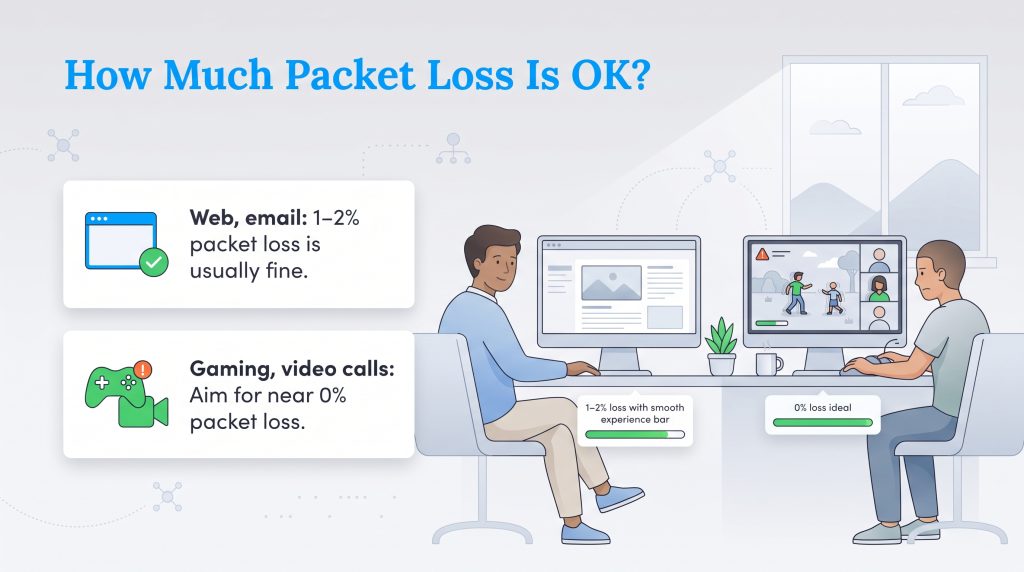
If you are wondering what does packet loss mean for your daily routine, it generally means you will experience noticeable network sluggishness and frustrating glitches. However, the severity depends heavily on the specific application you are using. If you are just reading a text-based news article, you might not notice a few dropped packets because the page simply takes a fraction of a second longer to quietly load in the background. Conversely, real-time activities demand a flawless, steady flow of data to maintain the illusion of seamless interaction.
To evaluate your own network’s health, use this threshold guide to determine an acceptable packet loss percentage based on your primary internet activities:
| Activity Type | Acceptable Loss Percentage | Impact of Higher Loss |
|---|---|---|
| Web Browsing & Email | 1% to 2% | Minor delays in loading images or text; mostly unnoticeable. |
| Video Streaming (Netflix, Hulu) | 1% to 2% | Occasional buffering or temporary drops in video resolution. |
| Video Calls & VoIP (Zoom) | Less than 1% | Robotic voices, choppy audio drops, and freezing webcams. |
| Competitive Online Gaming | 0% | Severe character teleporting, input delay, and unplayable lag. |
While standard asynchronous tasks offer plenty of leeway, activities like intense multiplayer gaming require a rate as close to 0% as physically possible to ensure a fair, responsive experience.
TCP Vs. UDP: How Different Protocols Handle Packet Loss
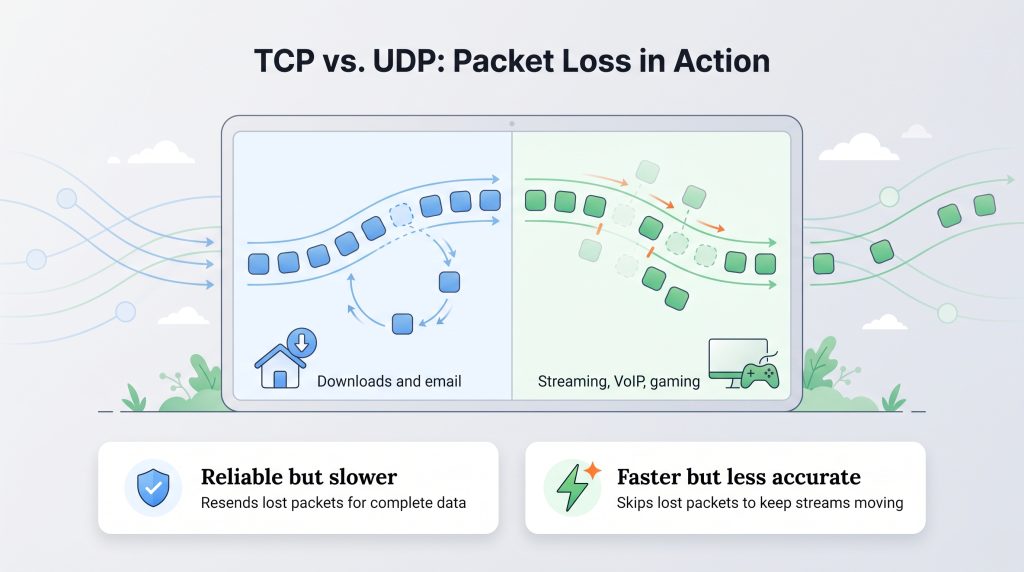
To fully understand TCP vs UDP packet loss, you need to know how these core internet protocols manage lost data. Behind the scenes, your internet relies on specific rulebooks — known as protocols — to decide exactly how to deliver packets and what to do when some inevitably go missing. The two primary protocols governing your internet traffic handle failure in vastly different ways.
- TCP (Transmission Control Protocol): TCP is highly reliable but relatively slow. When using TCP, your device requires a digital “receipt” for every single packet it sends. If a packet is lost in transit, TCP halts the flow of traffic and actively resends the missing data until it successfully arrives. This guarantees that your downloaded files are never corrupted and your emails are always fully readable, but the constant error-checking creates sluggishness, buffering, and long loading screens when your connection drops.
- UDP (User Datagram Protocol): UDP prioritizes raw speed over perfect accuracy. It rapidly fires data packets at the destination without ever waiting for a receipt or checking for errors. If a packet gets lost, UDP simply ignores it and immediately sends the next one. This protocol is the backbone of real-time applications like live streaming, VoIP, and competitive gaming. Because UDP never resends lost data, packet loss gaming results in characters rubberbanding, sudden teleportation, or missing sound cues, rather than a frozen loading screen.
Common Symptoms of Packet Loss
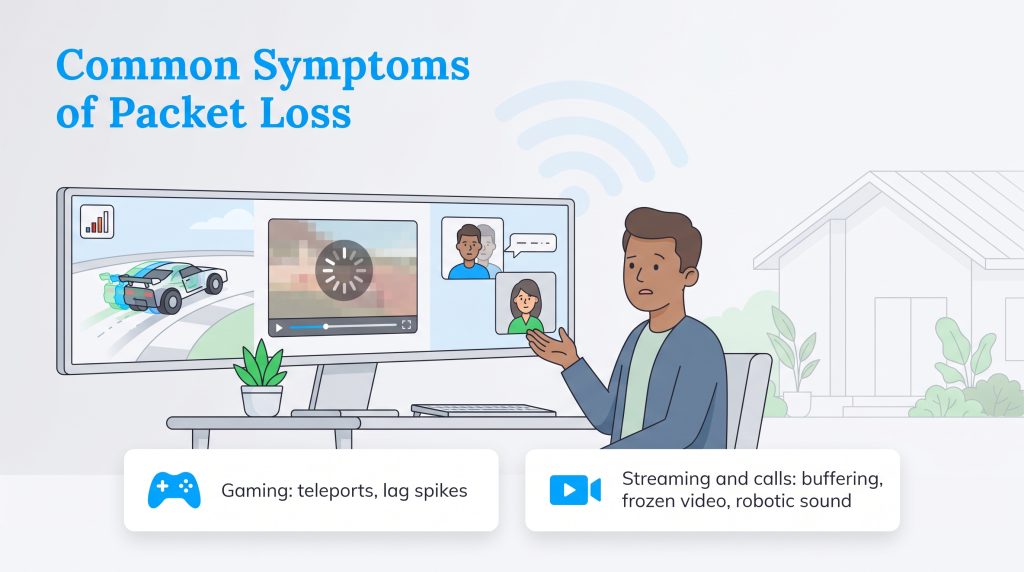
Because different online activities utilize different protocols, connection failures do not always look the same. Knowing how to spot the specific signs of data failure can save you a tremendous amount of troubleshooting time. Here is a breakdown of how packet loss typically manifests across your most common household internet tasks:
| Gaming | Streaming | Video Calls (VoIP) |
|---|---|---|
| Severe “rubberbanding,” characters randomly teleporting across the screen, and consistently high ping. | Endless buffering wheels and sudden drops to pixelated, blurry resolution. | Robotic-sounding voices, deeply choppy audio, and permanently frozen video feeds. |
| Hit registration failure and massive lag spikes during critical moments. | Webpages that load incompletely, display broken images, or time out completely. | Talking over colleagues due to major audio delays and out-of-sync mouths. |
Five Main Causes of Packet Loss
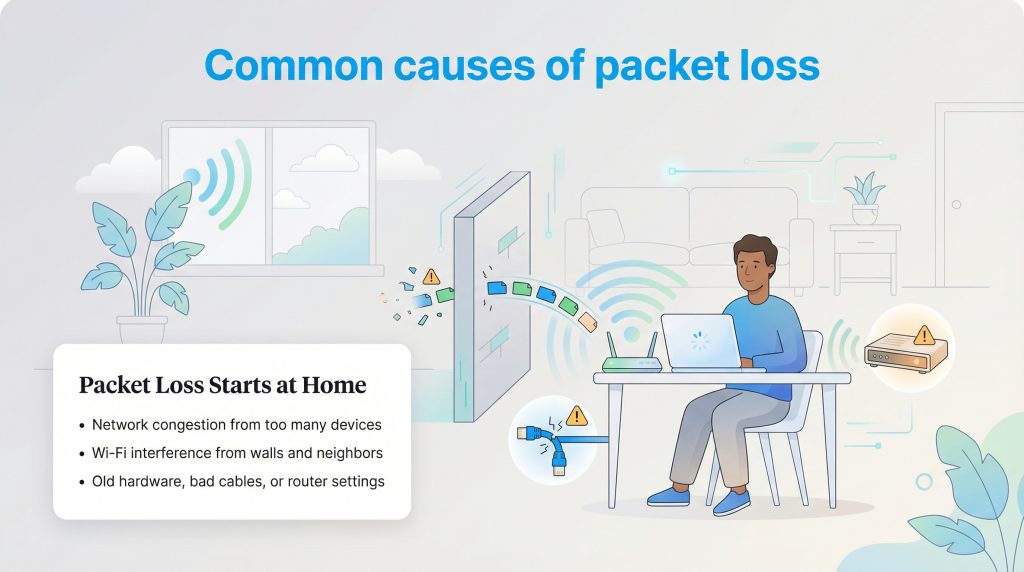
Understanding the exact causes of packet loss is the primary key to permanently fixing the problem. While connection drops can occasionally occur on your Internet Service Provider’s end, the main culprit is almost always located inside your own home. Several distinct environmental and hardware factors can disrupt the smooth flow of data across your local network.
Network Congestion
Just like a multi-lane highway during rush hour, your network has a strict limit on how much traffic it can comfortably handle at once. Network congestion packet loss happens when too many smart devices in your house actively compete for bandwidth simultaneously, leading to severe network bottlenecks. If someone is downloading a massive 100GB video game while two other family members are streaming 4K movies, you will likely encounter bandwidth exhaustion. When your local network queue fills up completely, the router is forced to actively drop packets simply to keep the primary connection alive.
Faulty Hardware and Cables
Physical connections remain the vital backbone of your home network. If the Ethernet cables connecting your modem to your router are frayed, tightly bent around a sharp corner, or chewed by curious pets, they cannot transmit electrical data reliably. This physical degradation causes signal corruption across the fragile copper wires inside, forcing your router to immediately discard the damaged packets.
Software Bugs
Sometimes the core issue is entirely digital rather than physical. Outdated router firmware, obsolete network adapter drivers, or general software bugs can cause your personal devices to format packets incorrectly. When a software mismatch occurs, the data is routinely dropped by your router’s firewall before the information even successfully leaves your house.
Overloaded Devices
Technology moves incredibly fast, and older, underpowered routers often struggle to process modern gigabit internet speeds. When an old router tries to make too many complex routing decisions at once — especially in a home filled with dozens of smart home devices — its internal processor maxes out. To prevent a total system crash, the device intentionally discards incoming data it cannot evaluate fast enough.
Wireless Interference
Wi-Fi offers wonderful convenience, but it is highly vulnerable to environmental factors like thick plaster walls, heavy metal appliances, and dense furniture. Furthermore, overlapping radio frequencies from neighboring apartments or microwaves running in the kitchen can scramble your wireless data transmission mid-air, leading to heavy interference and missing packets.
Packet Loss Vs. High Ping Vs. Jitter
When trying to diagnose a poorly performing connection, many people use network terms interchangeably, leading to confusion during the troubleshooting process. While packet loss vs high ping might feel identical when you are losing a competitive match, they represent entirely different mechanical failures. Understanding the distinction between these three core metrics — including jitter and packet loss — is critical for diagnosing the health of your home network.
| Network Metric | What It Means | How It Feels |
|---|---|---|
| Packet Loss | Data units are entirely lost in transit and fail to arrive at the destination. | Characters teleporting, missing audio chunks, and disconnected video feeds. |
| High Ping (Latency) | Data units successfully arrive, but they take an excessively long time to travel back and forth. | Sluggish responsiveness, delayed actions after clicking, and feeling “behind” the live action. |
| Jitter | Data units arrive successfully, but at highly inconsistent, fluctuating time intervals. | Stuttering video playback, sudden speed-ups in audio, and erratic game movement. |
How to Test for Packet Loss
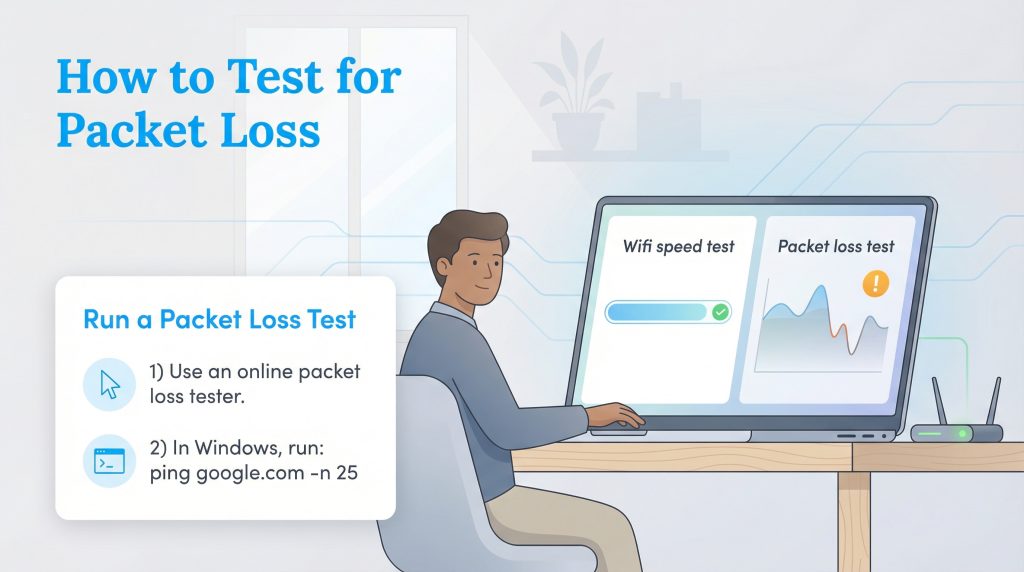
Many people incorrectly assume a standard speed test will identify all connection problems, but those tools only measure raw bandwidth — the sheer volume of data you can move at once. To get a truly accurate diagnosis of your network’s health, you need to measure the stability and consistency of the delivery. Fortunately, there are several easy ways to test your connection.
- Run an online packet loss test: The most user-friendly method is utilizing a browser-based online packet loss test. These free, third-party websites simulate real-world UDP traffic — mimicking the demands of gaming or VoIP — to give you an easy-to-read graph of exactly how many packets are being dropped by your network.
- Enable in-game network statistics: If you primarily experience issues while gaming, most modern competitive titles (like Fortnite, Valorant, or Call of Duty) include built-in network telemetry settings. Dive into the game’s user interface options and toggle on the “Network Stats” or “Packet Loss” overlay. This provides real-time feedback right on your screen, allowing you to see if your data drops spike during heavy action sequences.
- Use the command prompt ping test: For a more technical approach, you can run a continuous ping test via your computer’s built-in command terminal.
- On Windows: Open the Command Prompt. Type
ping -t 8.8.8.8and hit Enter. Let it run for at least 30 to 60 seconds, then press Ctrl + C to stop the test and view your percentage. - On macOS: Open the Terminal application. Type
ping 8.8.8.8and press Enter. Let the test run for a minute, then press Control + C to end it and view the results.
- On Windows: Open the Command Prompt. Type
How to Fix Packet Loss on Your Home Network
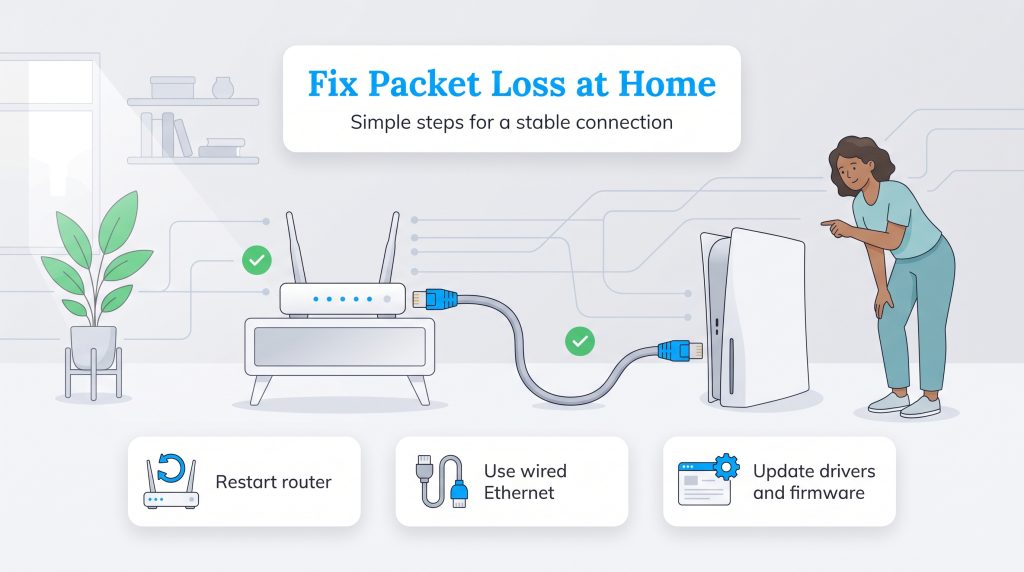
Once your diagnostic test confirms a stability issue, you can take specific actions to eliminate the interference. Fortunately, most of these fundamental troubleshooting steps are entirely free and take only a few minutes to complete. Follow this actionable checklist to learn how to fix packet loss and secure a highly stable connection:
- Restart your router (Power Cycle): Unplugging your networking equipment from the wall for a full 30 seconds clears its overloaded short-term memory. This simple reboot resolves temporary software bugs and clears out active data traffic jams.
- Switch to a wired Ethernet connection: Wi-Fi is inherently unstable and highly susceptible to environmental interference. Hardwiring your computer or gaming console directly to the router with an Ethernet cable instantly bypasses all wireless frequency issues. For more guidance on optimizing your physical home setup, check out our comprehensive Wi-Fi extender setup guide.
- Update your local network adapter drivers: Search for the “Device Manager” on your PC, locate your network adapters, and check for driver updates. Outdated drivers on your personal computer often cause formatting errors that lead to dropped data, so keeping your local machine up-to-date is critical.
- Upgrade your router’s firmware: Log into your router’s administrative panel via a web browser to install the latest firmware updates from the manufacturer. This patches known security vulnerabilities and optimizes how the hardware routes traffic.
- Enable QoS (Quality of Service): Dive into your advanced router settings to enable QoS. This powerful feature allows you to prioritize bandwidth for critical activities — like video calls and packet loss gaming — ensuring they get data priority over heavy background downloads happening elsewhere in the house.
- Inspect and replace damaged cables: Swap out any bent, frayed, or excessively old Ethernet cables with a fresh Cat6 cable. This ensures your physical connections can comfortably handle high data throughput without corrupting the electrical signal.
When to Call Your Internet Service Provider
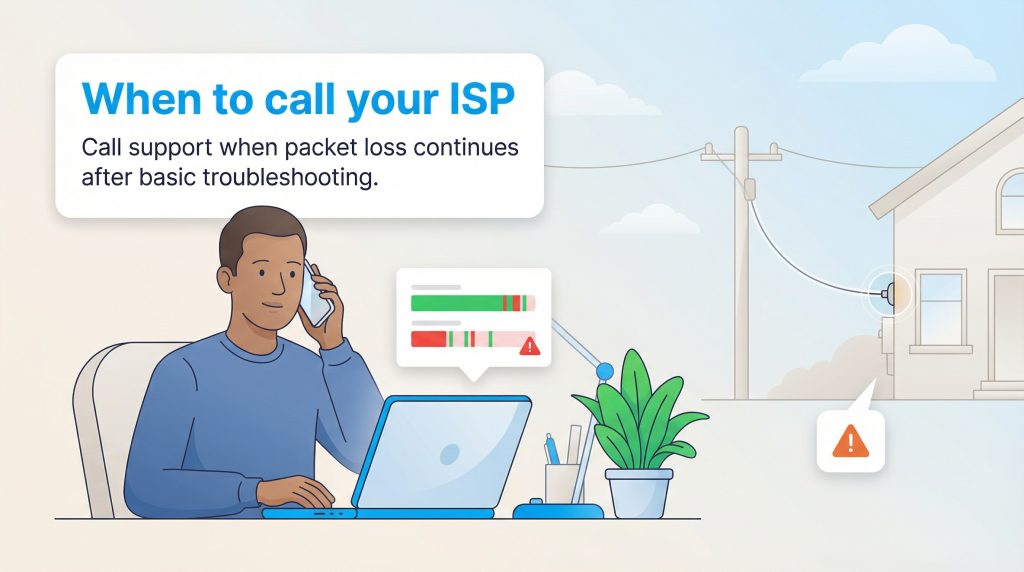
If you diligently follow these steps to reduce dropped data but the aggressive lag continues, the issue likely lies outside the walls of your home. It could be caused by degraded physical cables running from the street utility pole to your house, or heavy node congestion at the neighborhood level. In this scenario, you must contact your ISP so they can dispatch a technician to repair the damaged external infrastructure. Be sure to specifically mention your packet loss test results so they immediately understand you are dealing with a stability problem rather than a basic speed complaint.
Securing a Lag-Free Connection
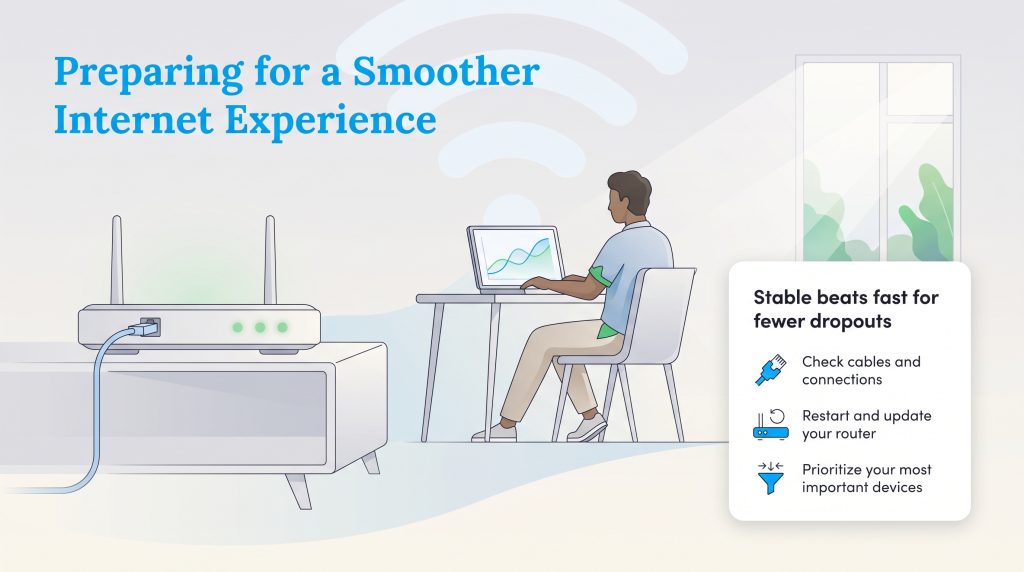
Experiencing constant lag and connection drops is a massive annoyance that easily disrupts your digital life, but thankfully, it is rarely an unsolvable permanent problem. By understanding the foundational mechanics of how your network processes data packets and taking the time to test for underlying stability rather than just raw download speed, you can pinpoint the exact cause of your internet woes quickly. Remember that protecting the health of your local network environment is just as important as choosing a good internet speed tier. Whether the solution proves to be a routine router restart, prioritizing your traffic via QoS settings, or simply running a hardwired Ethernet cable to your console, implementing these practical steps ensures you secure the seamless, high-quality internet experience you actively pay for. Ultimately, keeping your home network modern, efficient, and exceptionally stable saves you valuable time, eliminates daily frustration, and conserves unnecessary energy consumption.
Frequently Asked Questions About Packet Loss
What is an acceptable packet loss percentage?
Can a VPN fix packet loss?
Is 5% packet loss bad for gaming?
How do I fix packet loss on Wi-Fi?
Does resetting my router fix packet loss?
What is the difference between packet loss and high ping?
Can a bad Ethernet cable cause packet loss?
Does a faster internet plan fix packet loss?
Why do I only get packet loss at night?
About the Author

LaLeesha has a Masters degree in English and enjoys writing whenever she has the chance. She is passionate about gardening, reducing her carbon footprint, and protecting the environment. She also recently served as President of the Board for City Sprouts (a community garden).

David has been an integral part of some of the biggest utility sites on the internet, including InMyArea.com, HighSpeedInternet.com, BroadbandNow.com, and U.S. News. He brings over 15 years of experience writing about, compiling and analyzing utility data.