

Proper Placement And Manual Configuration Are The Secrets To Eliminating Dead Zones Effectively
Key Takeaways
- Place your extender halfway between your router and the dead zone for the best performance.
- Use the manual browser setup if the automatic WPS button fails to connect your device.
- Check your signal strength with a speed test app to verify the extender is actually working.
If you are constantly battling dead zone Wi-Fi solutions that fail to reach every room in your house, installing a signal booster is the most cost-effective way to regain reliable coverage. In this wi-fi extender setup guide, we will walk you through exactly how to connect a Wi-Fi extender to router hardware and permanently eliminate those frustrating drop-offs. Whether you are trying to push a stable connection to a backyard patio or stream seamlessly from an upstairs home office, getting your new hardware up and running properly ensures you achieve a good internet speed. By following these step-by-step instructions, you can bypass the technical headaches and finally enjoy the fast, stable internet connection you are actually paying for.
What You Need Before Starting
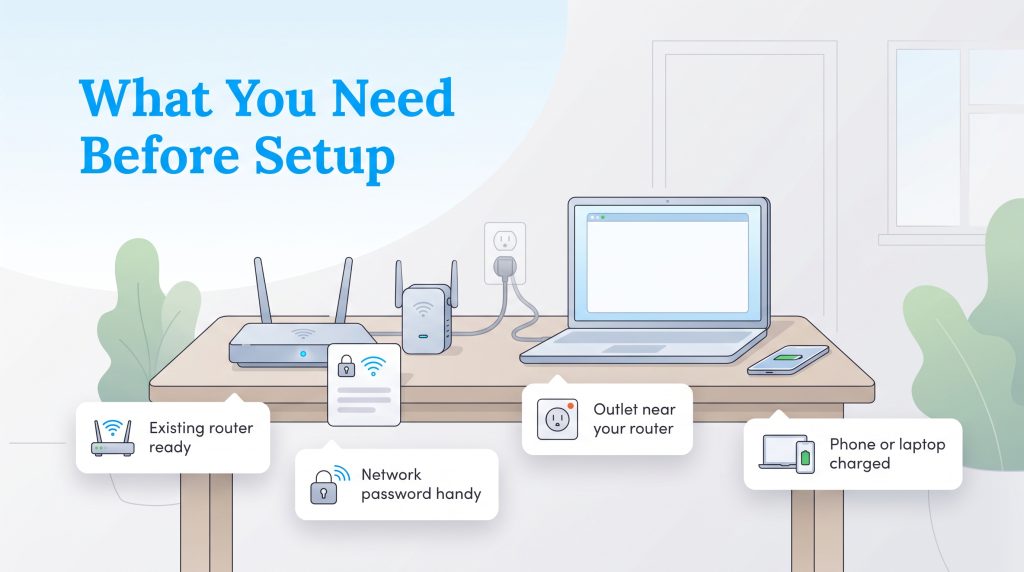
Before you unbox your new hardware and dive into the specific wi-fi repeater setup process, taking a few minutes to gather your credentials will save you a massive amount of frustration. Prepare the following items so your installation goes smoothly from start to finish.
- An existing router: Set up a wireless router first to ensure your primary internet connection is currently active and broadcasting a signal.
- Your network password: You need the exact Wi-Fi password for your main home network to create a secure bridge.
- A power outlet near the router: During the initial pairing phase, you must plug the extender into a wall outlet in the exact same room as your router.
- A smartphone or laptop: Have a device charged and ready to complete the digital setup steps if you plan on using an app or browser.
Method 1: The WPS Button Setup (Fastest)
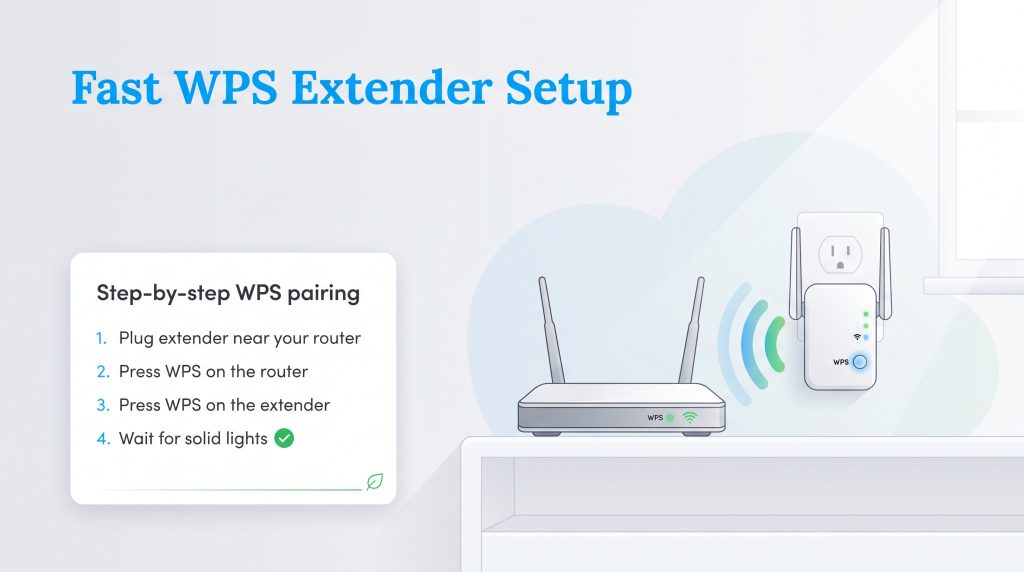
The absolute easiest way to handle your initial configuration is by utilizing the Wi-Fi Protected Setup (WPS) button found on the back or side of most modern routers. Do not worry about permanent placement just yet; keeping the devices close together simply ensures they can easily communicate during this initial pairing handshake.
- Plug in the extender: Connect the device to a wall outlet in the same room as your router and wait about one minute for the power light to turn solid.
- Press the router’s WPS button: Push the WPS button on your main router for one to two seconds until its indicator light begins to flash.
- Press the extender’s WPS button: Within two minutes of triggering the router, press the corresponding WPS button on your extender. The connection lights will begin to blink rapidly as the two devices sync.
- Wait for a solid connection: Give the hardware about two full minutes to finalize the bridge. Once the indicator lights turn solid green or white, the devices are successfully paired. You can now safely unplug the extender to move it to a better location.
Method 2: The Mobile App Setup (Best For TP-Link & Netgear)
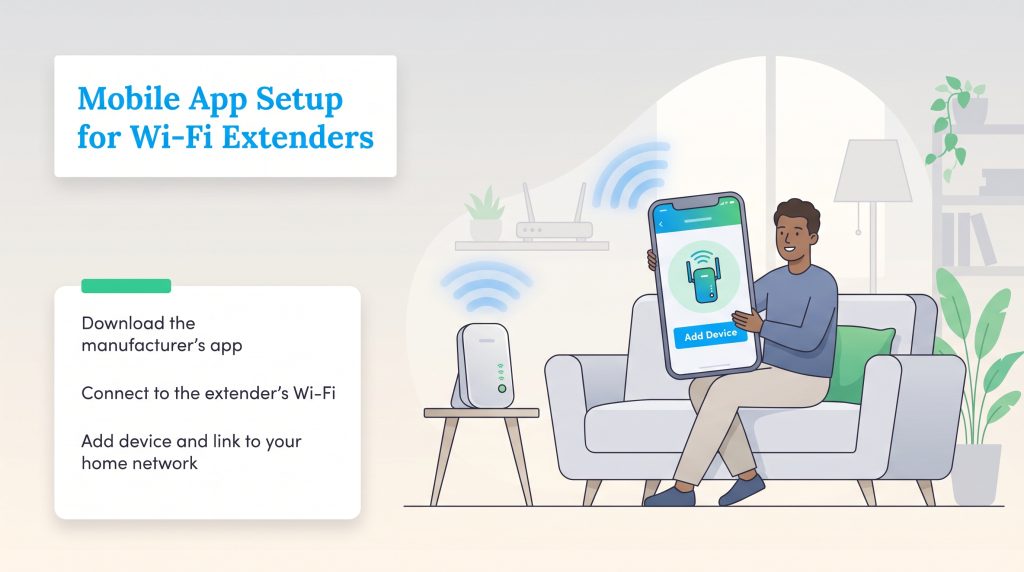
If you prefer a highly guided, visual experience, nearly every major networking manufacturer now provides a dedicated smartphone application to walk you through the process. Whether you need a specific tp-link extender setup or are running through a netgear extender setup wizard, the mobile app approach completely bypasses confusing IP addresses.
- Download the manufacturer app: Head to the Apple App Store or Google Play Store and download your brand’s specific app (e.g., TP-Link Tether or Netgear Nighthawk). Create a user account if prompted.
- Connect to the extender’s network first: Before you even open the app, plug in your extender. Open your smartphone’s Wi-Fi settings and connect directly to the extender’s unsecured default network (usually labeled with the brand name, like “TP-Link_Extender”).
- Add the device in the app: Launch the app, tap the “Add Device” button, and select “Range Extender.” Many apps will let you use your smartphone camera to quickly scan the QR code printed on the back of the device.
- Finalize the network bridge: The app will scan for your primary Wi-Fi network. Tap your existing home network name, enter your main router’s password, and confirm your settings to finish up.
Method 3: The Manual Web Browser Setup (Universal)
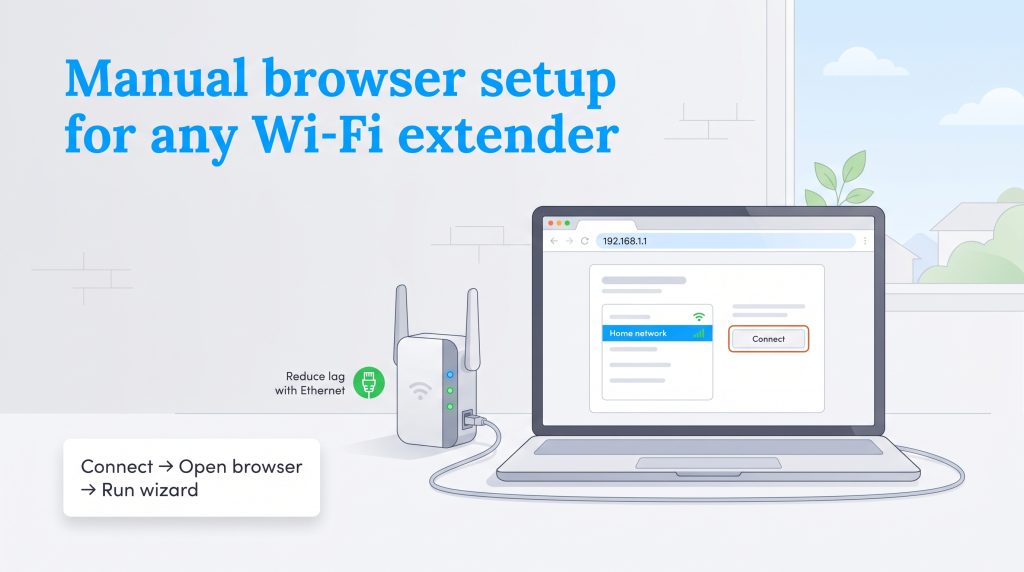
If your router lacks a WPS button and you do not want to download extra smartphone applications, you will need to rely on a manual wifi extender setup using a web browser. This method is universal and works perfectly for older equipment or failed automatic pairings.
- Connect to the device: Plug in the extender. You can either connect your laptop to its unsecured default Wi-Fi network or run an Ethernet cable directly from the extender to your computer’s LAN port.
- Enter the default IP address: Open a web browser and type the manufacturer’s default login URL into the address bar. If you are unsure which web address to use, refer to the table below or try a standard IP address like 192.168.1.1.
- Follow the on-screen prompts: The admin panel will load a setup wizard that scans the area for available connections. Select your home network, type in your router password, and save your settings.
| Brand | Common Login URL |
|---|---|
| Netgear | mywifiext.net |
| TP-Link | tplinkrepeater.net |
| Linksys | extender.linksys.com |
| ASUS | repeater.asus.com |
Once you are logged into the web portal, you can also manage advanced features. Running a physical Ethernet cable directly from the extender to your gaming console or smart TV helps bypass wireless interference completely, which works wonders to drastically reduce latency.
Finding The Best Placement For Your Wi-Fi Extender
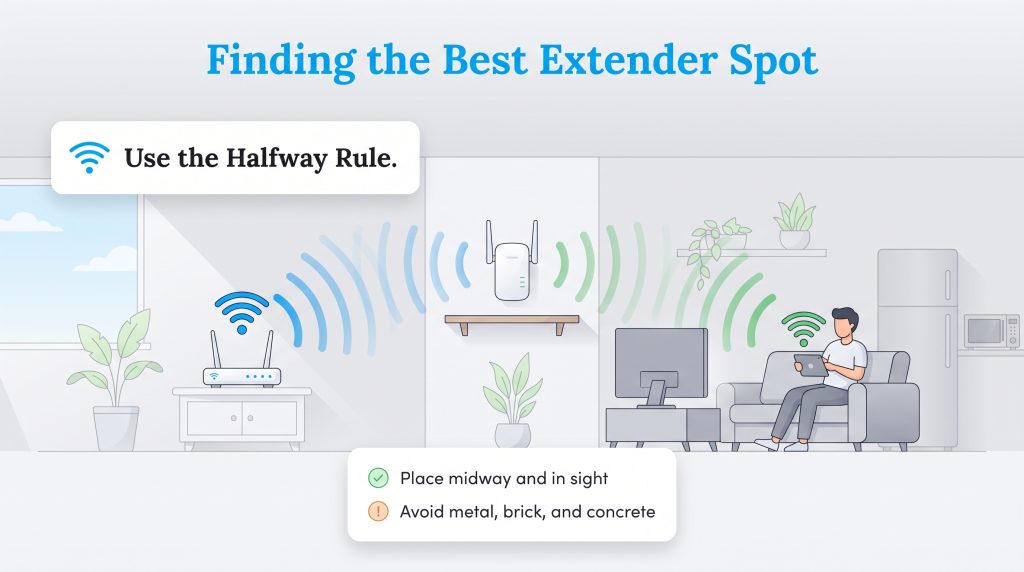
The single most common mistake people make during a wifi booster installation is plugging the hardware directly into the dead zone room. Finding the best placement for wifi extender equipment is critical because the device functions exactly like a relay runner — it must receive a strong, stable signal from the main router before it can pass that signal along to your phone.
- Do use the halfway rule: Place your device roughly halfway between your main router and the room experiencing weak coverage. This ensures the unit grabs a solid connection while still projecting outward into the dead space.
- Don’t hide it behind furniture: Elevate your extender on a bookshelf or side table rather than tucking it behind a couch. A clear line of sight maximizes the broadcasting range.
- Don’t place it near interference: Keep the device far away from signal-killing barriers. Large metal appliances like microwaves and refrigerators, as well as thick brick or concrete walls, will heavily disrupt wireless transmission.
- Do test your placement: Consider downloading a free Wi-Fi analyzer app to map out exactly where your router’s signal drops off before choosing a permanent wall outlet.
💡 Pro Tip: Most modern extenders feature dual-band capabilities. The 2.4 GHz band travels farther and penetrates thick walls easily, making it great for reaching distant garages. The 5 GHz band delivers faster speeds for 4K streaming but struggles to pass through physical obstacles, making it ideal when the extender is within the line of sight of your devices.
Understanding LED Indicator Lights
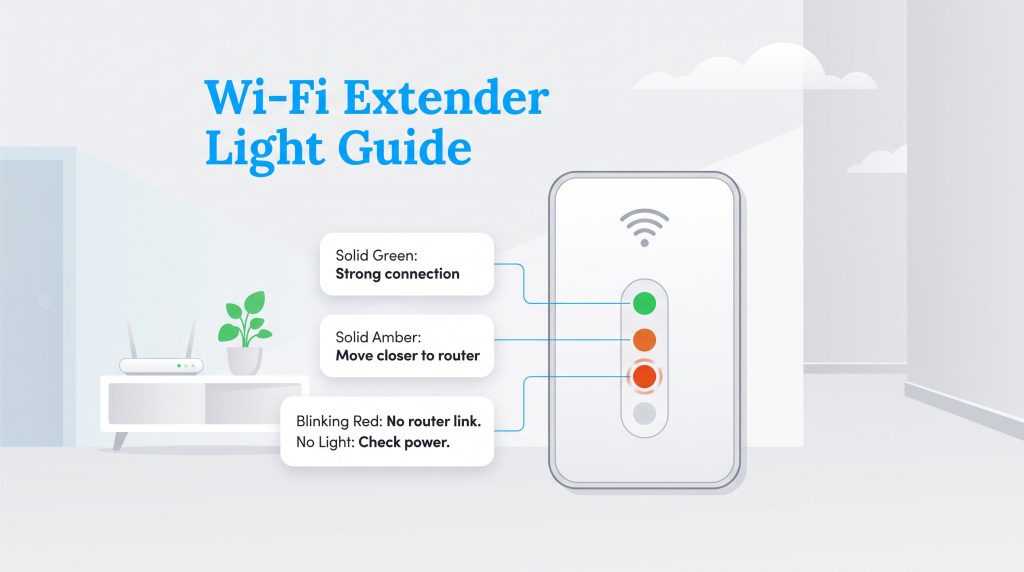
Wi-Fi extenders communicate their status entirely through small LED indicator lights, making them your first line of defense during technical hiccups. Learning to decode these colors helps you immediately identify if your hardware is positioned correctly or suffering from a configuration error.
| LED Light Color | Meaning & Action Required |
|---|---|
| Solid Green / White | Your extender has a strong, stable connection to the router. No further action is needed. |
| Solid Amber / Orange | The extender is connected but receiving a weak signal. Relocate it closer to the router. |
| Blinking Red | There is no connection to the router at all. You are either entirely out of range or entered the wrong password during setup. |
| Off / No Light | The device is not receiving power. Check the wall outlet or the physical power switch on the unit. |
Extender Vs. Access Point Mode: Which Should You Use?
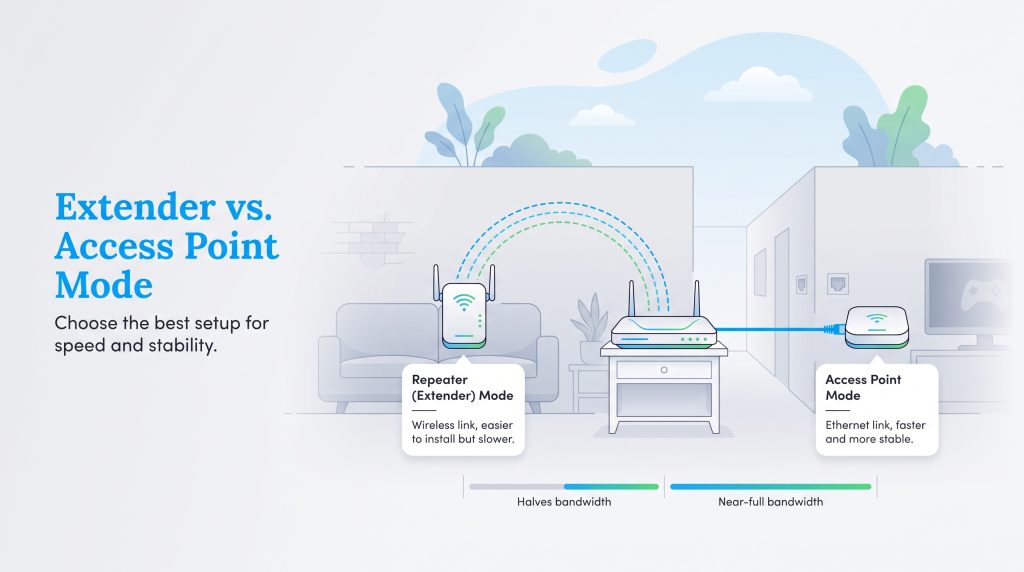
As you dive deeper into your network settings, you might notice that premium boosters offer two distinct operational features: access point mode vs repeater mode. Deciding between these two setups heavily influences your top-end speeds and overall home network stability.
| Feature | Repeater Mode (Extender) | Access Point Mode |
|---|---|---|
| Connection Type | Wireless (Connects to your router via Wi-Fi signal) | Hardwired (Connects to your router via Ethernet cable) |
| Speed Retention | Usually halves your bandwidth because it receives and transmits data on the same channel simultaneously. | Retains nearly 100% of your total bandwidth, offering blazing-fast speeds with minimal drop-offs. |
| Ideal Use Case | Great for older homes or renters where running long network cables through walls is impossible. | Perfect for new builds with Ethernet wall ports or hardcore gamers demanding the lowest latency possible. |
Troubleshooting Common Setup Errors
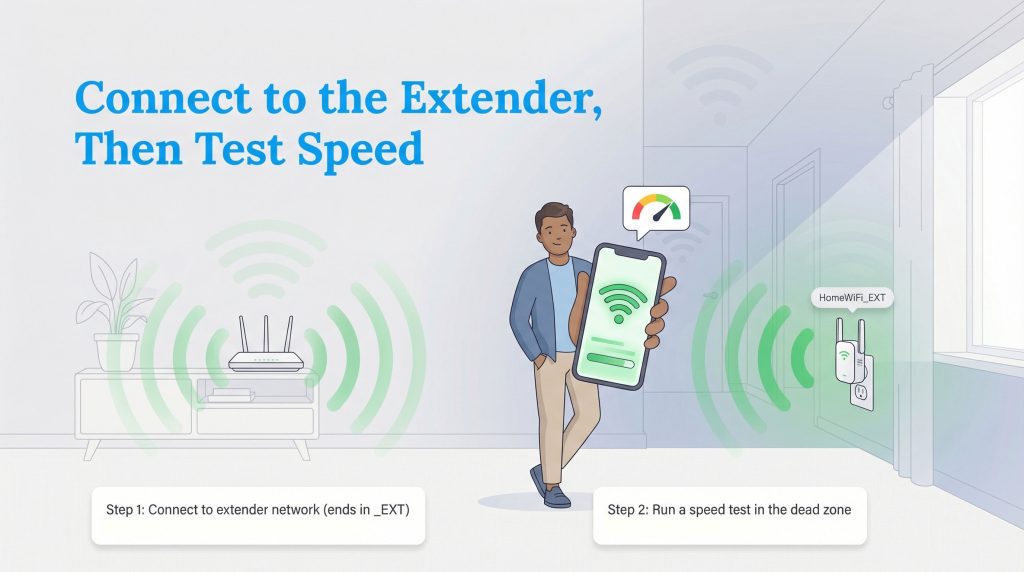
Even with optimal placement, you might occasionally face random connection drops or spotty coverage. If you are actively trying to figure out how to fix slow internet when your devices refuse to stay connected, check these common errors and quick solutions.
- Problem: Frequent connection drops.
Solution: Outdated firmware causes constant disconnects. Log into the extender’s admin dashboard using the mobile app or browser IP address, navigate to the system settings, and click “Firmware Update” to patch the bugs. - Problem: The extender won’t connect to a new router.
Solution: You must wipe the old credentials entirely. While the unit is powered on, use a paperclip to press and hold the internal reset button (usually hidden in a small pinhole) for exactly 10 seconds. Once it reboots, run the initial setup wizard again. - Problem: Devices aren’t switching to the extended signal.
Solution: Unless you use a smart roaming system, you need to manually open your phone’s Wi-Fi menu and tap the new network ending in “_EXT”. You can build confidence by understanding your speed test results through an official government testing app to verify your phone successfully locked onto the faster channel.
🚩 Heads Up: Wireless extenders naturally reduce your top-end speed because they must receive and retransmit data over the exact same radio channel. Securing roughly half the speed you normally get when standing near your main router is a standard trade-off for pushing coverage into a room that previously had none.
Making A Sustainable Networking Choice
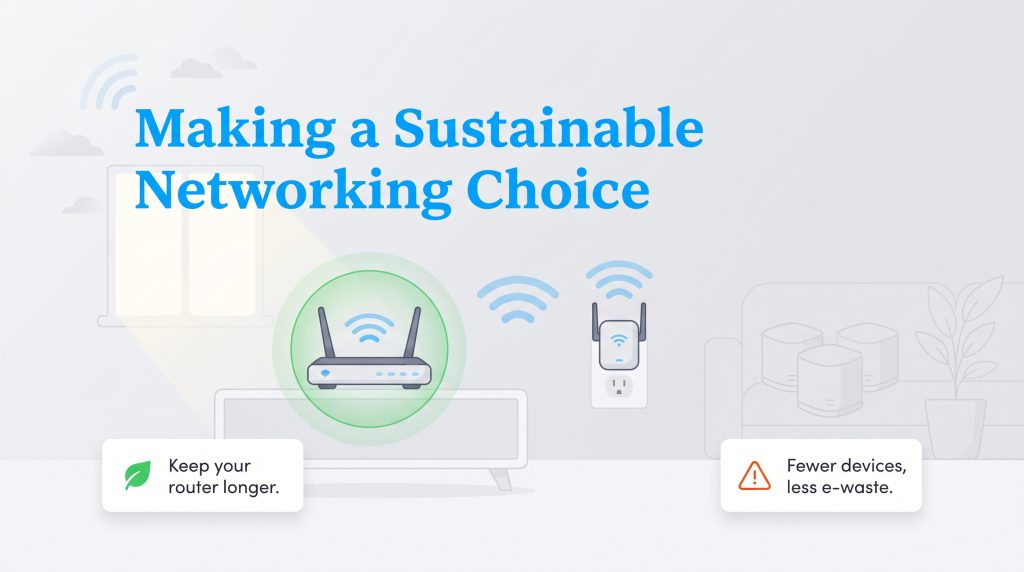
Expanding your home network into a reliable, high-speed ecosystem does not require a costly overhaul if you follow the right configuration strategies. When facing connectivity issues, many consumers quickly toss out their old router for a multi-unit Mesh system. Choosing a simple plug-in extender is a fantastic way to support the principles of sustainable living. By extending the operational lifespan of your existing gear, you actively help reduce toxic electronic waste and keep plastics out of landfills.
Preparing Your Home For Seamless Wi-Fi Coverage
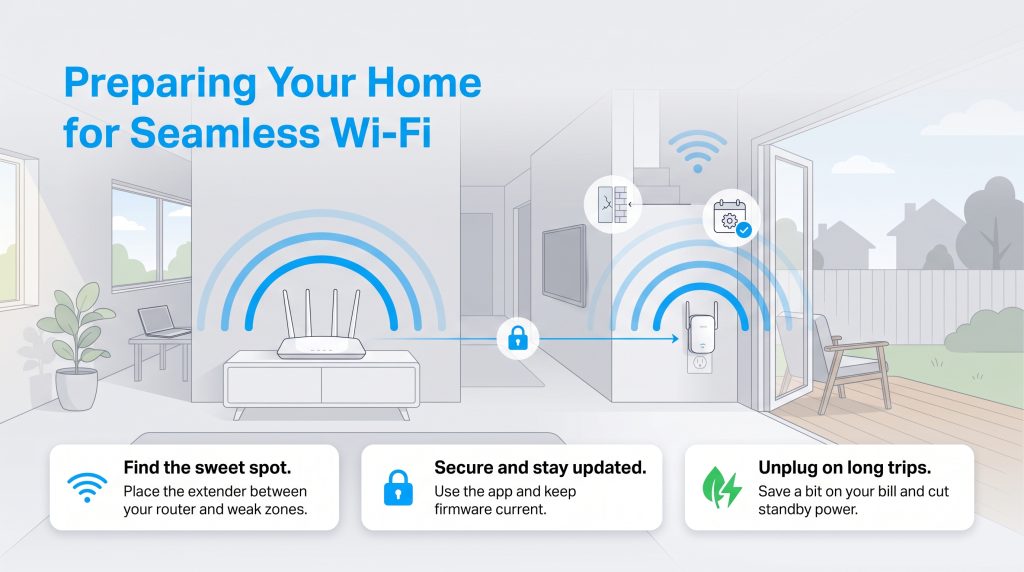
By securely authenticating your connection via an app or browser, dialing in your hardware placement to avoid thick walls, and keeping your firmware updated, you can eliminate buffering completely. Enjoy streaming movies on the patio or taking professional video calls from the spare room without stressing over dropped signals. Just remember that plugged-in networking devices consume vampire standby power even when idle, so pulling the extender out of the wall before a long vacation saves electricity and lowers your utility bill slightly.
Frequently Asked Questions About Wi-Fi Extenders
What is the difference between a Wi-Fi extender, booster, and repeater?
These terms are often used interchangeably in marketing and usually refer to the exact same type of device. Technically, they all perform the same core function: they receive an existing wireless signal from your primary router, amplify it, and rebroadcast it to expand coverage into hard-to-reach areas of your home.
Why is my Wi-Fi extender flashing a red light?
A wifi extender red light blinking rapidly generally means the device cannot communicate with your main router at all. This usually happens if you placed the unit too far outside the router’s broadcasting range, or if you accidentally typed in the wrong network password during your initial browser or app setup. Move it closer to the router and try reconnecting.
How do I connect a Wi-Fi extender to a router without a WPS button?
If your router lacks a physical WPS button, you can easily pair the devices manually. Simply plug in the extender, connect your smartphone to the extender’s default, unsecured Wi-Fi network, and use either the manufacturer’s mobile app or a web browser setup page to bridge the connection to your main router.
Do I need to create a new network name (SSID) for my extender?
It depends on your hardware. If your primary router and extender both support unified network features like Smart Roaming, using the exact same SSID (network name) is highly recommended for seamless handoffs. However, if you use standard or older hardware, giving the extender a different name (like “HomeNetwork_EXT”) prevents your phone from stubbornly clinging to a weak signal, allowing you to manually switch when needed.
Can I plug a Wi-Fi extender into a power strip?
While you physically can plug an extender into a power strip, network manufacturers strongly recommend plugging it directly into a standard wall outlet. Surges, cheap internal components in power strips, and bulky adapters often cause electrical interference that slightly degrades the wireless signal and reduces stability.
What is the default IP address for a Wi-Fi extender login page?
While it varies slightly by manufacturer, the most common default IP addresses used to access an extender’s configuration dashboard are 192.168.1.1, 192.168.0.1, or 192.168.1.250. Type this sequence of numbers directly into the address bar of a web browser while connected to the extender’s network. If these numbers fail, check the printed sticker on the back of the device for a brand-specific login URL.
Should I connect my extender to the 2.4 GHz or 5 GHz band?
Your choice depends entirely on distance and speed needs. Connect to the 2.4 GHz band if your extender is placed far away from the main router or needs to penetrate thick walls. Connect to the 5 GHz band if the extender is relatively close to the router and you need fast speeds for streaming video or online gaming. Modern dual-band extenders allow you to utilize both simultaneously for maximum efficiency.
How do I reset my extender if I move?
To properly reset your device to its factory default state, search for the small pinhole button labeled “Reset” on the side or bottom panel of the unit. While the device is fully plugged in and powered on, use a straightened paperclip to press and hold the internal button for about 10 seconds. Wait until the indicator lights flash, then release the button to restart the setup process from scratch.
About the Author

LaLeesha has a Masters degree in English and enjoys writing whenever she has the chance. She is passionate about gardening, reducing her carbon footprint, and protecting the environment. She also recently served as President of the Board for City Sprouts (a community garden).

David has been an integral part of some of the biggest utility sites on the internet, including InMyArea.com, HighSpeedInternet.com, BroadbandNow.com, and U.S. News. He brings over 15 years of experience writing about, compiling and analyzing utility data.