

Stop the Buffering and Get Back to Browsing with These Practical Tips for Optimizing Your Home Network
Key Takeaways
- Run a wired speed test first to diagnose whether the severe slowdown is caused by your outdated home equipment or a genuine issue with your internet service provider.
- Optimize your hardware placement by moving the router to a central, elevated location far away from heavy physical obstructions and appliance interference.
- Boot unauthorized network leeches, switch to a faster public DNS server, and install pending firmware updates to fix internal routing errors before spending money on faster service plans or brand-new equipment.
Few things are more frustrating than settling in for a movie night only to watch a loading circle spin endlessly, or dropping out of an important remote work call because your connection decided to take an unexpected break. While it’s tempting to immediately blame your provider or rush out to buy an expensive router, learning how to fix slow internet is often much simpler and completely free. Most household lag comes down to minor signal interference, outdated software settings, or congested wireless channels that you can clear up in minutes. We’ve put together a step-by-step guide to help you figure out why your connection is dragging, fine-tune your existing setup, and know for sure when it’s actually time for a hardware upgrade.
Quick-Reference Troubleshooting Matrix: Symptom vs. Solution
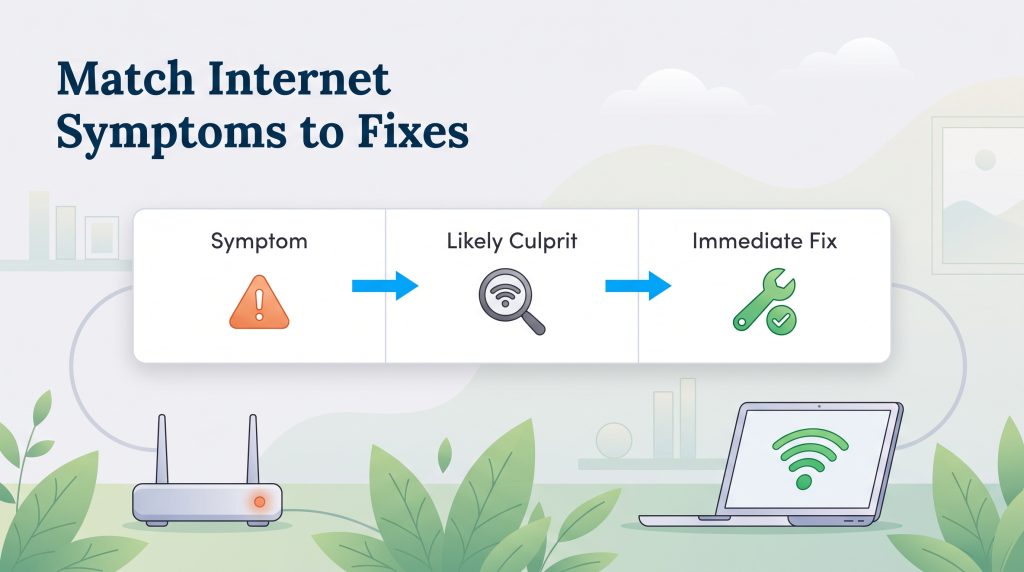
If you’re wondering, “Why is my internet so slow right now?” you don’t always have time to read an entire manual before your next meeting starts. Use the diagnostic table below to match your exact frustration with its most likely culprit and jump straight to the right fix.
| Symptom | Likely Culprit | Immediate Fix |
|---|---|---|
| Slow on only one device | Local software glitch, corrupt browser cache, or outdated network drivers | Restart the device, close heavy background apps in Task Manager, and update your Wi-Fi adapter drivers. |
| Slow only in specific rooms | Physical walls, appliance interference, or weak signal range | Move your router to a central, elevated shelf, or switch that device from the 5 GHz or 6 GHz band to the longer-range 2.4 GHz band. |
| Slow every evening between 7 and 11 p.m. | Neighborhood network congestion or household bandwidth overload | Plug critical devices directly into the router with an Ethernet cord and enable Quality of Service (QoS) settings. |
| High speed test results, but web pages take forever to load | Sluggish ISP default domain name servers or a corrupted local cache | Flush your computer’s DNS cache and switch your network settings to a fast public DNS like Cloudflare (1.1.1.1) or Google (8.8.8.8). |
| Sudden slowdown during the last week of the billing cycle | Intentional ISP throttling after exceeding a monthly data cap | Log into your provider’s account portal to check your monthly data allowance, pause large cloud backups, or upgrade to an unlimited data plan. |
Is Your Internet Slow on One Device or All Devices?
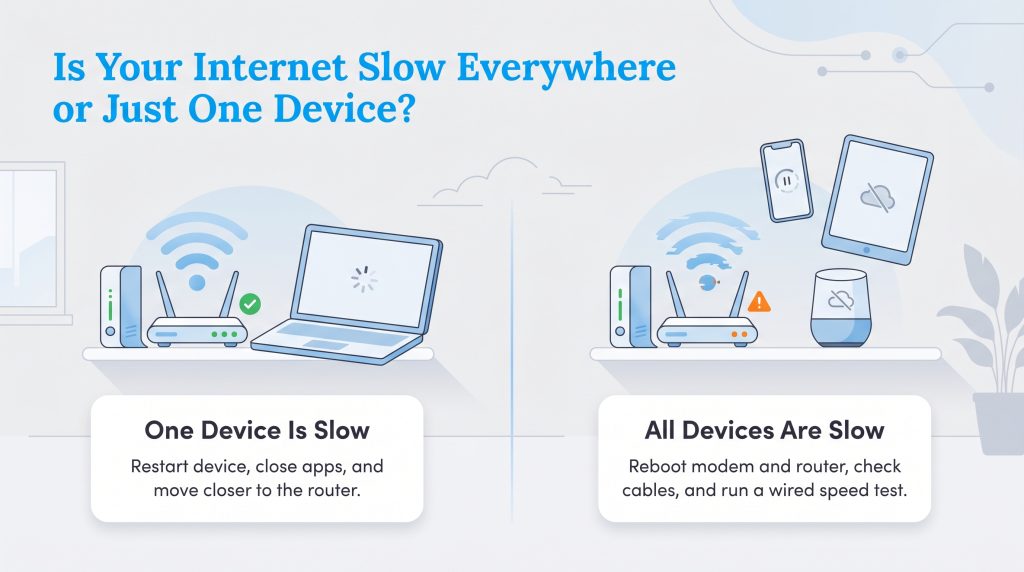
Before you start crawling under desks to unplug dusty wires, take a minute to figure out how widespread the problem actually is. Knowing whether the slowdown affects your entire household network or just a single piece of hardware will dictate your next steps and save you hours of headache. By paying attention to where the lag happens, you can quickly isolate the bottleneck.
- If your internet is slow on just one device: Your smartphone streams high-definition video flawlessly, but your work laptop struggles to load simple emails and buffers constantly. In this scenario, your home network is doing its job just fine; that specific computer or phone is the problem. Start by restarting the affected machine, checking for massive background operating system updates, clearing your web browser’s cache, or moving the device closer to the router to see if the signal improves.
- If your internet is slow on all devices: Every smartphone, desktop computer, smart TV, and tablet in the house is lagging, dropping connections, or showing an offline error. Here, the bottleneck is happening at the network level. You’ll need to power cycle your main modem and router, inspect your physical data cables, and run a hardwired speed test to see if the issue lies inside your home or out on the utility pole.
1. Run a Speed Test to Establish a Baseline

To get an accurate baseline of your network’s actual performance, you need to run an internet speed test. While Wi-Fi is convenient for everyday browsing on the couch, it’s notoriously unreliable for testing raw incoming speeds because distance, furniture, and walls naturally weaken wireless signals. Before running a diagnostic test, plug a laptop or desktop directly into your router using an Ethernet cable. This wired connection bypasses your wireless broadcast entirely, showing you the true speed entering your home from the street.
Once you’re plugged in, run a test using a reliable tool like Ookla’s Speedtest.net. Try testing your connection during both quiet morning hours and busy evening hours (typically between 7:00 p.m. and 11:00 p.m.). When your results pop up, pay attention to three numbers: ping measures your connection’s reaction time in milliseconds (lower is better for gaming and video calls); download speed shows how fast your network pulls data from the web in megabits per second (crucial for streaming movies); and upload speed measures how quickly you send data out (essential for backing up large files or sharing your webcam feed). Compare these numbers against the plan listed on your monthly bill. If you aren’t sure how much bandwidth your household actually requires, check out our guide on what is a good internet speed, or review the FCC’s Broadband Speed Guide.
2. Restart Your Modem and Router (Power Cycling)

It’s the oldest tech support cliché in the book for a reason. Asking “Have you tried turning it off and on again?” — formally known as power cycling — is still the single most effective fix for sudden network glitches. Your modem and router are essentially miniature computers running 24/7. Over weeks of continuous use, their internal memory caches fill up, routing tables get tangled, and processors overheat. A proper reboot wipes away temporary software bugs and forces your hardware to establish a clean, fresh handshake with your internet service provider (ISP). Follow these three steps to do it right:
- Unplug the power cords: Disconnect both the modem and the router directly from the wall outlet or power strip.
- Wait a full 60 seconds: Don’t rush this part. Waiting a full minute allows the internal electrical capacitors to drain completely, ensuring the volatile memory actually clears out.
- Plug them back in sequentially: Plug the modem back into power first and wait about two minutes until its front indicator lights turn solid. Only after the modem is fully online should you plug in your router and wait another two minutes for your Wi-Fi network to reappear.
💡 Pro Tip: Don’t press or hold the tiny recessed “Reset” pinhole button on the back of your router! Doing so triggers a full factory reset, which wipes out your custom Wi-Fi network name, password, and security settings. Unplugging the power cord is much safer for a routine reboot.
3. Optimize Your Router Placement for Better Wi-Fi
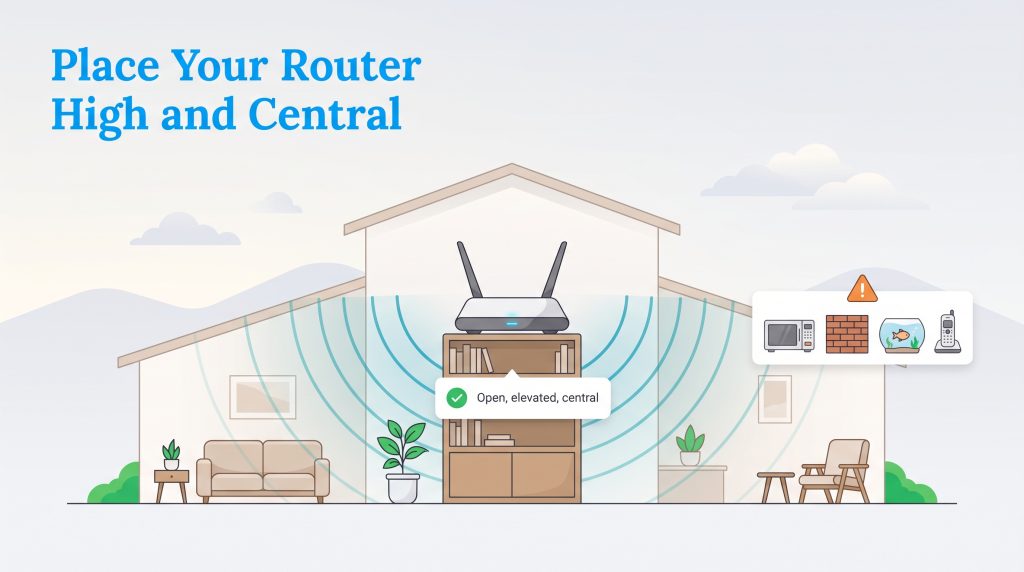
When you’re trying to troubleshoot a slow home network, look closely at where your equipment lives. A router’s physical location dictates the strength and reach of your wireless signal. Because routers aren’t the prettiest pieces of home decor, many people stuff them inside closed media cabinets, behind the television, or down in a basement utility closet. Unfortunately, Wi-Fi signals travel via radio waves that lose a massive amount of strength every time they pass through solid objects.
To get the best coverage without spending a dime, place your router out in the open on a high, central shelf or bookcase. Since radio waves radiate outward and slightly downward, elevation helps the signal travel across your floor plan unobstructed. To quickly fix a slow Wi-Fi connection, move your router away from these common household obstructions:
- Microwaves and kitchen appliances: Kitchen microwaves operate on the exact same 2.4 GHz frequency as standard Wi-Fi, which can scramble your wireless signal whenever someone heats up leftovers. Large metal appliances like refrigerators also bounce radio waves backward, creating dead zones on the other side of the room.
- Concrete, brick, and plaster walls: While standard drywall is relatively easy for radio waves to pass through, dense masonry, metal wall studs, and wire-mesh plaster stop wireless broadcasts dead in their tracks.
- Large bodies of water: Water absorbs radio frequency energy remarkably well. Setting your router right next to a large saltwater aquarium or a high-efficiency water heater creates an invisible wall for your Wi-Fi signal.
- Cordless phones, baby monitors, and Bluetooth devices: Older cordless landline handsets, wireless video baby monitors, and clusters of Bluetooth speakers crowd the airwaves with competing radio chatter. Keep your router at least three to five feet away from these transmitters to prevent signal interference.
For more tips on planning your home’s layout from day one, check out our guide on how to set up a wireless router or visit our internet service setup hub.
4. Switch Between 2.4 GHz, 5 GHz, and 6 GHz Bands
Modern routers don’t just broadcast a single wireless signal; they act like multi-lane highways broadcasting across two or three frequency bands at once. When comparing 2.4 GHz vs. 5 GHz vs. 6 GHz, each band trades off raw speed for physical distance. If you live in an apartment building or a dense neighborhood where dozens of routers are competing on the default 2.4 GHz band, those overlapping signals will clash and trigger severe packet loss.
While dual-band routers use 2.4 GHz and 5 GHz, newer Wi-Fi 6E and Wi-Fi 7 routers unlock the 6 GHz spectrum. Think of the 6 GHz band as an exclusive express lane reserved strictly for newer devices. It offers ultra-wide channels with virtually zero interference from neighbors, though its short wavelengths struggle to punch through multiple bedroom walls.
If your router splits its bands into separate network names (like “HomeNet_2.4G”, “HomeNet_5G”, and “HomeNet_6G”), manually assign your gadgets to the band that fits how you use them. Put stationary, data-hungry electronics in the same room as the router onto the 5 GHz or 6 GHz bands, and leave distant smart plugs or garage security cameras on the long-reaching 2.4 GHz band. If your router combines all bands under a single name using “band steering,” you can still log into your router settings to turn off band steering if you notice your laptop stubbornly clinging to the slower 2.4 GHz frequency.
| Wi-Fi Frequency Band | Top Speeds | Signal Range | Best Use Case |
|---|---|---|---|
| 2.4 GHz | Slower (Prone to interference) | Excellent (Penetrates walls easily) | Smart home gadgets, security cameras, and basic web browsing far from the router. |
| 5 GHz | Much Faster (Less interference) | Shorter (Struggles with solid walls) | 4K streaming, gaming consoles, and work laptops within one or two rooms of the router. |
| 6 GHz | Ultra-Fast / Multi-Gigabit | Shortest (Line-of-sight best) | VR headsets, 8K streaming, and heavy file transfers on Wi-Fi 6E/7 devices in the same room. |
5. Upgrade to a Wired Ethernet Connection

People often spend hours tweaking wireless settings when the real problem is worn-out or outdated wiring. The cables linking your wall jack to your modem — and your modem to your router or PC — are the physical bridges carrying every bit of your household traffic. If you need an immediate fix for slow internet download speeds, bypass wireless altogether and connect stationary devices like desktop computers, gaming consoles, and living room Apple TVs directly to your router with an Ethernet cord. Not only will those wired devices get instant, rock-solid speeds, but pulling them off your Wi-Fi frees up wireless airtime for your phones and tablets.
Keep in mind that not all Ethernet cords are built the same. Look closely at the plastic jacket of the cable connecting your modem to your router to see what category (“Cat”) rating is printed on the side. Plain old Cat5 cables are completely obsolete and top out at a sluggish 100 Mbps, which will choke a modern fiber or cable plan. While a Cat5e cable in good shape can handle up to 1 Gbps over short distances, we recommend upgrading to Cat6 or Cat6a cables for residential gigabit and multi-gigabit setups. Cat6 and Cat6a cords feature tighter internal copper twists and better shielding to eliminate crosstalk, supporting up to 10 Gbps without breaking a sweat.
6. Stop Background Apps from Using Bandwidth
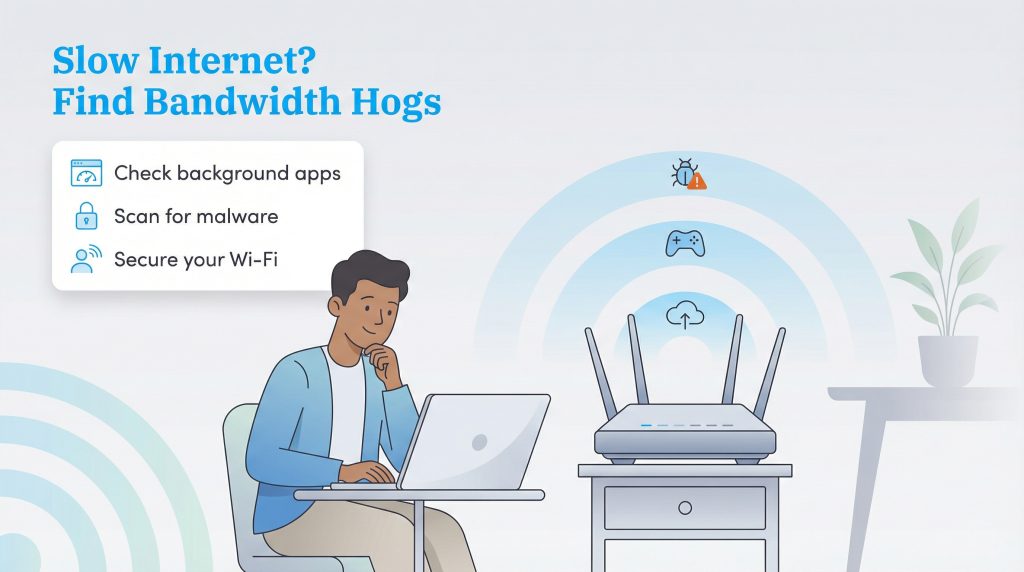
Sometimes the slowdown has nothing to do with your router and everything to do with what’s running behind the scenes on your computer. If you’re looking for how to speed up internet on PC or Mac right before a video conference, check for hidden background programs quietly eating up your bandwidth. Cloud backup tools like OneDrive, iCloud, Google Drive, and Dropbox love to sync massive photo libraries or video folders in the background without asking. Similarly, PC gaming launchers like Steam or Epic Games routinely kick off 50 GB game patches right in the middle of the workday, starving your video calls of upload and download capacity.
You can spot and shut down these hidden bandwidth hogs in less than a minute using your computer’s built-in system monitors:
- On Windows: Press Ctrl + Shift + Esc to open the Task Manager. Click on the “Network” column header to sort all active processes from highest to lowest bandwidth usage. If you see a non-essential app pulling heavy Mbps in the background, right-click it and select “End task” to shut it down immediately.
- On Mac: Open Activity Monitor from your Utilities folder (or search for it via Spotlight). Click the “Network” tab at the top and sort the list by “Rcvd Bytes” or “Sent Bytes.” Highlight any cloud sync tool or updater hogging your connection and click the “X” button in the top corner to quit the process.
7. Disconnect Unused Smart Home Devices and Enable QoS

Take a quick mental count of how many screens and sensors are hooked up to your Wi-Fi right now. Between smartphones, work laptops, smart TVs, tablets, robot vacuums, video doorbells, and smart lightbulbs, the average household easily hosts 20 to 40 connected devices. Even when idle, every Internet of Things (IoT) gadget pings cloud servers to check for status updates and firmware patches. Worse yet, indoor and outdoor security cameras constantly upload high-definition video footage to the cloud, which can quietly max out your plan’s upload speed and make your whole connection feel sluggish.
Start by turning off Wi-Fi on old tablets, spare phones, or smart gadgets you rarely use. Next, open your router’s mobile app or web dashboard and turn on Quality of Service (QoS). QoS lets you play traffic cop with your home bandwidth. Instead of letting your smart fridge or a background file download steal bandwidth from your work laptop, you can set QoS rules that put video conferencing, voice calls, or gaming at the front of the line — or assign VIP priority directly to your primary work computer.
🚩 Heads Up: Before spending time tweaking QoS rules, check if your connection actually needs them. If your baseline internet speed is over 500 Mbps, your digital highway is wide enough that QoS won’t make a noticeable difference, and turning it on can actually cap your top speeds on some older routers. QoS shines brightest on slower connections (under 150 Mbps) or asymmetric cable plans with tight upload limits.
8. Secure Your Network Against Wi-Fi Leeches and Malware
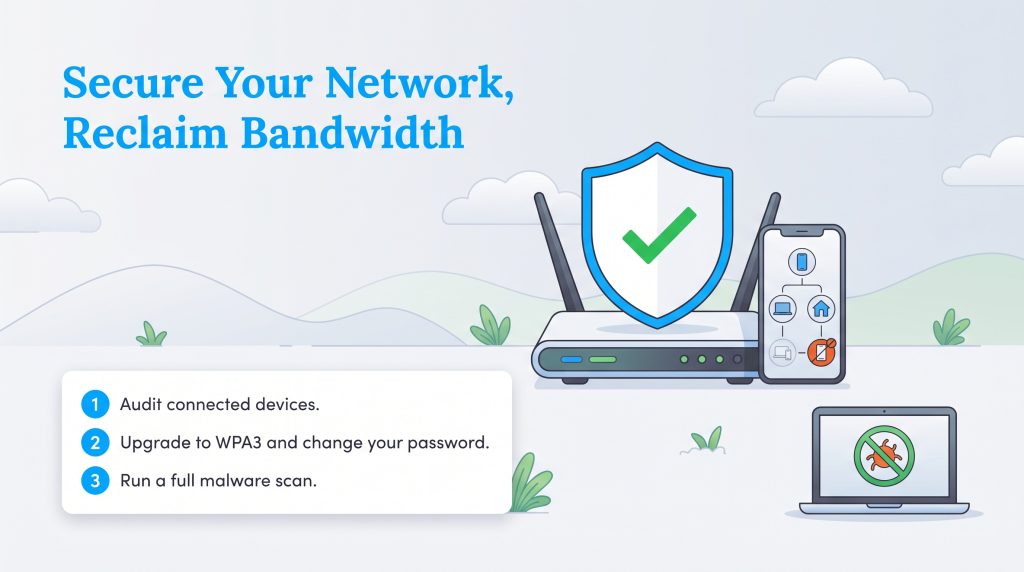
If your connection drags even when nobody in your family is streaming or downloading files, someone else might be piggybacking on your bandwidth. “Wi-Fi leeches” — whether that means a neighbor who guessed your simple password or a former guest whose devices still auto-connect from next door — can quietly stream 4K movies and eat up your data allowance without you ever knowing. Even more concerning, hidden malware, adware, or background cryptominers on an infected computer can hijack your network connection to send spam or mine digital currency around the clock.
Locking down your network kicks off freeloaders and stops malicious background processes in their tracks. Follow this three-step security audit to reclaim your bandwidth:
- Audit your connected devices list: Open your router’s companion smartphone app or log into its web admin portal and click on “Connected Devices” or “Client List.” Go through the list of connected phones, computers, and smart gadgets. If you spot unrecognized device names, unknown IP addresses, or unfamiliar MAC addresses, use the app’s “Block” or “Pause” button to boot them off your network immediately.
- Upgrade to WPA3 encryption and change your password: Head into your router’s wireless security settings and switch your encryption standard from older WPA2 to WPA3 (or “WPA2/WPA3 Mixed Mode” if you have older smart home plugs that don’t support WPA3 yet). While you’re there, change your Wi-Fi password to a strong, unique passphrase at least 12 characters long. This instantly disconnects every device on the network, forcing you to reconnect only the electronics you actually own. If neighbors or friends visit often, turn on a separate “Guest Network” with its own password and speed limit.
- Run a full system malware scan: To make sure a virus or background cryptominer isn’t choking your PC’s network card, run a deep security scan on every computer in the house. Built-in tools like Windows Security (Windows Defender) or trusted scanners like Malwarebytes can detect and quarantine hidden trojans that secretly drain your upload and download speeds.
9. Flush Your DNS Cache and Switch to a Faster Public DNS
Have you ever run a speed test that showed 300 Mbps, yet every time you click a link, your browser hangs on a blank white screen for five seconds before loading? That annoying delay is almost always caused by a routing bottleneck. First, check if you have an active Virtual Private Network (VPN) running. Because VPNs encrypt your traffic and detour it through distant third-party servers, they naturally add latency and trim your top speeds. Turn off your VPN temporarily to see if your browsing snaps back to normal.
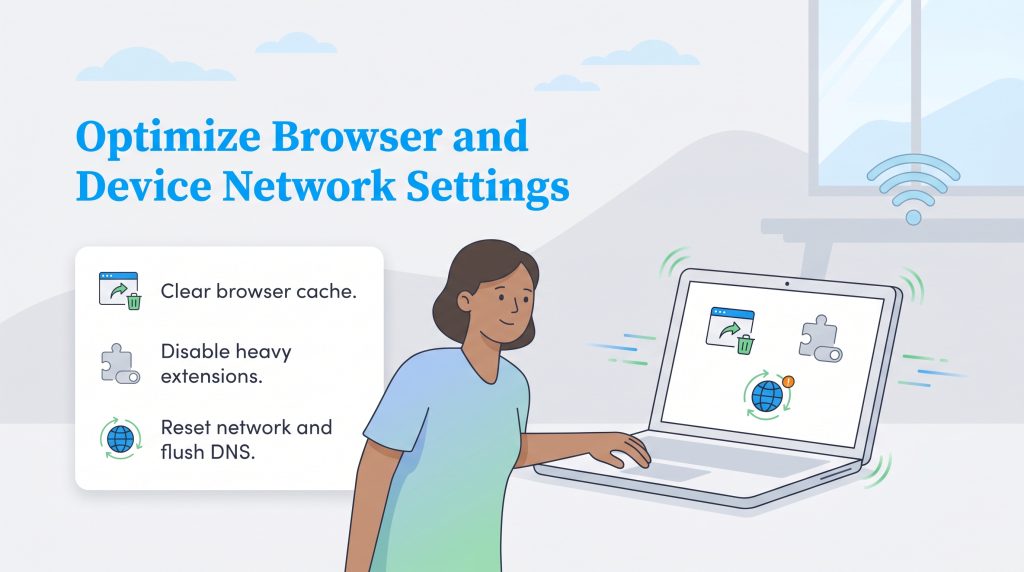
If a VPN isn’t the culprit, your Domain Name System (DNS) is likely to blame. Think of DNS as the phonebook of the internet: when you type a website name like utilitiesformyhome.com into your browser, a DNS server translates those words into the numerical IP address computers use to connect. Over time, your computer’s saved phonebook collects outdated or broken entries. When you flush DNS cache files on your machine, you wipe that slate clean and force your computer to grab fresh, accurate routing coordinates:
- On a Windows PC: Type
cmdinto your Start menu search bar, right-click Command Prompt, and select “Run as administrator.” Typeipconfig /flushdnsand press Enter. You’ll see a confirmation message letting you know the resolver cache was successfully cleared. - On a Mac: Open the Terminal application (via Spotlight or your Utilities folder), paste the complete sequence
sudo dscacheutil -flushcache; sudo killall -HUP mDNSResponder, and press Return. Enter your Mac’s login password when prompted (the cursor won’t move as you type) and hit Return again.
Once your local cache is clean, take it a step further by ditching your ISP’s default DNS servers. Most internet providers assign you to their own internal DNS servers by default, which are often overcrowded and slow to respond. Switching your router or device settings to a free, high-speed public DNS server can make web pages pop open noticeably faster while improving your privacy:
- Cloudflare Public DNS: Set your Primary IPv4 DNS to
1.1.1.1and your Secondary IPv4 DNS to1.0.0.1. Cloudflare is widely tested as one of the fastest public resolvers in the world and doesn’t log your personal IP address. - Google Public DNS: Set your Primary IPv4 DNS to
8.8.8.8and your Secondary IPv4 DNS to8.8.4.4. Google’s massive global infrastructure provides rock-solid reliability and rapid lookups from almost anywhere.
To apply this upgrade across your whole house at once, log into your router’s admin dashboard, navigate to the WAN or Internet / DHCP DNS settings, change the DNS mode from “Automatic (from ISP)” to “Manual,” and type in the Primary and Secondary numbers above. Alternatively, you can enter these addresses directly inside the Wi-Fi network settings on your individual Windows PC, Mac, iPhone, or Android phone.
10. Check for ISP Throttling, Outages, and Data Caps

At a certain point, no amount of cable swapping or router repositioning will fix your connection because the problem is happening miles away from your front door. Before you spend your Saturday afternoon resetting equipment and digging through network menus, use your phone’s cellular data connection to check your ISP’s official outage map or look up your provider on Downdetector. Severe weather, damaged fiber lines, or scheduled maintenance at a local neighborhood node can cripple speeds across your entire zip code. If hundreds of other customers in your area are reporting the exact same slowdown, put the screwdriver away — all you can do is wait for utility crews to finish repairs.
If there are no local outages, your speeds might be suffering from intentional ISP throttling and data caps. Many cable, satellite, and fixed wireless providers enforce strict monthly data limits (commonly around 1.2 TB per month). When a household blows past that threshold after weeks of 4K streaming, cloud backups, or large game downloads, some providers either slap overage fees on your bill or deliberately throttle your speeds down to a crawl until the next billing cycle begins.
To check if you’ve hit a wall, log into your ISP’s online account portal or mobile app and pull up your monthly data usage meter. If you see that your connection consistently slows down during the final week of the month right as you cross your data limit, you’ll either need to scale back high-definition video streaming or switch to an unlimited data tier. For practical ways to upgrade your service without blowing your household budget, read our guide on how to save on internet.
11. Update Router Firmware and Device Network Drivers
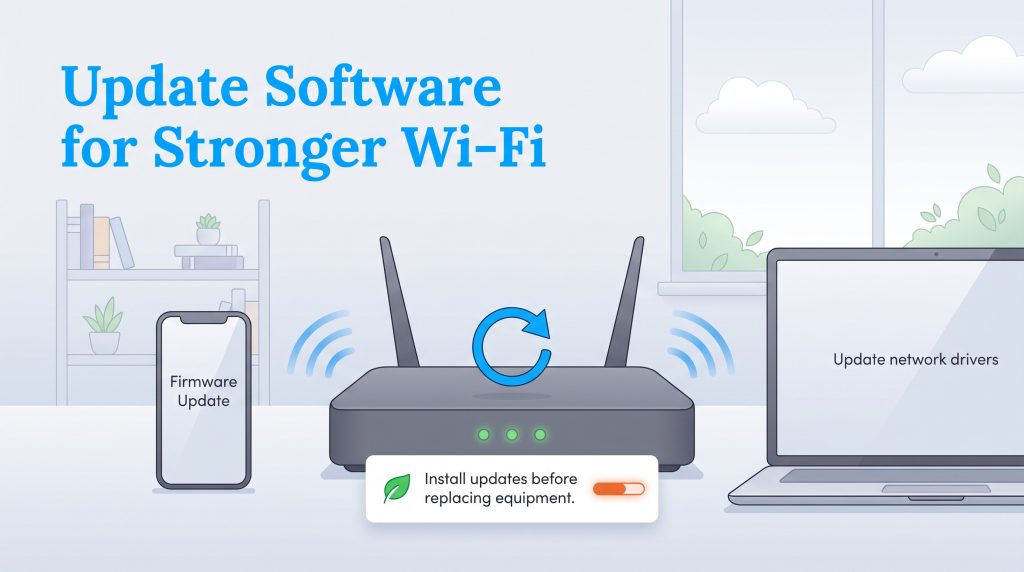
When we think about software updates, we usually focus on our phones and laptops while completely ignoring the black box sitting on the bookshelf. Yet your router runs its own built-in operating system known as firmware. Over time, router manufacturers discover security vulnerabilities, memory leaks, and wireless routing bugs that drag down your network’s performance. Installing a quick firmware patch can clear up random connection drops and unlock better stability without costing you a penny.
If you use a modern router or mesh system, checking for updates is as simple as opening its companion mobile app, tapping the settings gear, and selecting “Firmware Update.” If you have a traditional standalone router, open a web browser on a connected computer and type your router’s default gateway IP address into the address bar (usually 192.168.1.1 or 192.168.0.1, printed on the sticker on the bottom of the unit). Log in with your admin credentials, navigate to the Administration or System Update tab, and click “Check for Updates.” While you’re in there, flip on automatic overnight updates so your router stays patched on its own.
Don’t forget the software on the receiving end, either. If a specific laptop is struggling to hold a fast connection, its internal wireless card might be running on outdated instructions:
- Update Windows network drivers: Right-click the Windows Start button and select Device Manager. Click the arrow next to Network adapters to expand the list, right-click your Wi-Fi or Ethernet adapter (often labeled Intel, Realtek, Qualcomm, or MediaTek), and select “Update driver” followed by “Search automatically for drivers.”
- Update Mac and mobile OS software: On macOS, iOS, and Android, network adapter drivers are bundled directly into regular system updates. Head into your device’s Software Update menu and install any pending operating system patches.
🌱 Eco Edge: Before buying a brand-new router, check if your current equipment simply needs a routine firmware update. Manufacturers routinely release vital software patches that improve overall performance, potentially keeping your existing device out of the local landfill for a few more years.
12. Upgrade to a Mesh Wi-Fi Network or Wi-Fi 7 Router
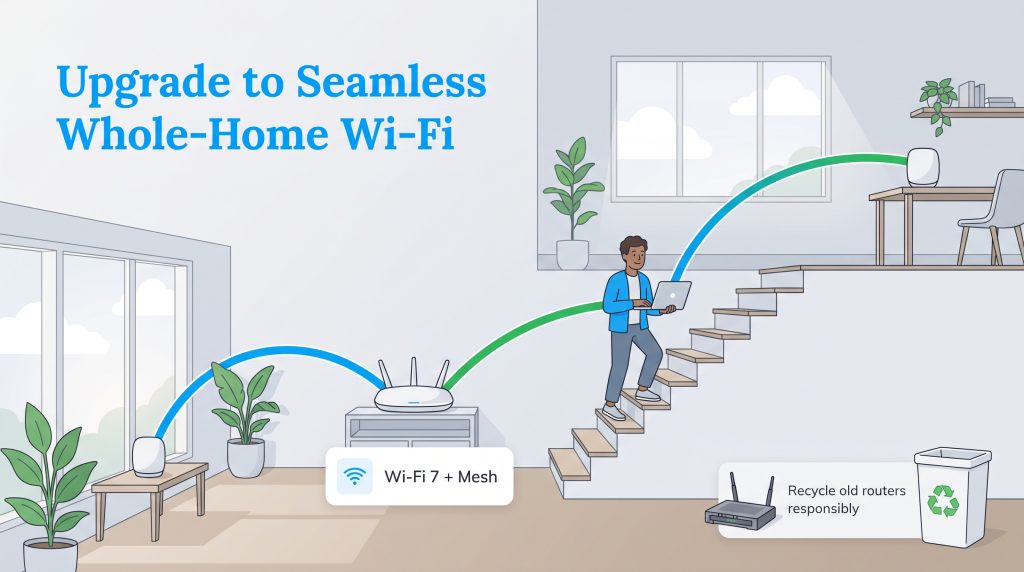
If you’ve worked through every software tweak and placement trick on this list and your connection still crawls, aging hardware is almost certainly holding you back. As a general rule, replace your primary router if it is more than five years old. A router built for the Wi-Fi 5 era simply lacks the processor speed, antenna design, and modern wireless protocols needed to juggle dozens of smart devices and gigabit fiber speeds at the same time.
When shopping for a replacement in 2026, look past basic Wi-Fi 6 gear and consider a Wi-Fi 6E or Wi-Fi 7 router upgrade. Both standards open up the uncongested 6 GHz band, while Wi-Fi 7 introduces Multi-Link Operation (MLO) — a game-changing feature that lets compatible phones and laptops connect to the 5 GHz and 6 GHz bands simultaneously for fiber-like wireless speeds and ultra-low lag. If you live in a multi-story house or a home over 2,000 square feet, you’ll also need to decide between Wi-Fi extenders and Mesh Wi-Fi systems. While plug-in extenders are cheap, they rebroadcast a degraded signal that often cuts your available bandwidth in half. Our standard wi-fi extender setup guide can help you position a wireless booster in a pinch, but a multi-node mesh Wi-Fi network is a much smarter long-term investment. Mesh systems place two or three sleek nodes across your home that work together seamlessly, handing off your phone or laptop to the strongest signal automatically as you walk from room to room.
When an upgrade is unavoidable, make an environmentally mindful choice by choosing ENERGY STAR certified networking equipment that actively reduces power consumption during low-traffic hours. Once your new system is up and running, don’t toss your old modem or router into the kitchen trash. Circuit boards contain valuable metals and hazardous materials that don’t belong in a landfill — you can easily find free drop-off bins and mail-back programs through the EPA Electronics Donation and Recycling directory.
Preparing Your Home for Ultra-Fast Connectivity

Figuring out how to fix slow internet comes down to a simple process of elimination. By tackling physical bottlenecks — like moving your router out of a cramped cabinet, switching to the 5 GHz or 6 GHz band, and swapping out ancient Ethernet cords — alongside quick digital cleanups like flushing your DNS cache and booting unauthorized Wi-Fi leeches, you can unlock the full speed you’re already paying for each month. Taking care of your home network also stretches the lifespan of your electronics and keeps your household from wasting electricity on overheating, struggling gear. Treat your Wi-Fi setup like any other essential home utility that deserves a quick tune-up twice a year, and you’ll enjoy fast, frustration-free browsing for years to come.
Frequently Asked Questions About Fixing Slow Internet
Why is my internet so slow all of a sudden?
Why is my internet slow on my phone but fast on my laptop?
Does changing your DNS server actually make your internet faster?
1.1.1.1) or Google (8.8.8.8) shaves milliseconds off the initial lookup time so web pages start loading almost instantly.What is the difference between Mbps and ping on a speed test?
Does a VPN slow down internet speed?
Will buying a new router increase my internet speed?
Can weather affect my internet speed?
About the Author

David has been an integral part of some of the biggest utility sites on the internet, including InMyArea.com, HighSpeedInternet.com, BroadbandNow.com, and U.S. News. He brings over 15 years of experience writing about, compiling and analyzing utility data.

LaLeesha has a Masters degree in English and enjoys writing whenever she has the chance. She is passionate about gardening, reducing her carbon footprint, and protecting the environment. She also recently served as President of the Board for City Sprouts (a community garden).