

Planning Ahead and Understanding Your Lease Are the Keys to a Seamless Internet Setup in Your New Apartment on Move-In Day
Key Takeaways
- Check your lease early to see if your building has exclusive provider agreements or bulk internet packages included in your rent.
- Schedule your activation at least two weeks before your move-in date to avoid data gaps during the transition.
- Optimize router placement by keeping it central and elevated to overcome signal interference common in apartment complexes.
Welcome to our definitive Apartment Internet Setup Guide, carefully designed to help you secure a fast, reliable connection without the usual move-in day stress. Whether you are figuring out how to set up wifi in a new apartment that features high-tech fiber optics or trying to establish a steady connection in an older building with limited infrastructure, getting your network online requires a proactive plan. We created this comprehensive resource for renters so you can confidently bypass confusing technical jargon, evaluate your landlord’s rules, pick the optimal hardware, and successfully manage the entire activation process from start to finish.
1. Check ISP Availability and Landlord Rules Before You Move
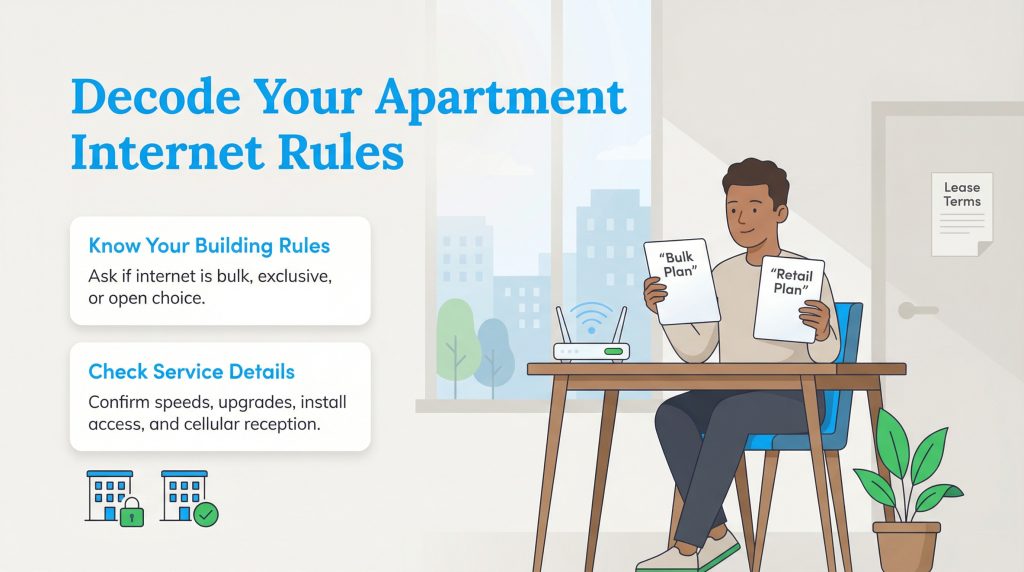
Before you sign a long-term contract or purchase expensive networking gear, you must verify which services actually reach your new home. Running a thorough apartment internet provider check is the first crucial step, because available services can vary drastically, even between buildings on the exact same city block. Use the FCC Broadband Map to search for baseline coverage, but make sure you input your specific unit number. Multi-dwelling units often feature varied wiring infrastructure where one newly renovated wing is wired for fiber (like Google Fiber) while another relies exclusively on traditional coaxial cable.
If you are transferring your current service to a new address within the same local region, you can often execute a “move request” through your provider’s online portal. However, if your current ISP does not cover your new apartment, you must cancel your existing plan and schedule a brand-new activation. To avoid technician delays, finding the best internet provider for an apartment requires initiating this research at least two full weeks before your official move-in date.
Once you know who services the area, you must navigate your landlord internet rights. Many modern luxury complexes and large multi-unit buildings offer “managed internet” or “bulk Wi-Fi.” In these scenarios, the physical infrastructure is pre-wired directly into the units, and the property manager bakes a mandatory technology fee right into your monthly rent. This plug-and-play setup is incredibly convenient, but it can restrict your ability to switch providers if the network is sluggish or you experience poor customer service.
According to current FCC regulations, property owners are strictly prohibited from entering into exclusive revenue-sharing agreements that actively block competing retail ISPs from operating within the building. While a landlord cannot legally ban you from hiring a competing provider if the proper wiring exists, they are not obligated to let a new technician drill holes in the drywall to run fresh lines. Always read the technology addendum in your lease agreement carefully before assuming you can install a custom network.
🚩 Heads Up: Even if you opt for a secondary, independent provider, you will likely still be legally obligated to pay the mandatory bulk Wi-Fi fee outlined in your signed lease.
2. Determine Your Required Internet Speed
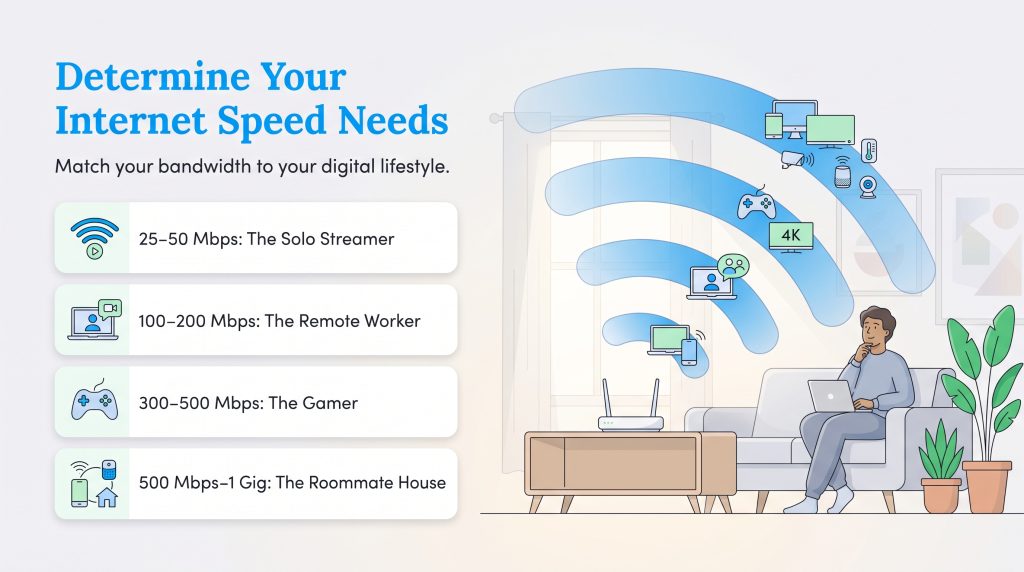
Before selecting a tier, it is important to understand how the number of connected smart home devices in your apartment impacts your overall bandwidth requirements. Every smart speaker, automated thermostat, and Wi-Fi security camera pulls a continuous trickle of data in the background, which adds up quickly in a fully automated living space. Finding the best internet speed for apartment living means matching your monthly plan to your actual digital lifestyle. An overpowered gigabit connection drains your budget unnecessarily, while an underpowered one causes endless buffering during family movie night. Use this straightforward breakdown to determine your ideal bandwidth:
- 25 to 50 Mbps (The Solo Streamer): Perfect for one person who primarily uses the internet to check email, browse social media, and occasionally stream HD video on a single device.
- 100 to 200 Mbps (The Remote Worker): Ideal for individuals working from home. This tier easily supports daily video conferencing, large file downloads, and simultaneous cloud computing tasks without dropping the connection.
- 300 to 500 Mbps (The Gamer): The sweet spot for competitive online gaming, live Twitch broadcasting, and seamless 4K video streaming across a couple of devices.
- 500 Mbps to 1 Gig (The Roommate House): Required for tech-heavy households where multiple users are actively streaming 4K media, downloading massive gaming files, and running dozens of smart home devices simultaneously.
3. Choose Your Equipment: Modem, Router, or Mesh Wi-Fi
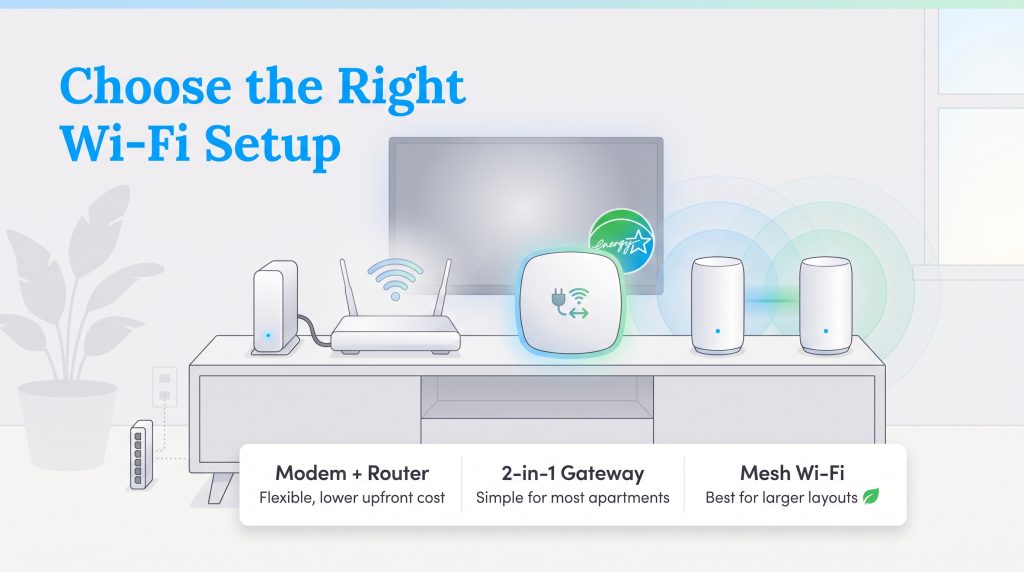
A common question new renters ask is: do you need a modem and router for an apartment? The answer depends entirely on the type of service you select, but you will always need hardware to translate and broadcast your signal. A modem is the gateway that translates the physical signal from your provider into a readable digital connection. When looking at a fiber vs cable internet apartment setup, you will use a standard cable modem for the former and an Optical Network Terminal (ONT) for the latter. The Wi-Fi router then connects to that modem to broadcast the wireless signal to your phones, laptops, and smart TVs. A “gateway” is simply a two-in-one unit that houses both the modem and the router in a single shell.
Should you rent or buy this equipment? Here is a quick comparison to help you decide the best path for your budget and space:
| Equipment Strategy | Average Cost | Pros | Cons |
|---|---|---|---|
| Renting from ISP | $10 to $20 per month | Free technical support and automatic hardware replacements if the device fails during your lease. | You pay endless monthly fees that add up significantly over the life of your rental agreement. |
| Buying Your Own Modem/Router | $100 to $250 upfront | Eliminates recurring monthly fees and gives you total administrative control over advanced network settings. | You are entirely responsible for troubleshooting issues and replacing broken equipment out of pocket. |
| Investing in a Mesh Wi-Fi System | $150 to $400 upfront | Effectively eliminates dead zones in multi-level or thick-walled apartments by placing multiple nodes throughout the home. | Features a high upfront cost and serves as unnecessary overkill for smaller studio or one-bedroom apartments. |
Purchasing your own equipment is often an excellent eco-conscious alternative. Buying a certified refurbished router that is ENERGY STAR certified reduces harmful electronic waste and actively contributes to lowering your electric bill.
Do You Need an Ethernet Switch?
If your apartment features a pre-wired structured media enclosure (often located behind a discreet panel in a master bedroom closet) with ethernet cables routed to various rooms, an ethernet switch is an essential addition. A switch takes a single hardwired connection from your router and seamlessly splits it into multiple active network lines. Simply plug the switch into a power source inside the panel, link it to your router, and patch the room cables into the remaining ports to instantly activate the hardwired wall jacks across your living space.
4. Compare Self-Installation vs Professional Setup
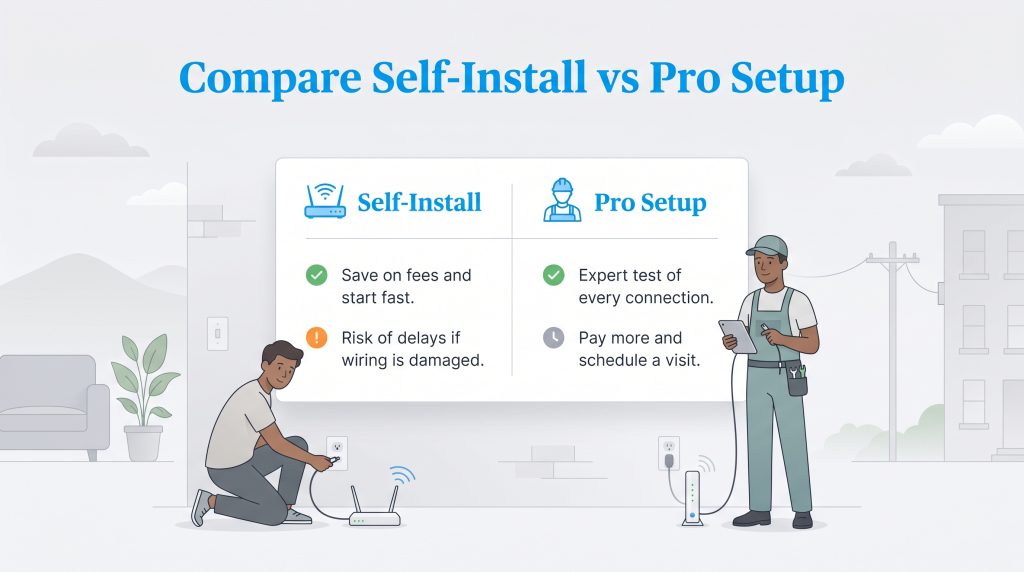
When it comes time to execute your apartment network setup, ISPs typically present two activation choices: tackle the project yourself or hire a professional technician. Your ideal path largely depends on the physical condition of the apartment’s existing wiring and your personal comfort level with basic technology. If the previous tenant utilized the exact same internet provider, the connection is likely still active at the street level, making a self-installation highly viable.
Self-Installation Pros and Cons:
- Pros: This route eliminates expensive installation fees, prevents you from waiting around for vague four-hour technician windows, and allows for instant connectivity the moment you unpack your boxes.
- Cons: If the physical wall jacks are damaged or the external lines were previously disconnected at the distribution hub, your self-install will fail, and you will have to wait days for a repair technician anyway.
If you are moving into a newly constructed complex, or if you are switching from cable to a brand-new fiber optic connection that requires a specialized wall terminal, booking a professional installation is absolutely necessary. While it may cost anywhere from $50 to $100 upfront, a technician guarantees that the signal strength meets the required threshold before they leave the premises.
5. Execute Your Wi-Fi Installation Checklist
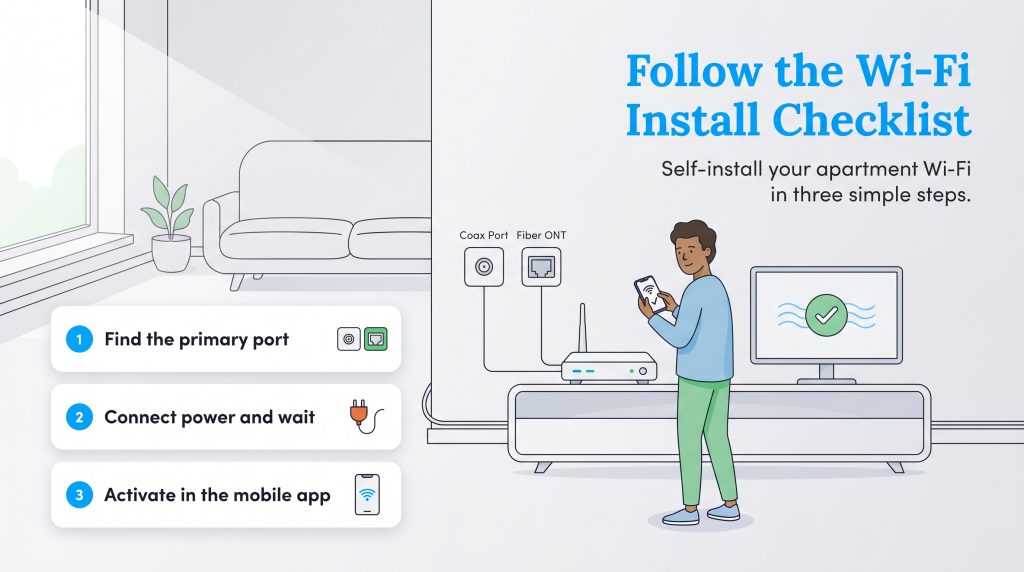
Opting for the self-install kit saves money and allows you to control your own moving schedule. To get your devices online quickly and seamlessly, follow this comprehensive five-step self-install internet guide:
- Check your box contents: Verify your cable connections and hardware before plugging anything into the wall. Ensure you have the main gateway device, the proprietary power adapter, and the correct input wire (a coaxial cable for standard internet or an ethernet cable for an existing fiber ONT).
- Find the primary port: Locate the active coaxial wall outlet for Cable internet, or the mounted ONT unit for Fiber internet. Hand-tighten the coaxial cable or firmly click the ethernet cable into place, connecting the wall port directly to your modem.
- Connect the power: Plug your gateway (or individual modem and router) into a standard, unswitched electrical socket. Wait roughly five to 15 minutes for the device to boot up. The indicator lights will eventually turn solid, signaling a secure downstream connection.
- Activate via the mobile app: Download your ISP’s official mobile application using your smartphone’s cellular data. Follow the on-screen prompts to register your equipment’s unique MAC address, create a personalized network name (SSID), and establish a secure Wi-Fi password.
- Verify the connection: Before you start syncing your smart TVs and laptops, verify your speeds to ensure the activation was fully successful.
6. Run a Diagnostic Speed Test
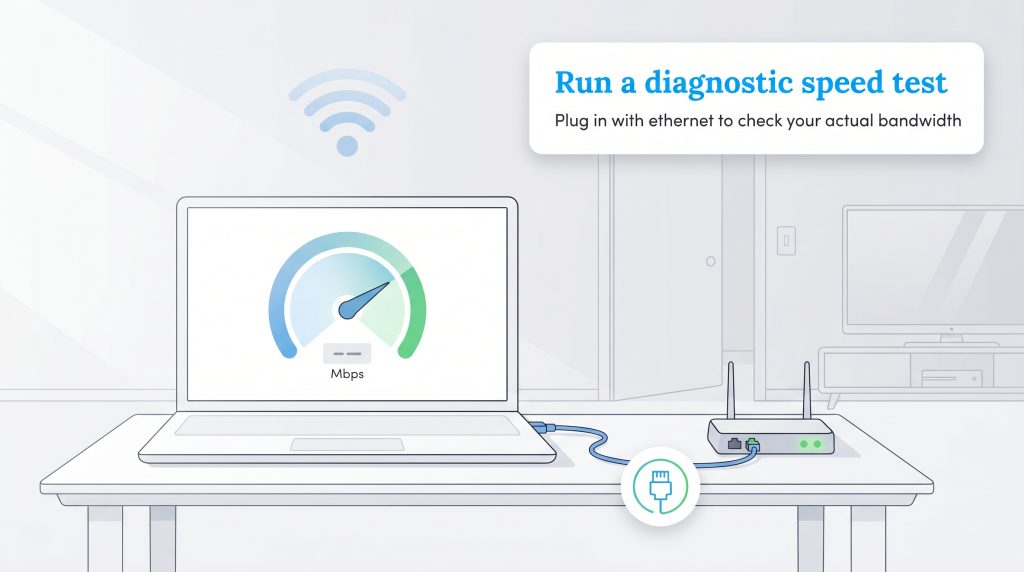
To perform this check accurately, use an ethernet cable to plug a laptop directly into the back of your newly activated router and run a quick diagnostic speed test. This simple, hardwired check ensures you are actually receiving the premium bandwidth you are paying for, completely isolating the test from potential wireless interference that might skew the results.
7. Optimize Router Placement for Maximum Coverage
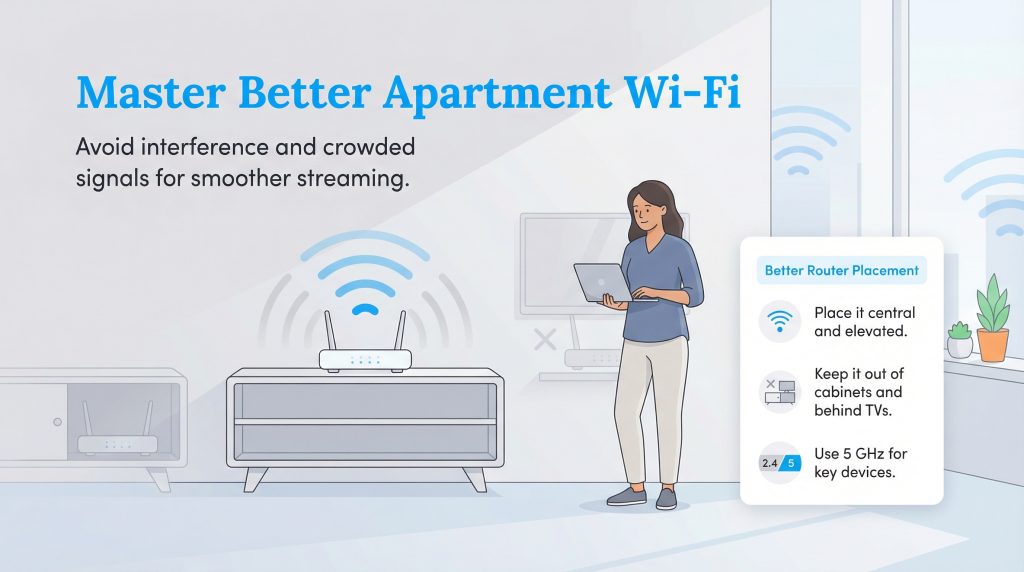
Nailing down the perfect apartment router placement prevents frustrating dead zones, video buffering, and intermittent drops. Wi-Fi signals project outward and slightly downward from the internal antennas. A poorly positioned device will struggle mightily to push those signals through dense materials. To maximize your coverage area across the entire floor plan, keep these structural rules in mind.
Do’s of Router Placement:
- Place the router in a central, elevated location, such as the top of a living room bookshelf or on a dedicated floating shelf.
- Maintain a clear, unobstructed line of sight from the networking equipment to your primary seating areas and home office desk.
- Use powerline adapters for distant bedrooms. If you lack pre-wired ethernet, these environmentally mindful energy-saving adapters transmit your network signal cleanly through the apartment’s existing electrical wiring.
Don’ts of Router Placement:
- Keep routers away from thick structural walls common in high-density buildings, especially those made of brick, concrete, or metal lathe.
- Avoid placing the unit next to a microwave or cordless phone base, as high-frequency appliances cause intense electromagnetic interference.
- Do not hide the router inside thick wooden cabinets, cramped media closets, or behind the large metal frame of a modern television.
- Keep the device away from large fish tanks and thick decorative mirrors, because water absorbs RF signals heavily and reflective glass coatings scatter frequency waves erratically.
💡 Pro Tip: If your apartment has a long, narrow layout (often referred to as a “shotgun” style), placing a router at one extreme end will almost guarantee a weak signal at the opposite end. Prioritize placing the device exactly in the middle of the unit.
8. Secure Your New Apartment Wi-Fi Network
Living in close proximity to dozens of neighbors means your personal network is constantly visible to others, making apartment wifi security an absolute priority. Unlike single-family homes where distance naturally protects your signal, apartment walls do little to stop a malicious actor (or just a freeloading neighbor) from attempting to access your private data. To establish a secure digital perimeter on move-in day, immediately implement these critical security measures:
- Change the default admin password: Never leave the factory-issued administrator password in place. Hackers easily look up default credentials for popular router models. Change this password immediately through the device’s web portal or mobile app.
- Enable WPA3 encryption: Navigate to your router’s security settings and ensure it is broadcasting using WPA3 encryption (or WPA2-AES at a minimum). This advanced protocol scrambles your data, making it nearly impossible for outsiders to intercept and read your internet traffic.
- Update the router’s firmware: Just like a smartphone, your router requires routine software updates to patch known security vulnerabilities. Check for available firmware updates immediately upon setup, and enable automatic updates if the feature is available.
- Establish a dedicated guest network: Create a separate network specifically for visitors. This isolates your primary devices — like personal laptops containing banking information — from whatever potentially compromised devices your guests might bring into your home.
9. Troubleshoot Common Apartment Network Congestion
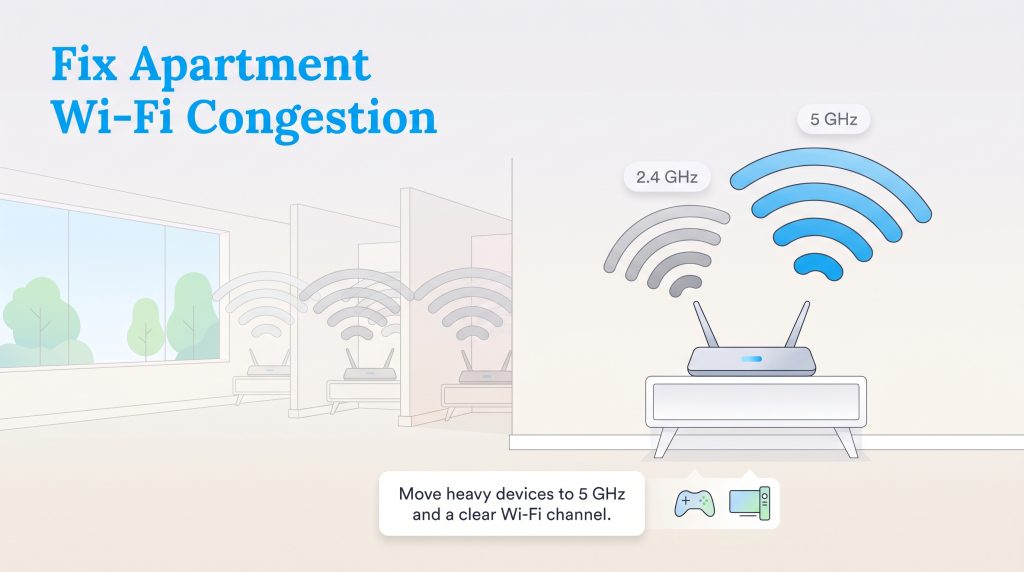
High-density housing inevitably leads to crowded wireless airspace. When dozens of your neighbors run their own independent routers within a 100-foot radius, the overlapping Wi-Fi signals bleed straight through the drywall and actively compete for the exact same radio channels. If your connection feels incredibly sluggish during the evening hours despite paying for top-tier internet services, network congestion is likely the culprit rather than a physical hardware failure.
The easiest fix for this modern annoyance is to log into your router’s administrative dashboard and manually adjust how your device broadcasts. Start by explicitly separating your 2.4 GHz and 5 GHz networks into two differently named connections. Move all of your bandwidth-heavy devices — like gaming consoles and streaming sticks — over to the faster, less congested 5 GHz band. Additionally, use a free Wi-Fi analyzer app on your phone to see which channels your neighbors are clogging up, then manually switch your router to a clear, uncrowded channel (like 36, 48, or 149) to aggressively bypass neighborhood interference.
Execute Your Move-In Day Preparation Checklist
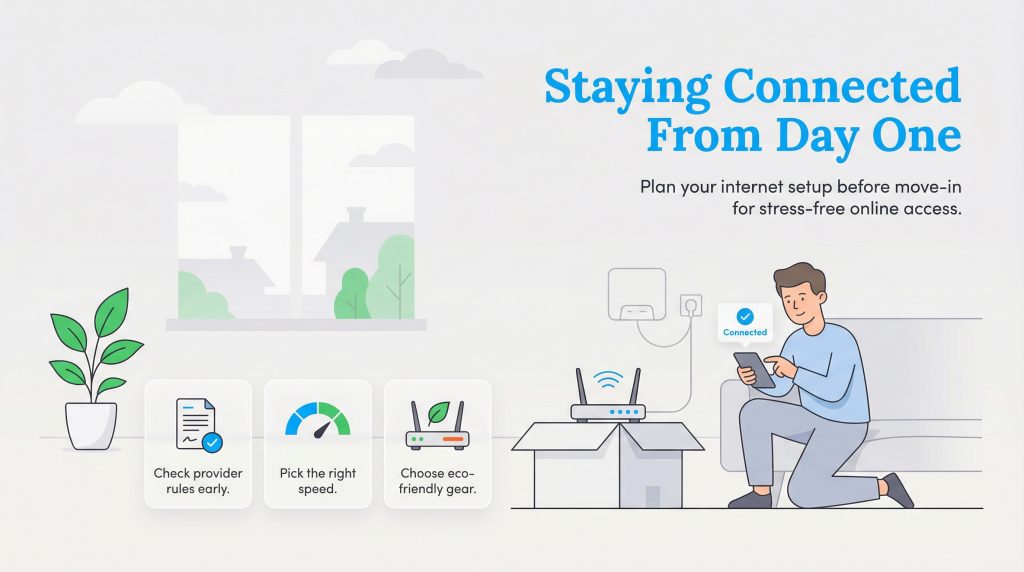
To ensure your internet activation aligns perfectly with your physical relocation, follow this structured timeline. Utilizing a chronological checklist prevents you from scrambling to find the right cables or sitting on hold with customer service while you should be unpacking.
| Setup Timeline | Action Required |
|---|---|
| 2 Weeks Before Move | Research the best internet provider for an apartment in your new area. Review your upcoming lease for mandatory bulk Wi-Fi fees, and officially schedule your service activation or installation appointment. |
| 1 Week Before Move | Purchase a new router or mesh system if you are avoiding rental fees. Confirm your shipping address so the self-install kit arrives exactly when you need it. |
| Move-In Day | Pack all networking hardware in a clearly labeled “Day One” box. Plug in the modem first, complete the mobile app registration, and run a diagnostic speed test before unpacking the rest of your electronics. |
Establishing a robust network does not have to be a stressful chore layered on top of an already chaotic moving process. As you finalize the logistical details outlined on our moving resources page, stick strictly to your timeline to guarantee immediate access. Designate a single primary account holder on the lease to manage the ISP communications, and set up an automatic payment plan with your roommates to easily split the monthly internet bill. With a little proactive planning and smart hardware management, your new apartment will function as a highly connected, secure digital sanctuary the minute you walk through the door.
Frequently Asked Questions About Apartment Internet Setup
How do I set up internet in an apartment without a coax or ethernet wall port?
Can my landlord force me to use a specific internet provider?
How much internet speed do I really need for a one-bedroom apartment?
Do apartments usually come with Wi-Fi already set up?
How long does it take to set up internet in a new apartment?
Can I drill holes for fiber internet cables in an apartment?
Do I need a special router for an apartment?
How do I fix Wi-Fi dead zones in my apartment?
Can I use my own router if my apartment has a bulk Wi-Fi agreement?
About the Author

LaLeesha has a Masters degree in English and enjoys writing whenever she has the chance. She is passionate about gardening, reducing her carbon footprint, and protecting the environment. She also recently served as President of the Board for City Sprouts (a community garden).

David has been an integral part of some of the biggest utility sites on the internet, including InMyArea.com, HighSpeedInternet.com, BroadbandNow.com, and U.S. News. He brings over 15 years of experience writing about, compiling and analyzing utility data.