
Stop the buffering and get back to browsing with these practical tips for optimizing your home network.
Key Takeaways
- Run a speed test first to see whether the slowdown is caused by your equipment or your internet service provider.
- Optimize your router placement by moving it to a central location away from thick walls and interference.
- Update your firmware and secure your network before spending money on expensive new hardware or faster plans.
Few things are more frustrating than settling in for a movie night only to watch a loading circle spin endlessly, or dropping out of an important video call because your connection decided to take a break. While it is tempting to immediately blame your internet service provider (ISP) or rush out to buy a newer, more expensive router, the solution to how to fix slow internet is often much simpler and completely free. We have compiled a comprehensive troubleshooting guide to help you identify the root cause of your lag, optimize your existing setup for better performance, and determine exactly when you actually need to spend money on upgrades.
Is It You or the ISP? Running the Numbers
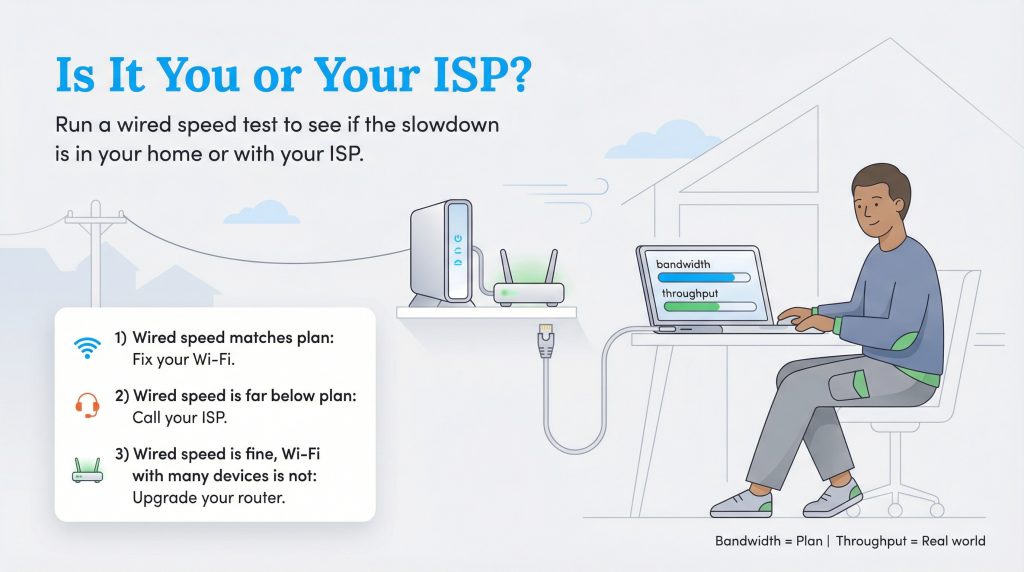
Before you start crawling under desks to unplug wires, you need to diagnose where the bottleneck actually is. There is a significant difference between the “bandwidth” you pay for, the theoretical maximum speed of your plan, and the “throughput” or actual speed reaching your device. Think of bandwidth like the diameter of a water pipe and throughput as the actual amount of water flowing through it. If the pipe is wide but the water pressure is low, you still get a trickle.
To get an accurate baseline, you need to perform an internet speed test. While Wi-Fi is convenient, it is notoriously fickle for testing raw speed because distance and walls interfere with the signal. If you have a laptop or desktop with an Ethernet port, connect it directly to your modem using an Ethernet cable. This creates a hardwired connection that bypasses your router’s wireless broadcast, giving you a true reading of the speed entering your home.
Once you are connected, run a test using a reliable tool like Ookla’s Speedtest.net or Google’s built-in speed test. Compare the download and upload numbers to your most recent billing statement. If the results match what you are paying for, your slow speeds might just mean you have outgrown your current plan and need an upgrade. However, if you are paying for 500 Mbps and only getting 50 Mbps on a hardwired connection, the issue is likely on the ISP’s end or with your modem. For context on what speeds you realistically need for different activities, you can read about How Much Speed Do You Need? or check the FCC’s Broadband Speed Guide.
To quickly decide your next move, follow this simple rule of thumb:
- If your wired speed test matches your plan but Wi-Fi is slow, focus on router placement and Wi-Fi settings.
- If your wired speed test is far below your plan, contact your ISP and request a line check.
- If your wired speeds are fine but your router still struggles with multiple devices, consider a hardware upgrade.
The First Line of Defense: Reset Your Equipment
It has become a cliché in the tech support world for a reason: “Have you tried turning it off and on again?” This simple step, known as power cycling, is the most effective fix for temporary network glitches. Modems and routers are essentially small computers; over time, their memory (cache) fills up, and they can encounter logic errors that slow down data processing. A restart clears this short-term memory and forces the device to re-establish a fresh connection with your ISP.
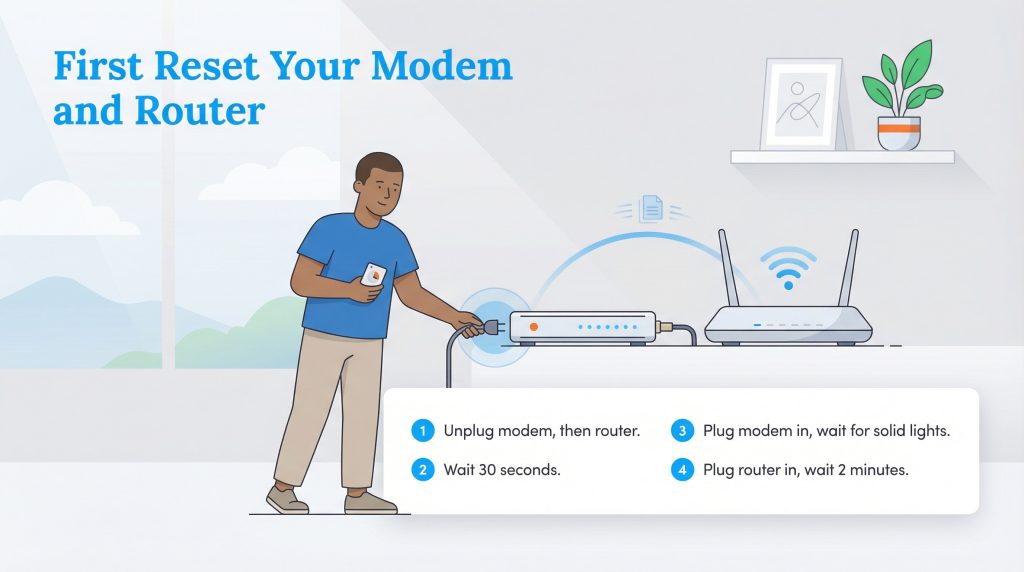
To do this correctly, you shouldn’t just unplug everything at once. There is a specific order of operations that ensures each device comes back online and shakes hands properly:
- Unplug the power cord from your modem (the device connected to the wall outlet via coax or fiber cable).
- Unplug the power cord from your router (the device that broadcasts Wi-Fi). If you have a combined gateway unit, just unplug that one device.
- Wait at least 30 seconds. This gives the modem and router time to fully shut down before they restart.
- Plug the modem back in first. Wait for about 60 seconds or until the lights on the front indicate a stable connection (usually solid green or white).
- Plug the router back in. Wait another two minutes for it to boot up and broadcast the signal.
Location Matters: Optimize Your Router Placement
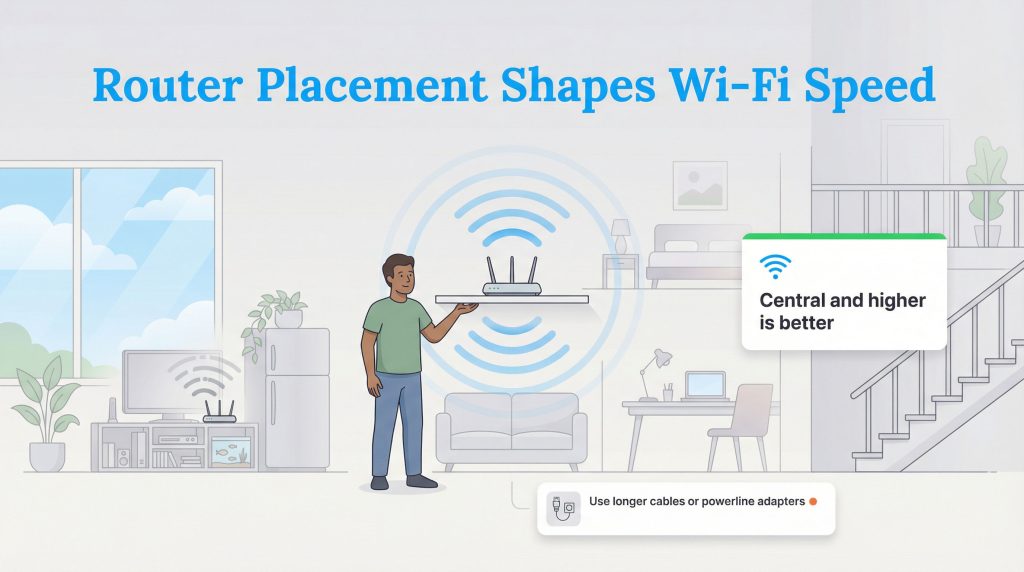
Your router’s physical location is one of the biggest factors in your Wi-Fi performance. Many people hide their router inside a TV cabinet, behind a bookshelf, or in a far corner of the basement to keep it out of sight. Unfortunately, Wi-Fi signals are radio waves, and they struggle to penetrate dense materials. Brick, concrete, metal, and even water are excellent signal blockers. If your router is behind a fish tank or next to a metal refrigerator, you are effectively strangling your connection.
To improve your signal strength, move your router to a central, elevated location in your home. Placing it on a high shelf helps the signal broadcast downward and outward, covering more square footage. If you live in a multi-story home, the second floor is often a better spot than the basement. By centralizing the hardware, you reduce the distance the signal has to travel to reach your devices.
Distance is the enemy of speed. If you are wondering how to boost wifi signal without spending money, simply moving your desk or gaming console closer to the router can make a massive difference. If moving the router isn’t possible due to where the cable line enters your house, consider buying a longer Ethernet cable to give you more flexibility in positioning the device. For more details on setting up your home network infrastructure, visit our internet service setup hub.
Renter-Friendly Ways To Improve Slow Internet
If you are renting and can’t drill holes or rewire the house, you still have options. Focus on non-invasive changes like moving the router out of cabinets and onto open shelves or furniture. You can use longer Ethernet cables to position high-bandwidth devices closer to the signal source without permanent installation. Alternatively, consider powerline networking adapters; these plug into standard electrical outlets and transmit internet data through your home’s existing wiring, offering a wired-like connection in distant rooms without drilling new holes.
Adjust Your Frequency and Channels
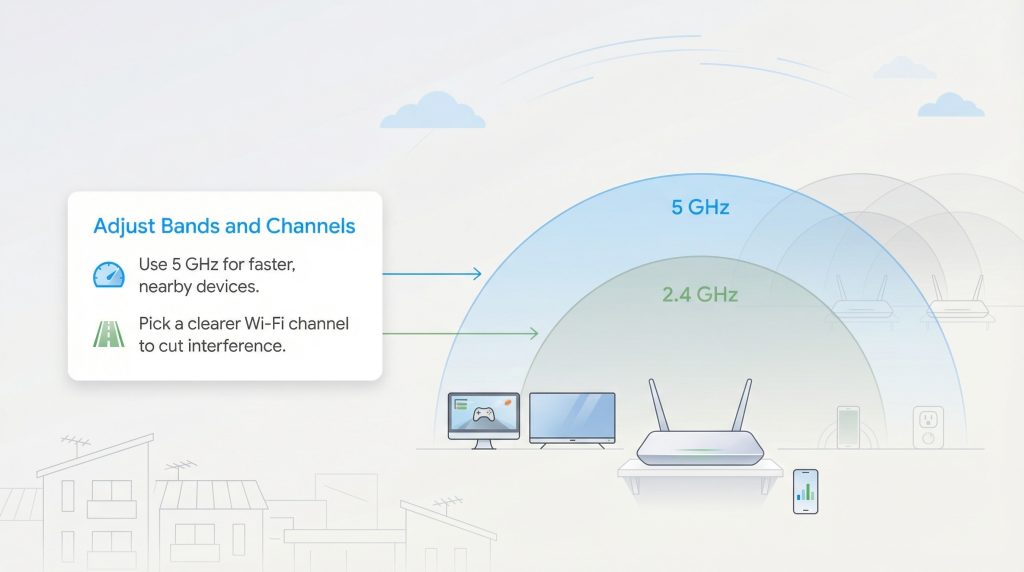
Modern routers generally broadcast on two different frequency bands: 2.4 GHz and 5 GHz. Understanding the difference between these two can help you manage traffic better, especially if you live in a crowded apartment complex or condo where neighborly interference is common.
The 2.4 GHz band is the “long-range” frequency. It is better at penetrating walls and traveling long distances, but it is also much slower and more crowded. Many household devices, including microwaves, baby monitors, and Bluetooth speakers, operate on this frequency, causing interference. The 5 GHz band, on the other hand, provides much faster speeds but has a shorter range and struggles with solid obstacles. If you are looking for how to increase upload speed or fix laggy internet for gaming, ensure your high-priority devices (like your PC or smart TV) are connected to the 5 GHz band and are located relatively close to the router.
You should also look into your router’s “channel” settings. If you and all your neighbors are using the default channel (often channel 1, 6, or 11 on the 2.4 GHz band), your signals will clash, leading to packet loss. Choosing a less crowded channel helps your router send data with fewer interruptions from neighboring networks. You can download a free Wi-Fi analyzer app on your smartphone to see which channels are most congested in your area. Once you identify a less crowded channel, you can log into your router’s admin settings (usually via a web browser using the IP address on the router’s sticker) and manually switch to a clearer lane.
Check for Bandwidth Hogs and Background Apps
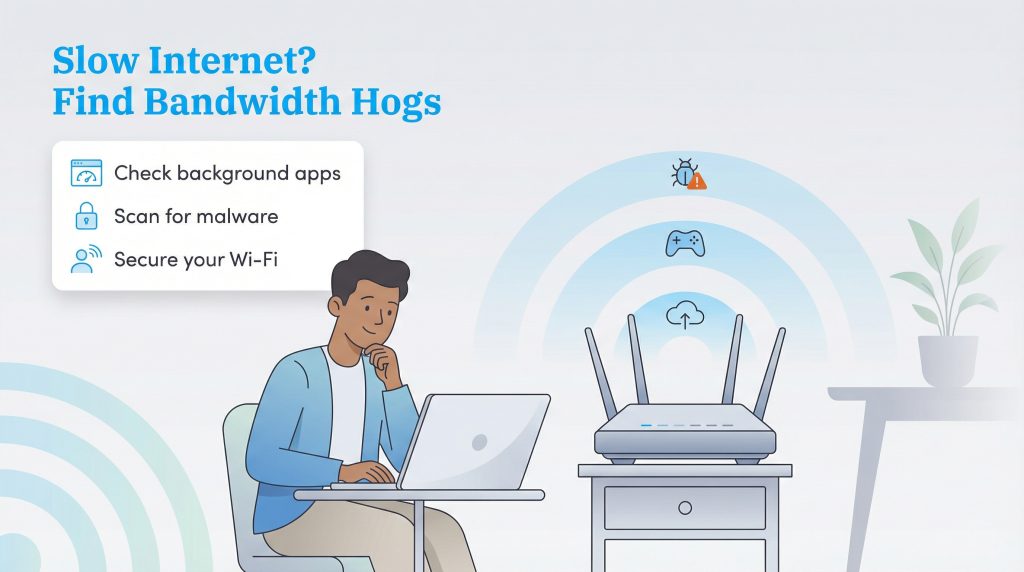
Sometimes the call is coming from inside the house. If your internet is crawling, you might have “vampire devices” or background processes sucking up your bandwidth without you realizing it. Cloud backup services (like iCloud, Google Drive, or Dropbox) often sync large files in the background. Similarly, gaming platforms like Steam or PlayStation Network may be downloading massive updates, sometimes 50GB or more, while you are trying to work.
If you notice slow internet on one device while others seem fine, that specific device is likely the culprit. Check your Task Manager (on Windows) or Activity Monitor (on Mac) to see which applications are using the network. Run a malware scan as well; malicious software can sometimes hijack your connection to transmit data, slowing everything else down.
Finally, ensure your network is secure. If you are using an open network or a weak password, neighbors could be piggybacking on your Wi-Fi. This not only poses a security risk but also drains the bandwidth you are paying for. Change your Wi-Fi password to a strong, unique phrase to kick off any “Wi-Fi moochers” instantly.
When to Upgrade Your Hardware
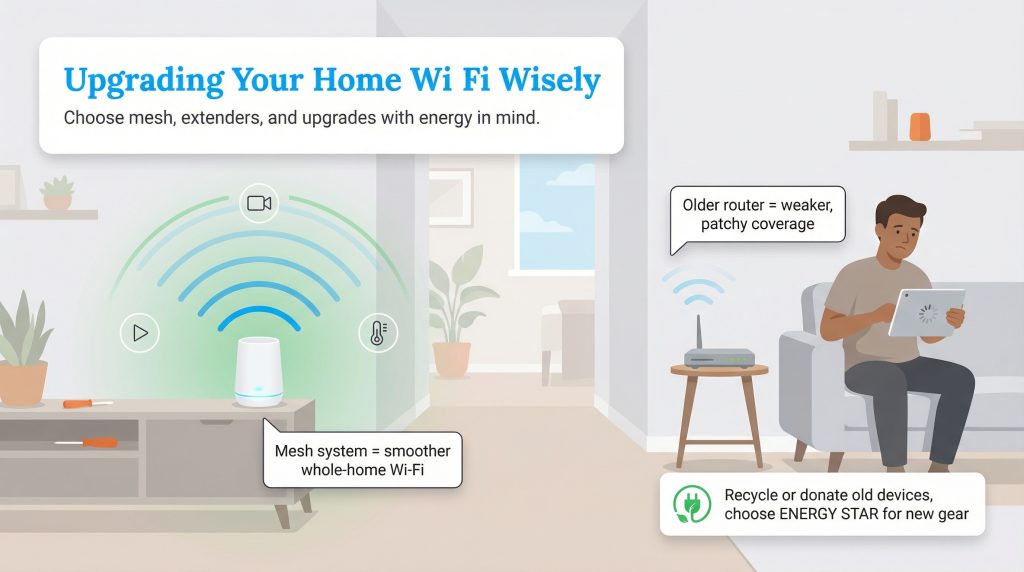
If you have tried all the troubleshooting steps above and your speeds are still lackluster, your hardware might be the bottleneck. Many routers start to show their age after about three to five years, especially as standards and household demands change. An older router that only supports older Wi-Fi standards may struggle to handle the high-definition streaming, video conferencing, and smart home devices of today.
When looking for an upgrade, you have two main choices to extend coverage: Wi-Fi extenders or Mesh Wi-Fi systems. A Wi-Fi extender captures your router’s signal and re-broadcasts it. It is a cheaper solution, but it often reduces your effective speeds because it has to receive and then rebroadcast the signal, and it creates a separate network name (SSID), forcing you to manually switch connections as you walk through your house. A basic wifi extender setup guide usually suggests placing the device halfway between your router and the dead zone for the best results.
For larger homes, a Mesh Wi-Fi system is a more robust, albeit more expensive, solution. Mesh systems use multiple nodes placed around the house that talk to each other seamlessly, creating a single, strong network blanket. Before you buy anything new, however, consider the environmental impact. Optimizing your current setup not only saves money but also reduces electronic waste by delaying the need for new devices.
If you do decide to upgrade, look for ENERGY STAR certified networking equipment which can save energy when the device is idle. Be sure to dispose of your old electronics responsibly. You can find local donation and recycling locations through the EPA Electronics Donation and Recycling page.
Knowing When to Call Your ISP
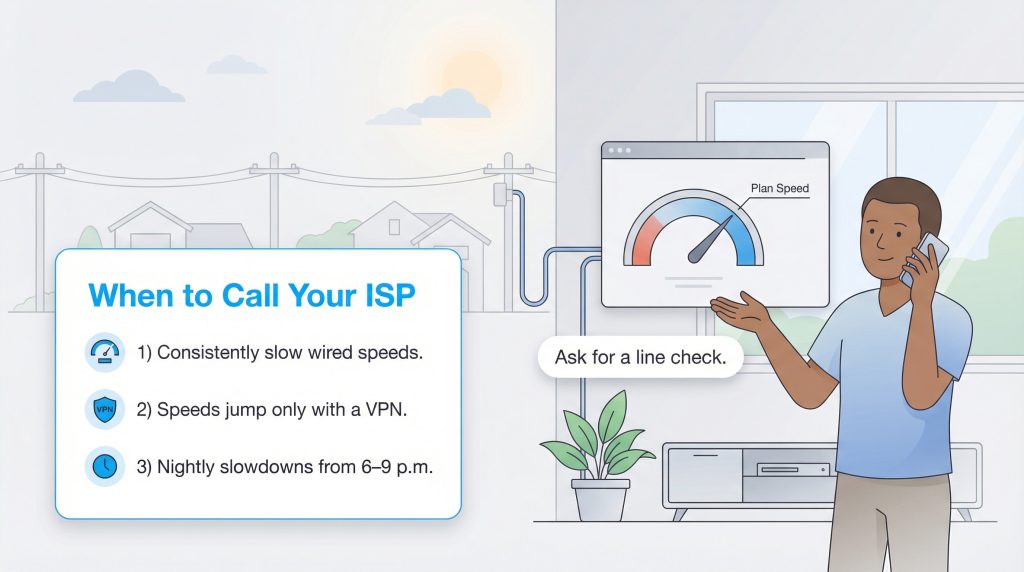
Sometimes, no amount of tweaking on your end will solve the problem because the issue lies with the service provider. If your hardwired speed test results are consistently far below what you pay for, or if your connection drops completely during bad weather, you likely have a line issue. This could be a degraded cable coming from the street to your house or a fault at the local node.
Another common issue is ISP throttling. This happens when an internet provider intentionally slows down your speed based on your activity or overall network usage. If you find yourself asking “is my isp throttling my internet,” try running a speed test while connected to a VPN (Virtual Private Network). If your speed suddenly jumps up when the VPN is on, your ISP might be throttling specific types of traffic, like streaming services. Similarly, if your internet slows down every night between 6:00 p.m. and 9:00 p.m., you are likely experiencing network congestion, meaning your ISP has oversold the bandwidth in your neighborhood.
When you call customer service, have your speed test data ready. Ask for a “line check” to see if they can detect noise on your connection. If the speeds don’t improve, it might be time to negotiate a better rate or seriously compare other providers in your area. For more tips on managing your service costs, check out our guide on how to save on your internet bill.
Enjoy Faster Speeds and Smoother Browsing

Fixing slow internet is often a process of elimination. We know how annoying it is to deal with lag, but by systematically checking your equipment, placement, and settings, you can often solve the problem without spending a dime. Start with the free fixes like rebooting your modem and moving your router to a better spot. Be patient as you test each change. If those don’t work, verify your hardware’s health and contact your ISP with data in hand. With a little detective work, you can stop the buffering and get back to enjoying a seamless online experience.
FAQs About Fixing Slow Internet
Why is my internet so slow at night?
Does a Wi-Fi booster actually work?
Can weather affect my internet speed?
How do I know if my internet cable is bad?
Is 100 Mbps fast enough for a family?
About the Author

David has been an integral part of some of the biggest utility sites on the internet, including InMyArea.com, HighSpeedInternet.com, BroadbandNow.com, and U.S. News. He brings over 15 years of experience writing about, compiling and analyzing utility data.