

Knowing what your modem lights mean can help you quickly restore your internet connection and save energy.
Key Takeaways
- Understanding your modem lights meaning is one of the fastest ways to diagnose and fix unexpected internet outages in your new home.
- Blinking orange, amber, or red lights often point to a setup issue, active service disruption, or device error, while steady green, white, or blue lights usually indicate a normal connection.
- Power-cycling your networking equipment is often the fastest first step for clearing temporary connection glitches.
Moving into a new place is stressful enough without the dreaded spinning wheel of buffering during a smart TV binge or a dropped work call. When your home internet suddenly cuts out, staring at the cryptic blinking panel on your networking equipment rarely offers immediate comfort. However, decoding your modem lights meaning is one of the fastest ways to figure out what went wrong and get your connection back online. We created this practical guide to help you translate those confusing indicator lights, troubleshoot active service disruptions, and even optimize your gear to use less electricity around the clock.
Modem vs. Router: What Is the Difference?
What exactly is sitting on your desk? Understanding modem vs router lights starts with knowing which device actually does what. Think of your modem as the digital bridge that physically brings the internet connection from your provider into your home through a coaxial or fiber optic cable. Your router acts as the air traffic controller, taking that internet connection and broadcasting it wirelessly to your laptop, smartphone, and smart appliances. If you have fiber internet, you may also have an ONT, which converts the fiber signal before your router distributes the connection. If you want a smooth home internet setup, both pieces of equipment need to communicate flawlessly.
🚩 Heads Up: If you rent your equipment directly from your internet service provider, you likely have a gateway device, which combines both a modem and a router into a single unit.
The Ultimate Modem Light Cheat Sheet
Need an answer right this second? We put together a panic-skimming cheat sheet to translate your modem lights meaning in an instant. Many modem and router lights follow similar patterns, but colors and icons aren’t universal. Use this guide as a quick first check, then confirm the exact meaning in your provider’s app, equipment label, or support page if the issue doesn’t clear. Compare the blinking or solid colors on your device to the table below to figure out your next move.
| Light Color & State | What It Usually Means | Immediate Action |
|---|---|---|
| Steady Green, White, or Blue | Usually indicates a normal, active connection. | None. Your internet is working normally. |
| Blinking Green | Connecting to network or transferring data. | Wait a few minutes for the device to finish processing. |
| Solid Orange / Amber | Firmware update in progress or limited local connection. | Avoid unplugging during a suspected firmware update unless the light stays stuck for an unusually long time. |
| Blinking Orange | Negotiating connection, weak signal, or active service disruption. | Check for loose cables or local outages. |
| Red (Solid or Blinking) | Critical error, hardware failure, or no service detected. | Power-cycle the device. If the light remains red, call your provider. |
What Do the Lights on My Router Mean?
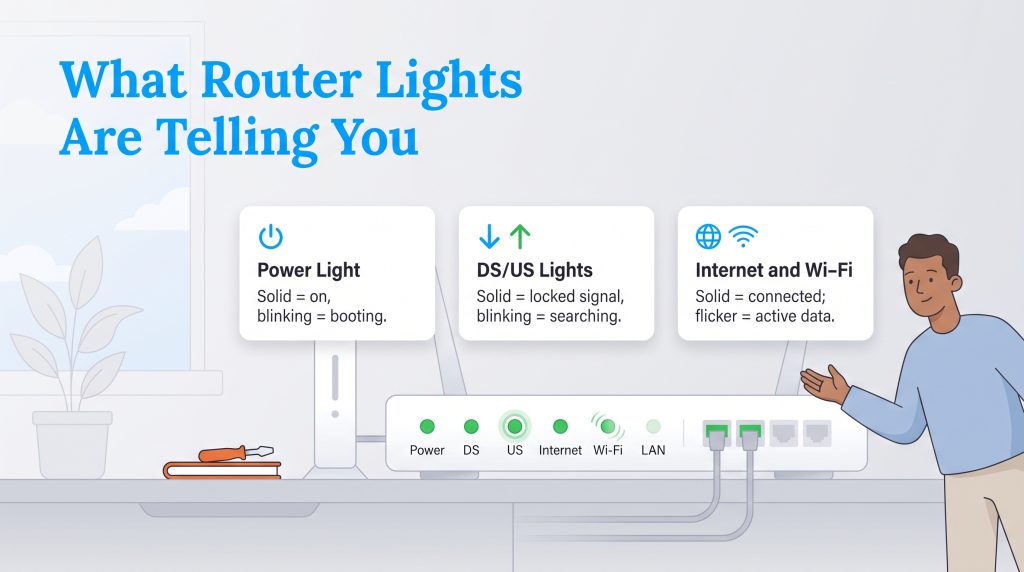
Wondering what do the lights on my router mean compared to your modem? While some icons vary by manufacturer, standard industry indicator lights tell a unified story about your network’s overall health. Here’s what the most common diagnostic lights usually mean.
What the Power Light Means
A solid power light simply confirms your device is plugged in and receiving electricity. If this light is blinking, your device is likely in the middle of a boot-up sequence or downloading an essential firmware update from your service provider.
Downstream and Upstream Lights (DS/US)
Are you wondering what does us ds mean on a modem? These acronyms stand for upstream and downstream data. The downstream light monitors the data coming into your home, while the upstream tracks the data you send out. If you notice your modem ds light blinking, the device is actively searching for a downstream frequency from your internet service provider. Once it locks onto a strong, stable signal, this light should turn solid green.
What the Internet or WAN Light Means
This indicator tracks your direct connection to the wider web. If you spot an internet light blinking orange, your modem is struggling to communicate with the local provider’s network. A solid green or white light here confirms you have a verified connection to the outside world.
Wi-Fi or Wireless Light
Your wireless indicator confirms your router is successfully broadcasting a Wi-Fi signal. If you are comparing modem lights solid green vs flashing, a rapid flicker on the Wi-Fi light is entirely normal. It just means active data transfer is happening, like when you stream a movie or download a large file.
What Ethernet or LAN Lights Mean
These numbered lights correspond to the physical ports on the back of your equipment. They illuminate when you plug hardwired devices, like a desktop computer or gaming console, directly into the unit via an Ethernet cable.
Troubleshooting: How to Fix a Blinking Modem Light
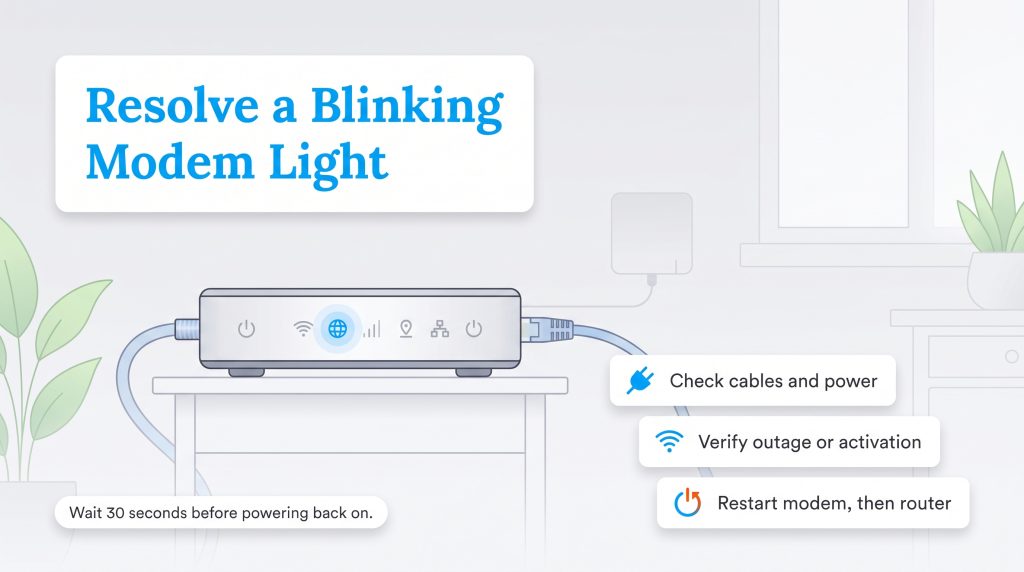
Understanding your router lights blinking meaning is only half the battle. Now you actually have to fix it. If you are stuck offline, here’s how to fix a blinking modem light before you spend an hour waiting for support.
If you just moved in, blinking modem lights may not mean the equipment is broken. Your internet service may still need activation at the new address, or the previous resident’s equipment may not have been removed from the account. Check your provider app, activation email, or installation appointment details before assuming you have a hardware issue.
- Check physical connections: If you have cable internet, make sure the coaxial cable is screwed in snugly at the wall and modem. If you have fiber internet, check that your optical network terminal, or ONT, has power and that the Ethernet cable from the ONT to your router is secure. Don’t bend, force, or unplug fiber-optic lines unless your provider instructs you to.
- Verify local outages or activation status: Check your internet provider’s mobile app using your smartphone’s cellular data. If there is a neighborhood-wide outage, no amount of troubleshooting will bring your internet back until the provider fixes their lines. If you recently moved, verify your account is fully activated.
- Power-cycle the equipment in the correct order: Unplug the power cord from the back of your modem and your separate router. Wait a full 30 seconds. Plug the modem in first and wait until the main connection lights stabilize, then plug in the router.
- Test with an Ethernet connection: Plug a computer directly into your modem or router with an Ethernet cable. If your wired connection works but Wi-Fi does not, you have a wireless broadcasting issue rather than a total internet outage.
💡 Pro Tip: When power-cycling your modem, always leave it unplugged for a full 30 seconds to allow the internal capacitors to completely drain before plugging it back in.
When to Call Your Internet Provider
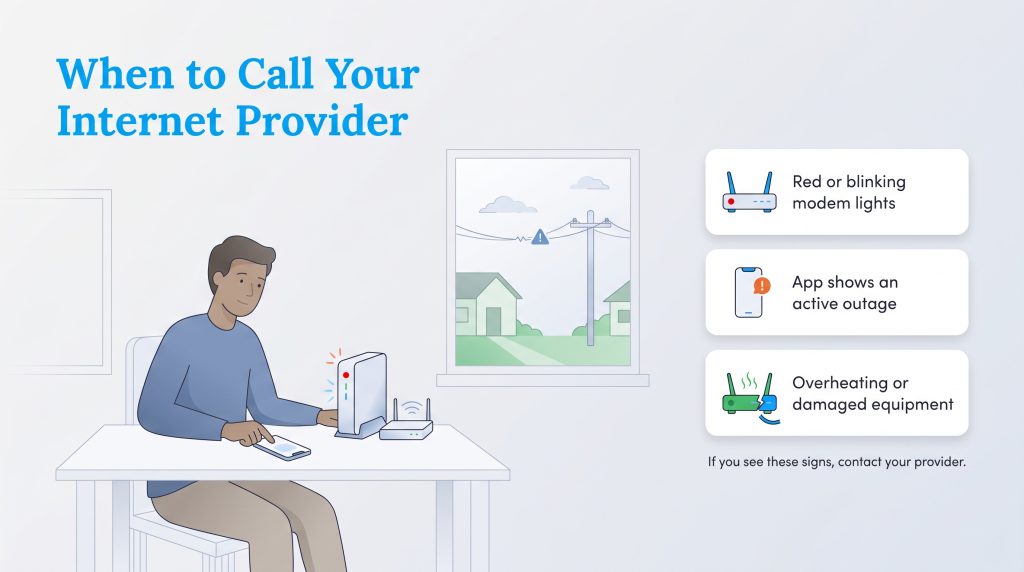
While many internet hiccups can be solved with a quick reset, some scenarios require professional help. You should reach out to your internet service provider if you encounter any of the following warning signs:
- Your modem stays red after a full power-cycle reboot.
- The downstream or upstream (DS/US) lights keep blinking for more than 15 minutes.
- Your provider app shows an active outage in your neighborhood.
- Your account or new address has not been properly activated yet.
- The modem feels unusually hot, smells burnt, or repeatedly shuts itself off.
- You notice damaged outdoor lines or a loose wall jack.
Managing Your Network Equipment Energy Consumption
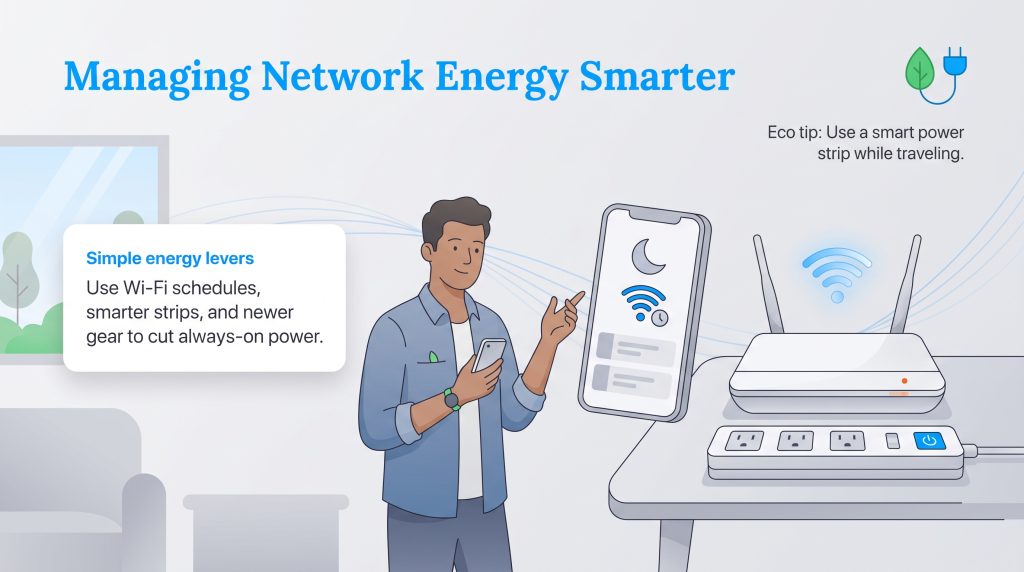
Your internet hardware works hard, but it also draws constant power around the clock. Your modem and router are always-on devices, which means they use electricity even when you’re not actively browsing, streaming, or working. The power draw is usually modest, but it still contributes to your monthly utility budget. While you shouldn’t constantly unplug your primary gateway — since providers often push vital security patches overnight — you can still utilize energy efficient modem settings. Many modern routers feature a low-power mode or a Wi-Fi scheduling tool accessible via their management app. This allows the device to power down its wireless radios during the hours you are asleep. Keep in mind that turning off Wi-Fi radios overnight may disconnect your smart home devices, security cameras, or smart thermostats. For more comprehensive strategies to trim down your household footprint, you can easily save on your electric bill by identifying other energy-vampire appliances. If your equipment is several years old, ask your provider whether newer hardware uses less power, supports current Wi-Fi standards, and receives regular security updates, which keeps your home network both fast and efficient.
| Action | Energy Impact | Trade-Off |
|---|---|---|
| Dim LED lights | Very small | Reduces bedroom light pollution |
| Use Wi-Fi scheduling | Small to moderate | Smart devices may disconnect |
| Replace outdated equipment | Varies | May require provider approval |
| Unplug while traveling | Moderate during trips | Remote cameras and smart devices will not work |
🌱 Eco Edge: Plugging your modem and router into a smart power strip is an environmentally mindful choice that makes it incredibly easy to cut power to your networking devices when you go out of town.
Bringing Your Home Network Back Online
You don’t need an IT degree to manage your home internet. Understanding what those glowing icons indicate gives you more control of your network connectivity. While seeing a red or blinking orange light can certainly induce a momentary spike in frustration, running through a few basic troubleshooting steps usually resolves the issue in a matter of minutes. By actively maintaining your equipment and recognizing when a simple reboot is necessary, you help keep your connection more reliable and frustration-free for your entire household.
Frequently Asked Questions About Modem Lights
Why is my internet light off but the DSL light is on?
Is it safe to cover the blinking lights on my router in my bedroom?
What does a red light on my modem mean?
How do I know if I need a new modem or router?
Why is my modem online but my Wi-Fi not working?
Should I unplug my modem every night to save electricity?
Why are my modem lights blinking after I move in?
About the Author

LaLeesha has a Masters degree in English and enjoys writing whenever she has the chance. She is passionate about gardening, reducing her carbon footprint, and protecting the environment. She also recently served as President of the Board for City Sprouts (a community garden).

David has been an integral part of some of the biggest utility sites on the internet, including InMyArea.com, HighSpeedInternet.com, BroadbandNow.com, and U.S. News. He brings over 15 years of experience writing about, compiling and analyzing utility data.