

Troubleshooting your internet outage starts with a simple reboot but can also involve diagnosing your router, checking for local service drops, and optimizing your home’s smart network.
Key Takeaways
- Determine the scale of the issue by checking if the internet is down for just one device or your entire home.
- Always restart your modem and router step-by-step before attempting complex network fixes or calling your provider.
- Protect your smart home utilities by setting up backup battery sources and energy-efficient network equipment.
Losing your connection while working from home, streaming, or managing smart home devices can derail your whole day. This internet outage troubleshooting guide walks you through the fastest ways to diagnose the problem, restart your equipment, check for a local outage, and know when it’s time to contact your provider. You don’t need an IT degree — just a calm, step-by-step approach.
Determine the Scope of Your Internet Outage
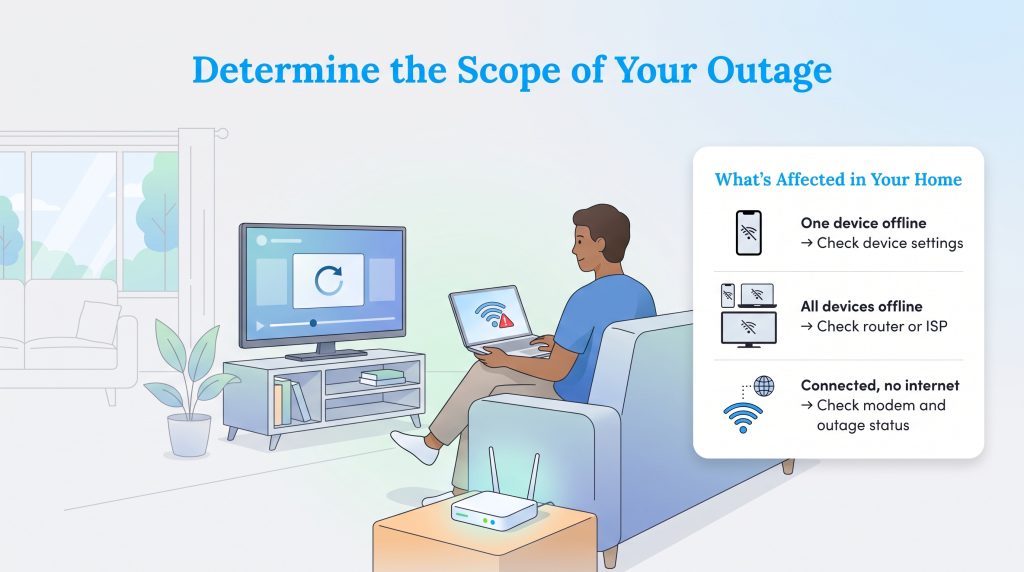
When you find yourself staring at a loading screen and asking why is my wifi not working, your first job is to figure out whether the issue is limited to one device or affecting your whole home network. Grab your smartphone, check your laptop, and see if your smart TV is still streaming. By checking multiple devices, you can quickly narrow down the suspect.
If only one device is offline while the rest of the house hums along perfectly, your home network is fine. The issue lies within that specific piece of hardware. A quick restart of your phone or laptop usually clears up temporary software glitches. Sometimes devices just need a minute to refresh their internal network settings.
On the flip side, if every single gadget in your house is completely disconnected, you are dealing with a larger issue. This means the problem originates from your central router or your internet service provider (ISP). At this stage, you need to shift your focus toward managing your home network setup directly rather than fiddling with individual phone settings.
💡 Pro Tip: Before assuming your home network crashed, check your specific device settings to ensure you haven’t accidentally turned on Airplane Mode or disabled the Wi-Fi antenna entirely.
| What You See | Likely Cause | What to Do First |
|---|---|---|
| One device won’t connect | Device setting or software issue | Restart the device, toggle Wi-Fi off and on, and forget/rejoin the network |
| All devices are offline | Router, modem, or ISP issue | Restart your modem and router |
| Wi-Fi shows “connected, no internet” | Router is working, but the modem or ISP connection may be down | Check modem lights and provider outage status |
| Red internet/WAN light | Lost broadband signal or hardware issue | Check cables, then contact your ISP if the light stays red |
| Internet keeps disconnecting | Weak signal, overloaded router, overheating equipment, or ISP instability | Test near the router, reduce connected devices, and check equipment age |
How to Check for an Internet Outage in Your Area
Before you start digging through tangles of cords behind your TV stand, verify whether the problem is actually inside your house. If there is an active internet outage in your area, no amount of router resetting will bring your connection back. Disconnect your smartphone from your home Wi-Fi and use your cellular data to open your provider’s official app. Most major ISPs offer live outage maps right on your account dashboard. You can also check your provider’s text alerts, account portal, support phone line, or official social media updates. If you recently moved and are setting up internet in a new home, make sure your service start date and equipment activation were completed on the correct address.
If your provider’s app is vague, you can also compare reports from neighbors through a reputable outage-reporting site, but treat crowdsourced reports as a clue rather than official confirmation. Finding a massive spike in localized reports confirms that a severed line or maintenance issue has taken down the neighborhood, meaning you just have to wait for the technicians to do their job.
Restart Your Modem and Router Step by Step
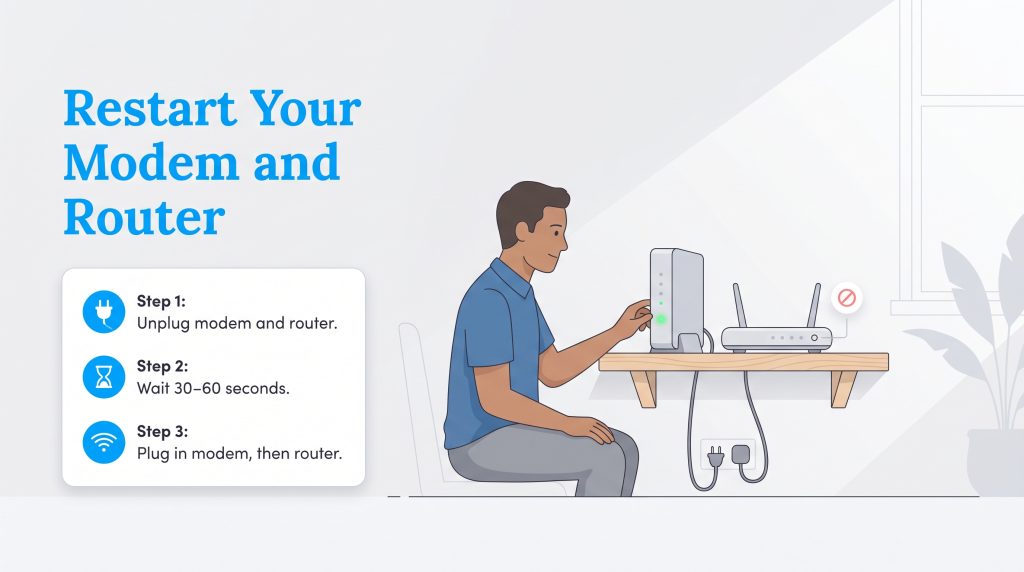
Sometimes the simplest solution remains the most effective. You can often troubleshoot router connection issues by forcing your hardware to completely power down and clear out its temporary memory cache. Follow these instructions to restart your modem and router step by step for a clean network slate:
- Unplug both the modem and the router directly from the wall outlet or power strip.
- Wait 30 to 60 seconds so the equipment fully powers down before it starts a fresh connection with your provider.
- Plug the modem back in first, waiting a few minutes until the indicator lights stabilize.
- Plug the router back in, wait for it to broadcast its signal, and then test your connection.
If you have fiber internet, your setup may include an optical network terminal, or ONT, instead of a traditional cable modem. If your provider’s instructions allow it, restart the ONT or gateway the same way, but avoid unplugging backup battery equipment unless your provider recommends it.
🚩 Heads Up: Never press the tiny “Reset” button on the back of your router with a paperclip unless you intend to completely wipe your custom network name and password back to factory settings.
Why Your Wi-Fi Says Connected but Has No Internet
Paying attention to the physical signals your equipment gives you can eliminate a lot of guesswork. A common scenario is when your phone shows full Wi-Fi bars but refuses to load web pages. Figuring out a connected but no internet fix usually means your device is successfully speaking to your local router, but the router itself has lost contact with the outside world. Start by turning Wi-Fi off and back on to see if the connection refreshes. If that fails, test another device to rule out hardware-specific glitches. Restart your modem, check its lights, and test an Ethernet connection if available. If your modem cannot reconnect to the outside world, you will need to contact your ISP.
What Router Lights and Error Messages Mean
On many routers and gateways, a solid or flashing red Internet, WAN, DSL, or LOS light signals a problem with the connection from your provider. Check your provider’s equipment guide or app to confirm what that specific light means. If you see this red light, check the coaxial or fiber cable screwed into the back of the modem to ensure it hasn’t been bent, chewed by a pet, or yanked loose during cleaning. Don’t open outdoor utility boxes, climb poles, handle damaged lines, or inspect exterior equipment during a storm. If you see a downed line or damaged service box, contact your provider or local utility.
What to Do If Your Internet Keeps Disconnecting
If your internet keeps disconnecting, the problem might be your physical setup rather than an ISP outage. Try moving the router to a central, open location away from microwaves, thick walls, metal cabinets, and cordless phone bases that cause interference. Check whether disconnections happen on Wi-Fi only or on wired Ethernet connections too. Restart or update the router firmware through the provider app, and reduce the number of connected devices temporarily to see if the router is simply overwhelmed.
By taking a few minutes to diagnose these error messages yourself, you can confidently explain the exact symptoms to your provider. Diagnosing your own hardware can ultimately save you from paying for unnecessary technician visits, which goes a long way toward saving money on your internet bill.
Protecting Your Smart Home During an Outage
A downed network causes frustrations for modern, eco-conscious households relying on smart technology. When the Wi-Fi drops, you instantly lose remote access to your smart thermostats, solar panel monitoring apps, and Wi-Fi security cameras. We know how unnerving it is to suddenly lose visibility into your home’s energy production or front door surveillance while you are at work.
Fortunately, most high-quality smart devices are built with failsafes. Many smart thermostats continue using the last saved schedule or local temperature settings when Wi-Fi drops, though remote app control may stop working until the connection returns. Your security cameras might stop pinging your phone, but models with local SD card storage will continue recording footage.
If you rely on smart locks, cameras, or alarm systems, check whether they support local storage, cellular backup, or battery operation before an outage happens. A compact uninterruptible power supply (UPS) for your modem and router can keep your network running during short power interruptions, as long as your provider’s network is still active.
If your internet keeps disconnecting because your older networking gear constantly overheats and crashes under the strain of 20 different smart bulbs, it is time for an upgrade. If your router is overheating, outdated, or overloaded, replacing it with a modern, lower-power model can improve reliability and may reduce unnecessary energy use. Investing in modern, energy-efficient home electronics ensures your network can handle the bandwidth demands of a fully automated home without drawing excessive electricity.
🌱 Eco Edge: If your outdated router requires constant rebooting and runs hot to the touch, swapping it for a newer, energy-saving model reduces phantom power drain and improves your overall connection reliability. Recycle old routers through an electronics recycling program instead of throwing them in the trash, and look for modern routers that support scheduled updates and efficient power management.
When to Escalate and How to Report an Internet Outage
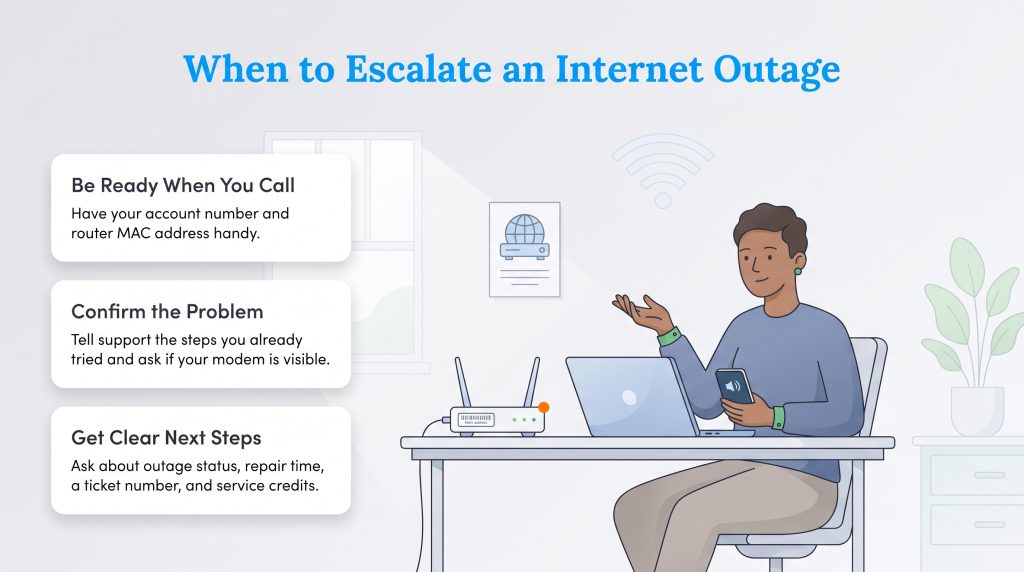
If you have power cycled your equipment, checked your cables, and verified that there are no known local outages, it is time to call in the professionals. If you need to report an internet outage, a little preparation can make the support call faster. Before you dial your provider’s support number, gather your account number and the MAC address printed on the sticker beneath your router. Having this information ready helps the customer service representative immediately pinpoint your hardware on their end.
Be polite but firm when speaking with your ISP. Explain the troubleshooting steps you have already taken so they don’t force you to repeat the standard power cycle script. If they determine that the equipment is failing or the line outside your home is damaged, ask about the next available technician appointment and request a ticket number for follow-up.
Before ending the call, ask the representative a few direct questions to clarify your situation:
- Is my modem visible on your network?
- Is there a known neighborhood outage?
- What is the estimated restoration time?
- Can I have a ticket number for this issue?
- Do I qualify for a service credit if the outage lasts beyond the provider’s policy?
Dealing with notoriously unreliable providers can be exhausting. It pays to know exactly what speeds and reliability metrics you are paying for every month. Reviewing the FCC’s resources on understanding consumer broadband labels and provider transparency empowers you to hold your ISP accountable, or decide it is time to compare internet providers and switch to a more reliable service.
Staying Prepared for Future Network Disruptions
Connectivity hiccups are an annoying reality of modern life, but a logical, step-by-step diagnostic approach resolves the vast majority of these issues. Knowing how your home network operates gives you the power to troubleshoot effectively without feeling overwhelmed or helpless when the screens go dark.
Staying ahead of the curve means keeping your hardware updated, knowing your provider’s contact methods before an emergency strikes, and investing in an eco-conscious router that handles your smart home’s demands. With a bit of patience and the right knowledge, you can keep your digital life running smoothly, no matter what disruptions come your way.
Frequently Asked Questions About Internet Outage Troubleshooting
Why does my Wi-Fi say connected but there is no internet?
How long does a typical internet outage last?
Does bad weather affect my internet connection?
Can an outdated router cause my internet to keep disconnecting?
How do I fix a red internet light on my router?
Should I reset my router or just restart it?
Can I get a credit for an internet outage?
About the Author

David has been an integral part of some of the biggest utility sites on the internet, including InMyArea.com, HighSpeedInternet.com, BroadbandNow.com, and U.S. News. He brings over 15 years of experience writing about, compiling and analyzing utility data.

LaLeesha has a Masters degree in English and enjoys writing whenever she has the chance. She is passionate about gardening, reducing her carbon footprint, and protecting the environment. She also recently served as President of the Board for City Sprouts (a community garden).